
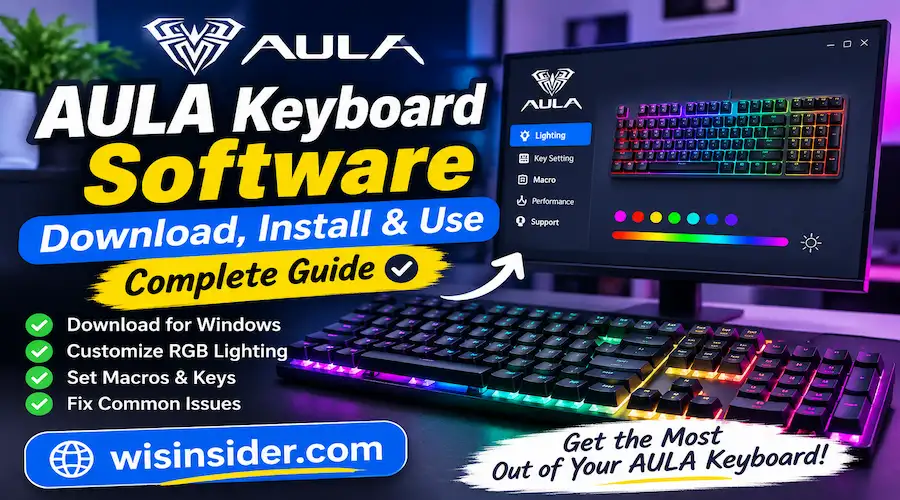
AULA Keyboard Software: Download, Install, and Customize Your Keyboard

Mechanical keyboards offer more than comfortable typing and attractive RGB lighting. With the right software, you can customize keys, create shortcuts, adjust lighting effects, and improve your gaming setup. However, finding the correct software for your particular keyboard model is essential.
AULA Keyboard Software helps users access customization features supported by their devices. Depending on the model, these features may include key remapping, macro programming, lighting controls, and other configuration options.
In this guide, you’ll learn how to find the official download, install the correct driver, customize your keyboard, and resolve common software problems. Whether you own an AULA F75, F99 Pro, F108 Pro, or another compatible model, these instructions will help you get started.
What Is AULA Keyboard Software?
AULA keyboard software is a configuration tool designed for supported AULA keyboards. It allows users to manage certain keyboard features through a computer instead of relying entirely on physical key combinations.
The available functions depend on your keyboard model and software version. Some devices support extensive customization, while others offer more limited controls.
Here are some features you may find:
- RGB lighting customization: Adjust supported lighting colors, patterns, brightness, and effects.
- Key remapping: Assign different functions to compatible keys.
- Macro creation: Record or configure sequences of commands for supported applications.
- Profile management: Save different configurations when the software supports profiles.
- Keyboard configuration: Access additional device-specific settings.
For example, a gamer might create a dedicated profile for a favorite game. Meanwhile, an office user could configure convenient shortcuts for everyday tasks.
Remember that not every AULA keyboard supports every feature. Always check the specifications for your exact model before downloading software.
Where to Download AULA Keyboard Software
The safest approach is to download drivers directly from an official AULA support website. Different models may require different software packages, so avoid assuming that one driver works with every keyboard.
Use these official resources to find compatible downloads:
- AULA Gaming official download center search for supported keyboard drivers, software, and firmware.
- AULA Keyboards US downloads browse downloads organized by keyboard series.
- AULA Philippines keyboard drivers — find driver listings for supported keyboard models.
These resources list different products and may vary by region. Therefore, select the website that matches your keyboard and product support information.
How to Find the Correct Keyboard Driver
Before downloading anything, identify your keyboard’s complete model name.
Check the product packaging, purchase receipt, instruction manual, or label on the keyboard. Pay attention to suffixes such as Pro, Max, HE, and version numbers.
These details matter because similar model names do not necessarily share identical software.
Next, open the appropriate official download page and locate your model. Select its driver or software package, then review the available instructions.
If you cannot find your device, contact the manufacturer’s support team. Providing the model name and a clear photograph can help identify the correct download.
How to Install AULA Keyboard Software on Windows
Most users can complete the installation in a few straightforward steps. However, the exact process may vary depending on the downloaded package.
Step 1: Identify Your Keyboard Model
Start by confirming the model printed on your keyboard or packaging. This step helps prevent compatibility problems later.
For example, an F75 and an F75 Max may have separate download options. Never select a package simply because the product name looks similar.
Step 2: Download the Correct Package
Visit the official download center and search for your model.
Choose the appropriate Windows driver or configuration software. If the website offers several files, read their descriptions before proceeding.
Avoid unofficial download sites that bundle drivers with unnecessary applications. Also, scan downloaded files using your computer’s security software.
Step 3: Run the Installer
Locate the downloaded file in your Downloads folder. If it is a ZIP archive, extract its contents first.
Open the installer and follow the displayed instructions. Windows may request permission to make changes to your computer.
Grant permission only when the file comes from a source you trust. Complete the installation and restart your computer if the installer recommends it.
Step 4: Connect Your Keyboard
Connect your keyboard using a supported USB cable or wireless receiver, depending on the model.
Some keyboards require a wired connection for configuration. Others may support software features through particular connection modes.
Check the instructions supplied with your device if the software fails to recognize it.
Step 5: Open the Configuration Tool
Launch the installed application and look for your connected keyboard.
If the device appears, explore its available settings. You can then adjust supported lighting effects, key assignments, or macros.
If the application cannot detect your keyboard, check the troubleshooting section below.
How to Customize RGB Lighting and Keyboard Effects
RGB lighting can give your gaming desk a distinctive appearance. It can also help you personalize your keyboard for different environments.
Open the configuration software and look for the lighting or illumination section, if available.
Depending on your device, you may find options such as static colors, breathing effects, cycling patterns, and brightness adjustments.
Choose a Lighting Style
A static color creates a clean, consistent appearance. Meanwhile, dynamic effects add movement to your desk setup.
For late night work, lower brightness may feel more comfortable. However, brighter effects can make a gaming setup look more vibrant.
Experiment with available settings until you find a suitable combination.
Save Your Preferred Settings
Some keyboards store lighting configurations in onboard memory. Others depend on software running on your computer.
If your keyboard supports profiles, save your favorite configurations for easy access. Then, test whether your selected effects remain active after closing the application.
This simple check helps you understand how your particular keyboard handles saved settings.
How to Remap Keys and Create Macros
Key remapping allows you to change the function of supported keys. Macros take this customization further by combining multiple actions into a single command.
For instance, a content creator might assign a convenient shortcut to a frequently used function. Similarly, a gamer might configure a macro for a permitted sequence of repetitive actions.
To configure these features, open the relevant section in your keyboard application.
Select the key you want to modify, then choose an available replacement function. Follow the instructions to apply and save the changes.
For macros, use the recording or editing interface provided by your software. Test each macro before relying on it during important work.
Important: Some games prohibit automated macros or specific input sequences. Review the relevant game’s rules before using these features.
AULA Keyboard Software Compatibility and Supported Models
Compatibility is one of the most important factors when choosing a driver. AULA sells several keyboard series, and their configuration options can differ considerably.
Its official download resources include products such as the F75, F75 Max, F99, F99 Pro, F108 Pro, S99, and other models.
However, the appearance of a model name on a download page does not guarantee that every software version supports every hardware revision.
Before installation, check the following:
| Compatibility factor | What to check |
| Keyboard model | Confirm the complete model name and version. |
| Operating system | Verify that the download supports your Windows version. |
| Connection mode | Check whether USB, wireless receiver, or another mode is required. |
| Software features | Confirm support for lighting, macros, or key remapping. |
| Firmware requirements | Follow model-specific instructions before updating firmware. |
If you use macOS or another operating system, verify compatibility before downloading a Windows-only application.
Common AULA Keyboard Software Problems and Fixes
Even compatible keyboards can occasionally experience software issues. Fortunately, several basic checks can help identify the cause.
Software Cannot Detect the Keyboard
First, check the USB connection and make sure the keyboard has power.
If your model supports multiple connection modes, try the connection recommended by its manual. Then, close and reopen the configuration application.
You should also confirm that you installed the correct driver for your exact keyboard.
RGB Lighting Settings Do Not Work
Some lighting effects depend on the keyboard’s current operating mode. Others may require the configuration software to remain open.
Check whether your keyboard supports software-controlled lighting in its current connection mode. Also, verify that the selected effect is compatible with your model.
If necessary, restore the default lighting settings and try again.
Download Will Not Install
A downloaded package may be incompatible with your operating system or keyboard.
Delete incomplete downloads and obtain a fresh copy from the official support page. Then, review the installation instructions.
If Windows displays a security warning, verify the file’s source before proceeding. Never disable security protections simply to install an unverified driver.
Keyboard Stops Responding After an Update
Disconnect and reconnect the keyboard using its recommended connection method.
Restart your computer and check the manufacturer’s troubleshooting instructions. If the problem continues, contact support before attempting additional changes.
Avoid installing firmware from another model. An incorrect firmware update can cause serious device problems.
FAQs
Where can I download AULA keyboard drivers?
Visit the official AULA download center and search for your exact model. Choose the matching driver or software package and follow the manufacturer’s instructions.
Is AULA keyboard software free?
Official keyboard drivers and configuration downloads are generally provided through AULA’s support resources. Check the relevant product page for the available files and any specific requirements.
Can I customize RGB lighting with AULA software?
Some compatible models offer software-based RGB customization. Available colors, patterns, brightness controls, and effects depend on the specific keyboard.
Why is my AULA keyboard not detected by the software?
Check the connection, selected operating mode, and installed driver. Make sure the application supports your exact model and restart it after reconnecting the keyboard.
Does every AULA keyboard use the same driver?
No. Different keyboard models and hardware revisions may require different software packages. Always confirm compatibility before installation.
Should I update my AULA keyboard firmware?
Update firmware only when the manufacturer recommends it or when you need to address a specific issue. Follow the instructions for your exact model and avoid interrupting the update.
Can I use AULA keyboard software on a Mac?
Compatibility varies by model and application. Check the official product documentation for macOS support before downloading a driver.
Can I use my keyboard without installing the software?
Many AULA keyboards work for basic typing without dedicated software. However, advanced customization features may require the compatible configuration application.
Conclusion
The right configuration tool can help you personalize your keyboard and make better use of its supported features. Start by identifying your exact model, selecting the appropriate official download, and following the installation instructions.
AULA Keyboard Software can make lighting adjustments, key remapping, and macro configuration easier on compatible devices. Nevertheless, the available features depend on your keyboard model and software version.
For the best results, use official downloads, verify compatibility, and avoid unnecessary firmware updates. With the correct setup, you can create a keyboard configuration that suits your gaming sessions, work routine, and personal preferences.
Read More information content Follow Wisinsider