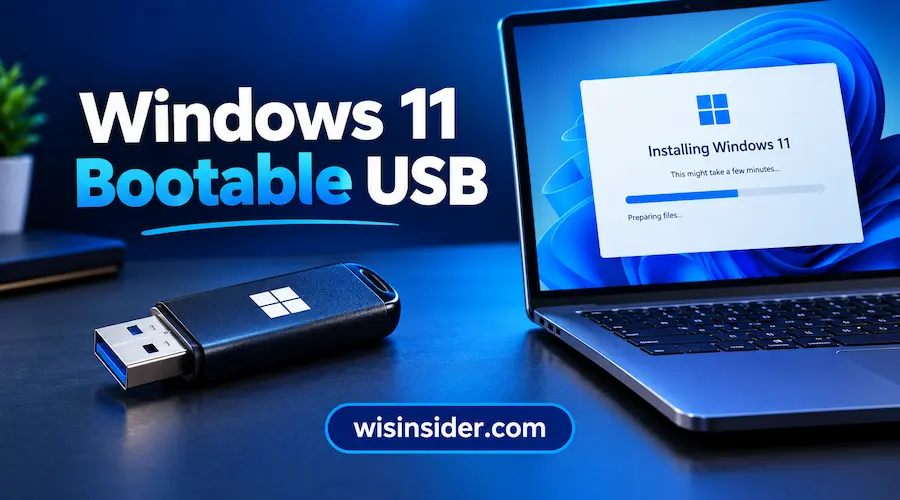
Windows 11 Bootable USB: How to Make One and Use It

A Windows 11 bootable USB is a flash drive that holds the Windows 11 installer, so your PC can start from it and install or repair Windows. You need it for a clean install, a reinstall after a crash, or a new PC with an empty drive. Microsoft’s Media Creation Tool builds one in a few clicks, and Rufus gives you more control when you already have an ISO file.
This guide shows three ways to make the drive, where to download the 64-bit ISO, how to open the boot menu on Dell, HP, Lenovo and other brands, what to do without a USB drive, and how to fix the errors people hit most often.
Quick Answers
To make a bootable USB for Windows 11, plug in a USB drive of 8 GB or larger (16 GB is safer), download Microsoft’s Media Creation Tool, choose “USB flash drive” and let it finish. Then restart the target PC, open the boot menu, pick the USB drive and follow Setup.
Everything on the USB drive is erased So back it up first.
What Does a Bootable USB Do and When Do You Need One?
A bootable USB lets a PC start from the flash drive instead of its internal drive, which is how you install or repair Windows when the system itself can’t help. You need one when you want to:
- Do a clean install and start with a fresh system
- Reinstall Windows after malware, corruption or a boot failure
- Set up a new PC or a replacement SSD that has no operating system
- Install Windows 11 on several computers without downloading it each time
- Move off Windows 10, which Microsoft stopped supporting in October 2025
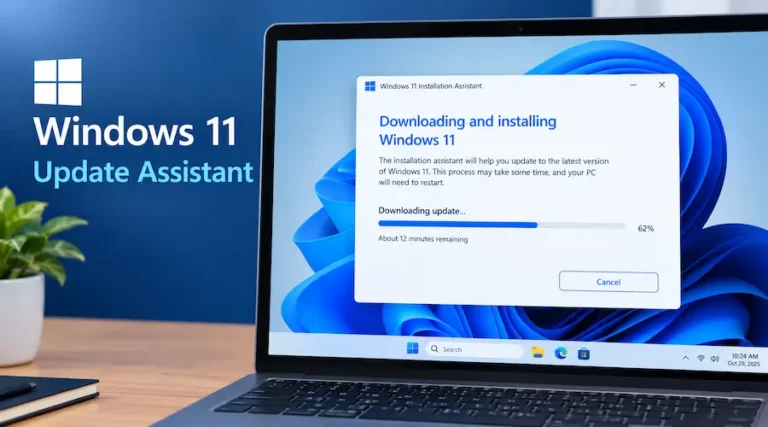
You don’t need one to upgrade a working Windows 10 PC. Windows Update or Microsoft’s Installation Assistant handles that without any drive.
What You Need Before You Make a Windows 11 Bootable USB
You need a USB drive, a Windows PC with internet, and a target PC that meets Windows 11’s requirements.
How Big Should the USB Drive Be?
Microsoft’s minimum is 8 GB, and the drive must be blank because its contents are deleted. In practice, choose 16 GB. Reports put the current x64 ISO at roughly 8.4 GB, and the file size varies by language and release.
A 16 GB drive gives you room if you copy the ISO files yourself or use Rufus. A USB 3.0 drive also writes and installs faster. Buy a known brand such as SanDisk, Samsung or Kingston, because cheap no-name drives sometimes report a false capacity and fail partway through.
Which PCs Can Run Windows 11?
You can make the USB on any Windows PC. The PC you install on must meet Windows 11’s official minimums:
| Requirement | Minimum |
| Processor | 64-bit, 1 GHz, 2 or more cores |
| RAM | 4 GB |
| Storage | 64 GB |
| Firmware | UEFI with Secure Boot capability |
| Security chip | TPM 2.0 |
Windows 11 is 64-bit only, so there is no 32-bit download. To check the target PC, run Microsoft’s PC Health Check. To confirm it starts in UEFI mode, press Win + R, type msinfo32, and look for BIOS Mode: UEFI.
Backup and Activation
Back up anything you care about, on both the USB drive and the PC you plan to wipe. You can skip the product key during setup and activate afterward. A PC that has already activated Windows usually reactivates itself once it connects to the internet, because the license is tied to the hardware.
Which Version Will You Get?
Microsoft’s Windows 11 download page offers the current release, which is now version 26H2 (the 2026 Update). The Media Creation Tool also downloads only the current public release. If you made a USB for 25H2 earlier, it still works, but you will need to install updates afterward. Rebuild the drive when you want the newest version.
Which Method Should You Use?
Use the Media Creation Tool if you want the simplest official route, and Rufus if you already have an ISO or need more control.
| Method | Best for | Needs | Skill level |
| Media Creation Tool | Most people | Internet, USB drive | Beginner |
| ISO + Rufus | Offline installs, Arm PCs, unsupported hardware | ISO file, Rufus | Beginner to intermediate |
| Ventoy | Keeping several ISOs on one drive | Ventoy, ISO files | Intermediate |
| Command Prompt (DiskPart) | No extra software | ISO, admin rights | Advanced |
If you are unsure, start with the Media Creation Tool.
Create a Windows 11 Bootable USB With the Media Creation Tool
Microsoft’s Media Creation Tool downloads Windows 11 and writes it to your USB drive in one guided process.
- Plug in the USB drive.
- Open Microsoft’s Download Windows 11 page and select Download Now under “Create Windows 11 Installation Media”.
- Run the downloaded file and accept the license terms.
- Choose your language and edition, or keep Use the recommended options for this PC.
- Select USB flash drive and click Next.
- Pick your drive. If it doesn’t appear, unplug it, plug it back in, and click Refresh drive list.
- Wait while the tool downloads Windows 11 and prepares the drive. The time depends on your connection and the drive’s speed.
- When the tool says the drive is ready, click Finish.
The tool creates x64 media only. If your PC has an Arm processor, such as a Snapdragon laptop, use the Arm64 ISO from the next section instead.
Download the Windows 11 ISO (64-bit) From Microsoft
You can download the Windows 11 ISO free from Microsoft’s Download Windows 11 page. An ISO is handy for offline installs, for building the drive with Rufus, or for a virtual machine.
- Open Microsoft’s Download Windows 11 page.
- Scroll to Download Windows 11 Disk Image (ISO).
- Select the multi-edition ISO for x64 devices and click Download Now.
- Choose your language, click Confirm, then click the 64-bit download button.
The download link stays valid for 24 hours. If it expires, repeat the selections to get a new one. One multi-edition ISO covers editions such as Home and Pro, and Setup applies the one that matches your key or digital license.
For Arm-based PCs, use Microsoft’s separate Windows 11 Arm64 ISO page. Build the drive with Rufus, because the Media Creation Tool can’t make Arm media.
Check the file before you use it. Microsoft publishes a SHA-256 hash for each ISO. In PowerShell, run:
Get-FileHash -Algorithm SHA256 “C:\path\to\your-windows-11.iso”
If the result doesn’t match the hash on Microsoft’s page, download the file again.
Make a Windows 11 Bootable USB With Rufus
Rufus is a free, open source tool that writes a Windows 11 ISO to a USB drive and adds options the Media Creation Tool doesn’t have. Download it only from the official Rufus website.
- Plug in the USB drive and open Rufus.
- Under Device, check that your USB drive is selected.
- Beside Boot selection, choose Disk or ISO image and click Select to pick your ISO. Rufus can also download the ISO through the arrow beside the Select button, though its list may lag behind Microsoft’s newest release.
- Set Image option to Standard Windows installation.
- Set Partition scheme to GPT and Target system to UEFI (non CSM).
- Click Start. Rufus then shows a Windows customization window. Choose your options and confirm that the drive will be erased.
- Wait until the status bar fills and shows READY.
Rufus Options for Unsupported PCs
Rufus can remove several Windows 11 checks. Its checkbox is worded like Remove requirement for 4GB+ RAM, Secure Boot and TPM 2.0, and it can also skip the online Microsoft account step and create a local account. The wording changes between versions, so read each option before you confirm.
Use these options with care:
- Microsoft doesn’t officially support Windows 11 on hardware that fails its requirements, and it doesn’t guarantee updates for those PCs.
- The processor must still support the POPCNT instruction, or Windows 11 won’t run.
- If your PC meets the requirements, leave these options off.
Other Ways: Ventoy, Command Prompt, Mac and Linux
Ventoy installs once on the drive. After that, you copy ISO files onto it like normal files, and a boot menu lets you choose which one to start. It suits technicians who keep several installers on one stick.
Command Prompt (DiskPart) works without extra software, but it has one catch. Recent Windows 11 ISOs contain an install.wim file larger than 4 GB, and a FAT32 drive can’t store a file that size. If you copy files by hand, you must split that file with DISM:
dism /Split-Image /ImageFile:D:\sources\install.wim /SWMFile:E:\sources\install.swm /FileSize:3800
Here D: is the mounted ISO and E: is your USB drive. Copy everything else from the ISO first, leaving out the original install.wim. If that sounds fiddly, use Rufus, which handles the large file for you.
Mac and Linux: the simplest option is to build the drive on a Windows PC. On Linux, WoeUSB and Ventoy work. On a Mac, you format the drive as FAT32 with a GPT scheme, copy the files, and split the large file with a tool such as wimlib.
How to Boot From the USB and Install Windows 11
To install from the USB, restart the PC, press the boot menu key, choose the USB drive, and follow Windows Setup.
- Plug the finished drive into the PC you want to install on.
- Turn the PC on and press the boot menu key straight away (table below).
- Select the USB drive. If you see two entries, pick the one that starts with “UEFI”.
- Choose your language, time and keyboard, then click Install now.
- Enter a product key, or select I don’t have a product key.
- Choose your edition if Setup asks, then accept the license terms.
- Select Custom: Install Windows only (advanced) for a clean install.
- Choose the drive or partition and click Next. The PC restarts several times.
- Unplug the USB drive at the first setup screen after a restart, so the PC doesn’t boot into the installer again.
Boot Menu Keys by Brand
| Brand | Common boot menu key |
| Dell | F12 |
| HP | Esc, then F9 (or F9 directly) |
| Lenovo | F12 (some models have a Novo button) |
| ASUS | Esc or F8 |
| Acer | F12 |
| MSI | F11 |
| Microsoft Surface | Hold Volume Down while pressing power |
These are the usual keys, and some models differ, so check your manual if nothing happens. If the PC boots straight into Windows, restart and press the key earlier.
Clean Install vs Upgrade
When you boot from the USB, Setup offers a clean install only. The Upgrade option, which keeps your files and apps, appears only if you run setup.exe from the USB while you are inside Windows. Choose the method that matches your goal.
Repair Windows Without Reinstalling
You can also use the USB to fix a PC that won’t start. At the first Setup screen, choose Repair your computer instead of Install now. From there, Troubleshoot gives you Startup Repair, Command Prompt and the option to uninstall recent updates. Try these before you wipe the drive.
No USB Drive? Your Options
You can’t create a bootable USB without a drive, but you may not need one.
- Upgrading Windows 10 on the same PC: use Windows Update or Microsoft’s Installation Assistant.
- Installing over the current Windows: double-click the ISO to mount it, then run setup.exe. This performs an in-place upgrade.
- Reinstalling Windows 11: use Settings > System > Recovery > Reset this PC and choose the cloud download option.
- Testing Windows 11: use the ISO in a virtual machine such as Hyper-V, VirtualBox or VMware.
For a clean install on a PC that can’t boot, you need a drive. An 8 GB or 16 GB one costs very little.
Can You Buy a Windows 11 USB?
You can buy a blank USB drive, and that is all you need. The Windows 11 installer is a free download, so paying for a pre-loaded drive adds risk without adding value. Third-party sellers may ship outdated, modified or counterfeit media. Build the drive yourself from Microsoft’s files, and buy a Windows license only from a seller you trust.
If you searched for “install Windows 11 on USB” because you want to run Windows from a flash drive, that is a different job. Microsoft’s Windows To Go feature isn’t part of Windows 11. Some third-party tools, Rufus among them, can create a portable install, but it is unofficial and usually slower.
Fixing Common Problems
| Problem | What to try |
| USB doesn’t appear in the boot menu | Try another port, rebuild the drive with GPT and UEFI in Rufus, and confirm USB boot is enabled in BIOS/UEFI |
| “This PC can’t run Windows 11” | Turn on TPM (often called fTPM or PTT) and Secure Boot in BIOS/UEFI, or check the PC with PC Health Check |
| Media Creation Tool doesn’t see the drive | Reconnect it, click Refresh drive list, try another port, or use the ISO with Rufus |
| ISO doesn’t fit on the drive | Use a 16 GB or larger drive |
| Setup finds no drives | Load the storage driver from the PC maker’s support page (Intel RST/VMD is a common cause) |
| Copy fails with a file-size error | You hit the FAT32 4 GB limit; use Rufus or split install.wim with DISM |
| PC keeps booting into the installer | Remove the USB after the first restart, or put the internal drive first in boot order |
FAQs
How big a USB drive do I need for Windows 11?
Microsoft’s minimum is 8 GB. Use 16 GB if you write the ISO yourself, because the current x64 ISO is roughly 8.4 GB.
Is the Windows 11 bootable USB free?
Yes. The tools and ISO are free. Windows needs a license to activate fully.
Can I use the same USB on several PCs?
Yes. The drive is reusable, but each PC needs its own valid license.
Is Rufus safe?
It is a well known open source tool. Download it only from the official Rufus site.
Is there a 32 bit Windows 11?
No. Windows 11 runs on 64 bit processors only.
Will creating the USB erase my files?
It erases the USB drive. A clean install also erases the partition you select, so back up first.
Should I rebuild the USB when a new version arrives?
Yes. An older drive installs an older version, and you would have to update afterward.
Can I make the USB on a Mac?
Yes, but it takes more work than on Windows. Building it on a Windows PC is simpler.
How do I make a Windows 11 USB for an Arm laptop?
Download the Arm64 ISO from Microsoft and write it with Rufus.
Conclusion
A Windows 11 bootable USB comes down to three things a reliable drive of 16 GB or more, official Microsoft files, and the right tool for your situation. Use the Media Creation Tool for the simple route, Rufus when you have an ISO or an Arm or older PC and a virtual machine or in-place upgrade if you have no drive at all.
Keep the finished USB somewhere safe, and rebuild it when a new Windows 11 release arrives. Then you’ll have a current install and repair tool ready the next time Windows needs one.