Windows Restart Command: 5 Ways to Reboot From the Command Line

Your PC freezes ten minutes before a deadline. The Start menu will not open. The mouse still moves, but every click does nothing. Most people grab the power button. That is the riskiest move on the list.
A proper Windows restart command closes your apps in order and protects your files. It also gives you control the Start menu never offers. You can set a timer, show a message, boot into recovery, or restart a PC across the office.
This guide covers every practical method. You will learn the exact syntax, what each switch does, and where people go wrong. By the end, you will restart any Windows machine with confidence.
Quick answer
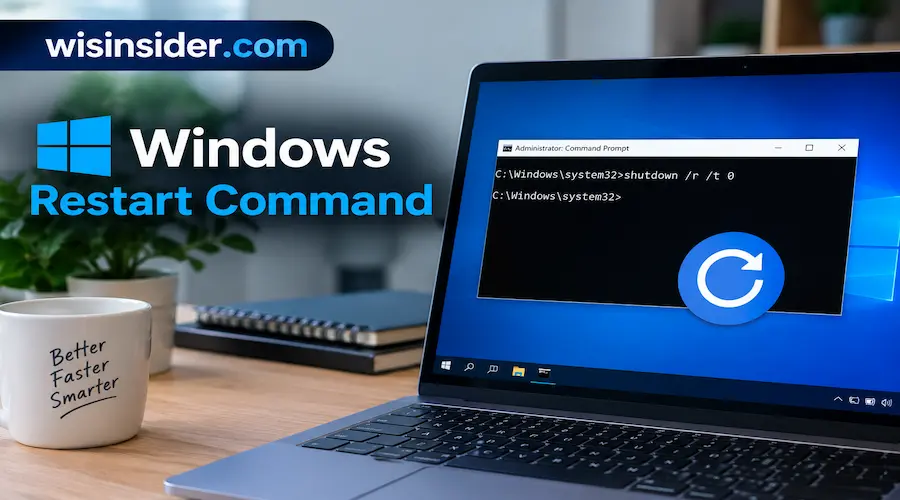
To restart Windows from the command line, open Command Prompt and run shutdown /r /t 0. The /r switch means restart. The /t 0 switch removes the default 30 second wait. This works on Windows 11, Windows 10, and Windows 7.
This guide covers every practical method. You will learn the syntax, the switches, the shortcuts, and the fixes. By the end, you will restart any Windows PC from the command prompt, even when things go wrong.
Windows Restart Command Not Working? Try These Fixes
Start here if the command has already failed. Work through these checks in order. Most problems fall into the first four.
- Check the slash. The switch is /r, not \r. Backslashes are the most common typo.
- Retype the command by hand. Pasting from a web page can swap a plain hyphen for a long dash. Windows then rejects the switch.
- Look for a pending timer. Run shutdown /a. If it says no shutdown was in progress, you are clear. Then try again.
- Open Command Prompt as administrator. Right click it and choose Run as administrator. This fixes many permission errors.
- Add the force switch. Run shutdown /r /f /t 0. This closes apps that block the restart.
- Use the full path. If you see “‘shutdown’ is not recognized,” type C:\Windows\System32\shutdown.exe /r /t 0. A broken PATH variable causes this error.
- Repair system files. Run sfc /scannow, then DISM /Online /Cleanup-Image /RestoreHealth. These tools fix damaged Windows components.
- Check your user rights. On a work PC, Group Policy may block the “Shut down the system” right. Ask your IT team.
Still stuck? Jump to the section on why the command fails. It explains the causes behind each symptom.
5 Ways to Run the Windows Restart Command
The Windows restart command has more than one door into the same room. Pick the one that matches your situation.
Command Prompt (about 10 seconds)
Press the Windows key, type cmd, and press Enter. Then type shutdown /r /t 0 and press Enter.
Windows closes your apps and restarts. If any app holds unsaved work, you see a prompt.
PowerShell or Windows Terminal (about 10 seconds)
Windows 11 uses Windows Terminal as the default console on current builds. It hosts PowerShell, Command Prompt, and other shells in tabs. The same shutdown /r /t 0 line works in all of them.
You can also use the native cmdlet Restart-Computer. The PowerShell section below covers it.
The Run dialog (about 5 seconds)
Press Windows key + R. Type shutdown /r /t 0 and press Enter. This is the fastest route when you do not want a console window.
Task Manager (about 15 seconds)
Press Ctrl + Shift + Esc. Choose File, then Run new task. Type shutdown /r /t 0 and confirm. This route helps when the desktop is frozen but Task Manager still opens.
A batch file or shortcut (about 2 minutes to build)
Save a text file named restart.bat with one line inside. Use shutdown /r /t 30 /c “Restarting in 30 seconds.” and run it whenever you need it. The one click shortcut section shows another way.
My view is simple. Learn the Run dialog method first. It needs no console, no menu, and no mouse.
Restart Command Options That Matter
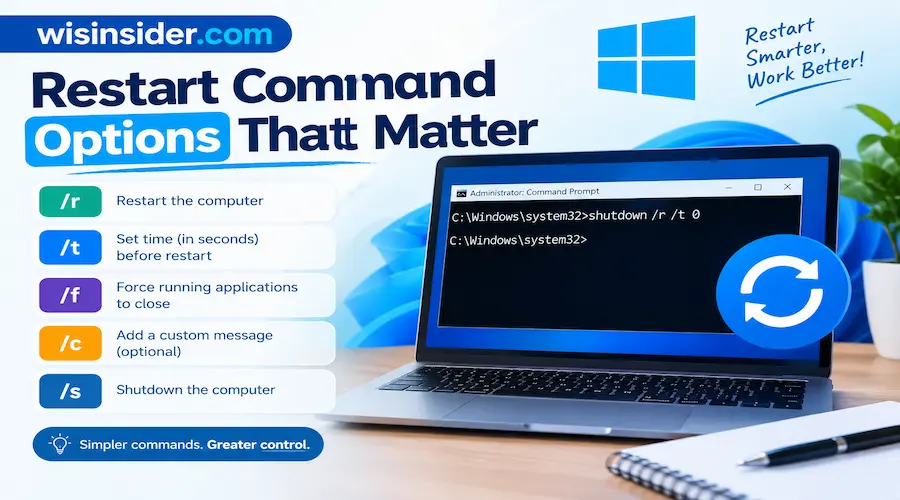
The shutdown tool lives in C:\Windows\System32\shutdown.exe. It has many switches. Most people only know two or three. The rest turn a plain restart into a toolkit.
| Switch | What it does |
| /r | Restarts the computer |
| /s | Shuts the computer down |
| /t xxx | Sets a delay in seconds (0 to 315360000) |
| /f | Forces running apps to close |
| /c “text” | Shows a message to users (up to 512 characters) |
| /m \\name | Targets a remote computer |
| /o | Opens the advanced boot menu (use with /r) |
| /fw | Restarts into UEFI firmware setup (use with /r) |
| /a | Aborts a pending shutdown or restart |
| /d | Records a reason code for the event log |
Three details trip people up.
First, the default delay is 30 seconds when you skip /t. You get a warning balloon, and nothing happens instantly.
Second, the /d switch takes a code such as p:4:1. That code marks a planned application maintenance restart in the log. It helps auditors later.
Third, you can type shutdown /? in any console to see the full list.
For deeper reference, Microsoft documents every switch in its shutdown command reference. New to consoles?
Does the Windows Restart Command Work on Windows 11, 10, and 7?
Yes. The core command is identical across all three versions. The differences sit in the extras.
| Feature | Windows 11 | Windows 10 | Windows 7 |
| shutdown /r /t 0 | Yes | Yes | Yes |
| /o advanced boot menu | Yes | Yes | No |
| /fw firmware setup | Yes | Yes | No |
| Win + X power menu | Yes | Yes | No |
| Restart-Computer cmdlet | Yes | Yes | Older version only |
Here is what this means in practice.
Windows 11: To restart from Command Prompt on Windows 11, type shutdown /r /t 0. You can use Windows Terminal or the classic console. The behavior is the same.
Windows 10: Everything in this guide applies. Microsoft ended mainstream support for Windows 10 in October 2025. Plan your move to Windows 11 soon.
Our Windows 10 to Windows 11 upgrade checklist can help.
Windows 7: The basic restart works, but /o and /fw do not exist. Microsoft ended support for Windows 7 in January 2020. Use shutdown /r /t 0 and avoid internet facing use. If you must keep a Windows 7 machine, isolate it from the network.
How Do You Restart Windows With Only the Keyboard?
Sometimes the mouse is the problem. These keyboard methods restart a PC without touching it.
- Windows key + X, then U, then R. This opens the Power User menu in Windows 11 and 10. The U key opens the shutdown submenu, and R picks Restart.
- Alt + F4 on the desktop. Close or minimize every window first. The Shut Down Windows dialog appears. Choose Restart and press Enter.
- Ctrl + Alt + Delete, then the power icon. Use the arrow keys to reach the power button. This works even when Explorer is slow.
- Windows key + R, then shutdown /r /t 0. This is the closest thing to a true restart shortcut.
- Ctrl + Alt + End in Remote Desktop. This reaches the remote PC. Ctrl + Alt + Delete reaches yours.
The third method rescues more frozen PCs than any other. When the desktop hangs, the secure sign in screen often still responds. Our Windows keyboard shortcuts cheat sheet lists many more.
Looking for the command to restart a PC from the keyboard? The Run dialog method is it. Press Windows key + R, type the command, and press Enter. Your hands never leave the keys.
How Do You Force a Restart When Windows Won’t Cooperate?
A frozen PC needs a ladder of options. Climb it one rung at a time. Never jump to the last rung. Our frozen computer fix guide covers deeper causes.
- Add /f to the command. Run shutdown /r /f /t 0. The force switch closes stubborn apps without asking.
- Open Task Manager. Press Ctrl + Shift + Esc. If an app is not responding, select it and choose End task. Then try a normal restart.
- Restart Explorer only. If just the taskbar froze, run taskkill /f /im explorer.exe in Task Manager’s Run new task box. Then run explorer.exe the same way.
- Use the sign on the screen. Press Ctrl + Alt + Delete and use the power icon.
- Hold the power button. Hold it for about ten seconds. This is a hard power off, not a restart. Use it only as the very last resort.
Why the caution? The force switch and the power button both risk unsaved work. Windows can also leave files half written. A hard power off can trigger a disk check on the next boot.
My opinion: treat /f like a fire extinguisher. Keep it close, and do not use it daily.
How Do You Build a One Click Restart Shortcut?
A desktop shortcut turns the Windows restart command into a double click. It suits family members and less technical coworkers.
- Right click an empty spot on your desktop.
- Choose New, then Shortcut.
- Enter shutdown.exe /r /t 0 as the location.
- Name it Restart Now and finish the wizard.
Right click the shortcut and open Properties to change its icon. That makes it easy to spot. For more ideas, see our desktop shortcut guide.
A word of warning. An accidental double click restarts the PC at once. Use /t 30 and add /c “Restarting in 30 seconds.” for a safer version. People then have time to cancel.
Prefer a keyboard trigger? Open the shortcut’s Properties and click the Shortcut key box. Press a key combination such as Ctrl + Alt + R. Windows assigns it to the shortcut.
Can Power Shell Restart Windows Too?
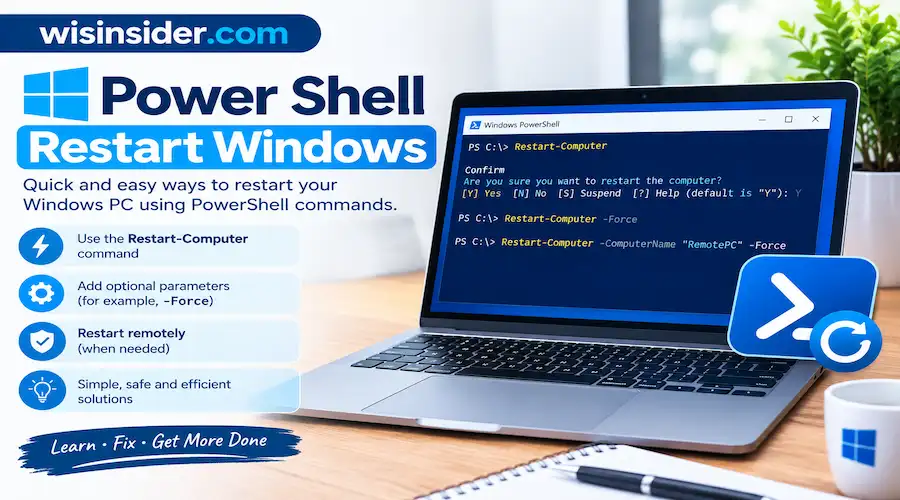
Yes. PowerShell ships with the Restart-Computer cmdlet. It reads like plain English.
Restart Computer
That single word restarts the local PC. The cmdlet also takes useful parameters:
- -Force closes apps that refuse to quit.
- -ComputerName targets another machine.
- -Delay waits a set number of seconds.
- -Wait pauses a script until the target returns.
Here is a realistic example for patch scripts:
Restart Computer -Computer Name “PC01” -Force -Wait -For PowerShell -Timeout 300
This restarts PC01 and waits up to five minutes for PowerShell to respond. The script can then continue.
Microsoft documents every option on its Restart-Computer reference page.
My take: use shutdown for quick one off jobs and PowerShell for anything scripted. The cmdlet gives clearer error messages and fits larger automation.
Changed Your Mind? How Do You Cancel a Restart?
You pressed Enter and instantly regretted it. Do not panic. Run this at once:
shutdown /a
The /a switch aborts the pending action. It only works before the timer reaches zero. That is why a short delay acts as a safety net.
If you see error 1190, a shutdown is already scheduled. Abort the old one first. Then set the new timer.
A small habit helps here. Use /t 15 instead of /t 0 when you work on a busy PC. Fifteen seconds is long enough to cancel and short enough to feel instant.
How Do You Restart a PC Over Remote Desktop or a Network?
Remote restarts are where this command earns its keep. IT teams rely on them for patch night.
Inside a Remote Desktop session
Connect with Remote Desktop Connection (mstsc.exe). Need setup help? Open Command Prompt inside the session. Run shutdown /r /t 0. The session ends while the remote PC restarts.
You can also use the Start menu inside the session. Some policies hide the restart option. The command still works.
From your own PC to another PC
Use the classic tool:
shutdown /r /m \\PC01 /t 60 /c “Maintenance restart in one minute. Please save your work.”
Or use PowerShell:
Restart-Computer -ComputerName PC01 -Force
Both approaches need three things:
- Administrator rights on the remote machine.
- Windows Defender Firewall rules that allow remote management.
- Remote Procedure Call (RPC) and related services running.
The most common failure is “Access is denied,” which is error 5. It points to missing rights or a blocked firewall rule. Check the “Force shutdown from a remote system” right in Local Security Policy. Then check the firewall.
Windows PowerShell 5.1 and PowerShell 7 use different remote transports. Test your script on one PC before you run it on fifty. Windows Firewall rules guide helps with blocked connections.
Illustrative scenario
Picture a small office with twelve PCs. Patch night arrives. Someone must visit each desk, or the team stays late.
With a short script, an admin loops through a list of names and sends each PC a restart. Every user sees a message that gives five minutes to save. The job takes minutes instead of hours.
Why Does Restarting Fix More Than Shutting Down?
This question confuses many readers. The answer matters more than you might think.
Modern Windows uses a feature called Fast Startup. When you shut down, Windows saves part of the kernel state to disk. The next boot loads faster. It does not fully reset the kernel.
A restart is different. It performs a complete reset of the kernel, drivers, and services. That is why restart fixes more glitches than shutdown does.
Restart also finishes pending work. Windows Update often needs it to replace files that are in use. Driver installs and system file repairs wait for it too.
- Restart: Full reset. Best for glitches, finished updates, and driver changes.
- Shutdown with Fast Startup: Partial reset. Best for quick daily use.
A common mistake follows from this. Someone shuts down every night and wonders why a driver bug never leaves. A single restart often clears it.
Which Restart Tips Online Are Wrong?
Search results contain plenty of outdated or misleading advice. Here are the claims I would skip.
- “Use shutdown /s /t 0 to restart.” The /s switch shuts down. You need /r to restart.
- “The command only works as administrator.” Standard users can usually restart their own PC. Policies on work PCs can change that.
- “Windows 11 removed the restart command.” It did not. shutdown.exe still ships in System32.
- “Always add /f to be safe.” Force closes apps without asking. That risks unsaved work.
- “Holding the power button is a restart.” It is a hard power off. It can corrupt files.
- “Shutdown and restart are the same.” Fast Startup makes them different, as shown above.
- “Pressing Ctrl + Alt + Delete twice restarts the PC.” That belongs to the Windows XP era. Modern builds do not do this.
- “A zero delay is the default.” The default is 30 seconds without /t.
Always test any command on a spare machine first. Compare it against Microsoft’s own documentation.
Why Isn’t the Windows Restart Command Working?
The fixes above treat symptoms. This section explains the root causes. Knowing them helps you prevent repeats.
Syntax errors
A wrong slash, a stray space, or a pasted long dash breaks the command. This is the cause in most cases.
Pending Timer
An earlier command may still be counting down. Windows refuses to schedule a second one. This produces error 1190.
Blocking Apps
An open document or a hung program can stop a normal restart. Windows then shows a screen that names the app. The force switch bypasses that block.
Missing Permissions
Group Policy or Local Security Policy can remove the right to shut down the system. This is common on managed work PCs. Remote restarts also need rights on the target.
Damaged PATH or System32
If Windows cannot find shutdown.exe, system files or environment variables may be damaged. Use the full path, then run sfc /scannow. Our System File Checker guide explains the steps.
Stuck Restart
The PC accepts the command but hangs on a spinning screen. Windows Update, a driver, or a failing disk usually causes this. Wait several minutes. If nothing changes, force a power off and check the Event Viewer after boot.
Other signed in users
On shared PCs and servers, other sessions can block a restart. Ask them to sign out or use /f when it is safe.
How Do You Schedule a Restart Automatically?
Some machines need a regular reboot. Think of shared lab PCs and kiosks.
Task Scheduler handles this well. You can also create the task from the command line:
schtasks /create /tn “NightlyRestart” /tr “shutdown /r /f /t 0” /sc daily /st 03:00 /ru SYSTEM
This creates a task named Nightly Restart. It runs daily at 3:00 AM under the SYSTEM account. Microsoft documents every option on its schtasks create page.
Take care with three things:
- Pick a time when nobody works.
- Skip /f if users may leave files open overnight.
- Test the task by hand before you trust it.
Scheduled restarts are a bandage, not a cure. If a PC needs a nightly reboot, find the root cause.
How Do You Find Out Why a PC Restarted?
Sometimes the question is not how to restart, but who did it.
Windows records restart requests in the System log. The key entry is Event ID 1074. It names the process, the user, and the stated reason. Event ID 41 from Kernel-Power points to an unexpected power loss or crash.
Run this in PowerShell:
Get-WinEvent -LogName System | Where-Object Id -eq 1074 | Select-Object -First 5
You see the five latest restart or shutdown requests. This helps with surprise reboots.
To check uptime, run:
(Get-Date) – (Get-CimInstance Win32_OperatingSystem).LastBootUpTime
A very long uptime often explains a sluggish PC.
Which Tools Help You Manage Restarts at Scale?
The Windows restart command suits one PC or a handful. Larger environments need structure. Here are options with honest trade offs based on how these tools are generally described and used.
- Command Prompt. Present on every PC. Limited for automation.
- PowerShell. Best balance of power and readability for most admins.
- Windows Terminal. Adds tabs and profiles. It does not change the command.
- Task Scheduler. Free and built in. The interface feels dated.
- Sysinternals PsShutdown. A free Microsoft tool with extra options. Useful in older environments.
- Group Policy. Controls restart behavior after updates. Changes can apply slowly.
- Microsoft Intune. Strong for cloud managed fleets. It carries a license cost and a learning curve.
- Microsoft Configuration Manager. Powerful for large enterprises. Heavy to set up.
- Windows Admin Center. A browser tool for servers. Handy for quick restarts without scripts.
- NinjaOne and similar RMM platforms. Good dashboards and remote reboot controls. Compare current pricing first.
For most small teams, PowerShell plus Task Scheduler covers the need. Pay for a platform only when you manage many devices across sites. Managing Windows updates shows how restarts fit into patching.
FAQs
How do I restart from Command Prompt in Windows 11?
Open Command Prompt or Windows Terminal. Type shutdown /r /t 0 and press Enter. Your PC restarts at once. Change the number to add a delay.
How do I restart Windows from the command line?
Use shutdown /r /t 0 in Command Prompt, PowerShell, or the Run dialog. In PowerShell you can also use Restart-Computer.
How do I force restart my PC?
Add the /f switch. Run shutdown /r /f /t 0. This closes apps without warning, so save your work first when you can.
How do I restart a PC with key commands?
Press Windows key + X, then U, then R. You can also press Alt + F4 on the desktop. Or use Ctrl + Alt + Delete and pick the power icon.
What is the command to restart a PC from the keyboard?
Press Windows key + R. Type shutdown /r /t 0 and press Enter. This is the closest thing to a restart shortcut.
What does shutdown /r /t 0 mean?
The /r switch restarts the PC. The /t 0 switch sets a zero second delay.
Can I restart another computer?
Yes. Use shutdown /r /m \\ComputerName or Restart-Computer -ComputerName ComputerName. You need admin rights and open firewall access.
Quick Cheat Sheet
- Restart now: shutdown /r /t 0
- Restart in 60 seconds: shutdown /r /t 60
- Force restart: shutdown /r /f /t 0
- Restart with a message: shutdown /r /t 120 /c “Restarting soon.”
- Restart to recovery menu: shutdown /r /o /f /t 0
- Restart to UEFI setup: shutdown /r /fw /t 0
- Cancel a restart: shutdown /a
- PowerShell restart: Restart-Computer
- Remote PowerShell restart: Restart-Computer -ComputerName PC01 -Force
Final Thoughts
Remember the frozen PC from the start of this guide? You now have a calmer plan. Try the Run dialog, then the force switch, then Task Manager. The power button comes last.
The Windows restart command looks tiny, but it opens many doors. You can reboot safely, schedule jobs, recover a broken system, and manage an office from one console.
Start simple. Memorize shutdown /r /t 0 and shutdown /a. Add the other switches as your needs grow.
Pick one trick from this guide and try it today. Build the shortcut or schedule a test restart. Small habits become real skill.
Which restart problem has frustrated you most? Share it in the comments, and I will help you solve it.