Windows 11 Update Assistant: What It Is, Who Needs It and How to Use It

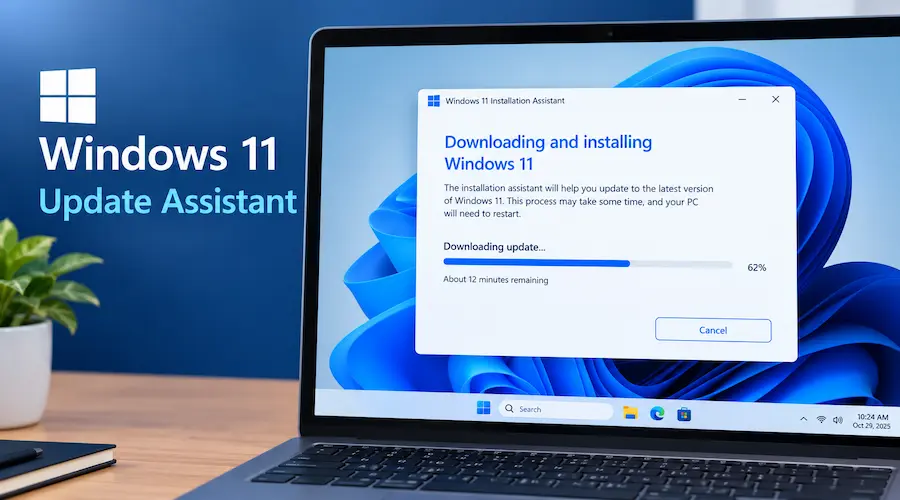
Microsoft’s download page doesn’t mention a “Windows 11 Update Assistant” anywhere, yet thousands of people search for it every month. The tool exists. Microsoft now calls it the Windows 11 Installation Assistant and it upgrades the PC you’re sitting at without a USB drive.
The timing makes this guide urgent. Windows 11 24H2 Home and Pro stop receiving updates on October 13, 2026, just days from now. This article shows you which tool fits your PC, how to run it safely, and what to try when it refuses. It also covers a recent change that trips people up: the 26H2 version of the assistant no longer accepts PCs already on 24H2 or 25H2.
Quick Answer
- Official name: Windows 11 Installation Assistant (also searched as Update Assistant or Upgrade Assistant).
- Where to get it: Microsoft’s Download Windows 11 page.
- Best for: A compatible Windows 10 PC, or a Windows 11 PC on 23H2 or older.
- Already on 24H2 or 25H2? Open Windows Update instead.
- Doesn’t run on: Arm-based PCs.
What Is the Windows 11 Update Assistant?
It’s a guided in-place upgrade. The tool checks that your PC qualifies, downloads Windows 11, installs it over your current system, and keeps your files, apps, and settings. You never build a USB stick.
The naming mess has a simple cause. Microsoft’s support article for the Windows Update Assistant sends Windows 11 users to the download page, where the tool is labeled Windows 11 Installation Assistant. Tutorial sites kept the older name in headings, so people kept searching for it. Different names, one tool.
What it doesn’t do matters just as much. It won’t create installation media for another PC, and it won’t give you a clean install. Microsoft describes it as the best option for installing Windows 11 on the device you’re currently using. For anything else, you need the Windows Media Creation Tool.
Why Updating Matters Right Now
Windows 11 versions have fixed support windows, and several are ending. This table shows where each stands as of early October 2026.
| Version / product | Home and Pro support ends | What it means for you |
| Windows 10 | October 14, 2025 | Past end of support; ESU extension reported to October 12, 2027 |
| Windows 11 23H2 | November 11, 2025 | Already out of support |
| Windows 11 24H2 | October 13, 2026 | Update this week |
| Windows 11 25H2 | October 12, 2027 | Supported, but 26H2 extends it |
| Windows 11 26H2 | October 10, 2028 | Current release |
The 24H2 and 26H2 dates come from Microsoft’s lifecycle information as reported by Techdows: 26H2 Home and Pro reach end of support on October 10, 2028, and 24H2 Home and Pro stop getting updates on October 13, 2026.
For 23H2, Windows Report lists November 11, 2025 as the end date. Confirm exact dates on Microsoft’s lifecycle pages before publishing decisions at work.
What “end of updates” means. Your PC won’t stop booting on October 14. It simply stops getting monthly security fixes, which makes it a growing risk over time.
Good news for most home users. According to Bleeping Computer’s report, unmanaged Home and Pro PCs on 24H2 will be upgraded to 25H2 automatically. Still, waiting for an automatic push leaves you guessing. A manual update on your schedule is safer.
For the Windows 10 side, Microsoft extended free security updates for Windows 10 users by another year, per a June 2026 report. Treat that as breathing room, not a plan.
Pick Your Path in 60 Seconds
Start from where your PC is today, not from the tool names.
| Your starting point | Best choice | Why |
| Windows 10, eligible, upgrade offered | Windows Update | Nothing to download |
| Windows 10, eligible, upgrade missing | Installation Assistant | Upgrades in place |
| Windows 11 on 23H2 or older | Installation Assistant | Moves you to the current release |
| Windows 11 on 24H2 or 25H2 | Windows Update | The assistant turns these PCs away |
| Blank drive, dead PC, or clean install | Windows Media Creation Tool | Builds a bootable USB |
| Virtual machine | Windows ISO | No USB needed |
| Arm-based PC | Windows Update | The assistant runs only on x64 |
| Windows 7 or 8.1 | Move to Windows 10 first | The assistant needs Windows 10 version 2004 or later |
Microsoft’s page lists Windows 11 2026 Update, version 26H2 as the current release. A hands-on test by Purein fo tech found that the 26H2 assistant now refuses upgrades from 24H2 and 25H2 because those versions can use an enablement package.
Do You Need the Windows 11 Installation Assistant If You Already Have Windows 11?
Usually, not. If you’re running Windows 11 24H2 or 25H2, open Settings > Windows Update and select Check for updates. According to Techdows, eligible PCs can receive version 26H2 as a small enablement package, KB5121794 which installs with one restart.
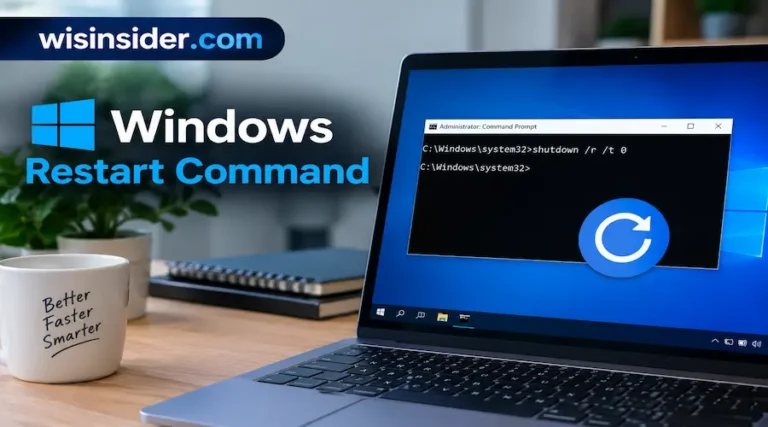
If needed, you can also use a Windows restart command to restart your PC after installation.
An enablement package works like a light switch. The new features already sit inside your current Windows, and the package simply turns them on. That’s why it’s fast and why the full assistant isn’t needed.
The assistant still helps in two cases:
- Your Windows 11 PC runs 23H2 or older.
- Your Windows 10 PC never receives the upgrade offer.
To check your version, press Win + R, type winver, and press Enter.
Eight Checks Before You Start
Most failed upgrades come from something skipped here.
- Back up what you’d hate to lose. The upgrade is built to keep your files, but a backup is cheap insurance. Check your Pictures folder too, because screenshots sit in their own subfolder and people forget it. If you’re unsure where yours landed, see where screenshots go in Windows.
- Save your recovery key. If your drive uses BitLocker or device encryption, store the recovery key somewhere safe. Firmware changes, like enabling TPM, can trigger a prompt for it.
- Confirm your license. Microsoft says you need a Windows 10 or 11 license for the assistant.
- Check your Windows 10 version. Microsoft requires Windows 10 version 2004 or higher.
- Free up space. Microsoft’s minimum is 9 GB of free disk space. I’d clear more, since a roomy drive finishes smoothly.
- Check hardware. Run PC Health Check and read every result, not just the headline. Windows 11 expects a 64-bit processor, TPM 2.0, UEFI with Secure Boot, 4 GB of RAM, and 64 GB of storage. Compare your PC with Microsoft’s Windows 11 specifications.
- Plug in power. On a laptop, connect the charger before you begin.
- Install pending updates and restart. This clears many stuck-upgrade problems. Unplug extra drives and docks too.
Hardware warning. Microsoft states that installing Windows 11 on a PC below the minimum requirements isn’t recommended, that PC won’t be entitled to updates, and damage from the incompatibility isn’t covered by the manufacturer warranty.
Windows 11 Update Assistant Download and How to Open It
Download it only from Microsoft. On the Download Windows 11 page, find the Windows 11 Installation Assistant section and select Download Now. The same page lists installation media and a Windows ISO below it, each with its own button, so pick the first section.
Many readers ask how to download Windows 11 from the Microsoft Store. You can’t. The Store carries apps, while Windows comes from Microsoft’s download page or Windows Update.
Watch for fake pages. Imitation sites sometimes bundle adware with a “Windows 11 download” button. Check that the address ends in microsoft.com, and skip any page that asks for payment. The tool is free.
How to open it: The assistant doesn’t live in your Start menu. Open your Downloads folder, right-click the file, and choose Run as administrator. Microsoft says you need to be an administrator to run this tool.
How to Use the Windows 11 Update Assistant
Plan for about an hour, and expect longer on older PCs or slow internet.
- Run the file as administrator. A plain double-click can fail quietly.
- Watch the compatibility check. If your PC passes, you’ll see the license terms. If it fails, read the message closely, because it often names the blocker.
- Select Accept and Install. The tool downloads and prepares Windows 11.
- Keep your use light. Browsing is fine. Big video exports or game installs are not.
- Select Restart Now when it appears. Microsoft notes the PC will restart a few times and you shouldn’t turn it off.
During the restarts, you’ll see blue progress screens with a percentage. A screen can sit at one number for a long time. That’s normal. Don’t hold the power button unless nothing has changed for several hours.
After the Upgrade: Verify and Clean Up
When the desktop returns, spend ten minutes confirming everything.
- Check your version. Open Settings > System > About. It should show Windows 11 with the version you expected.
- Run Windows Update. Install anything pending, including driver updates.
- Open a few files and apps. Confirm your documents, browser, and key programs work.
- Check activation. Look at the Activation page in Settings.
- Review privacy and default apps. Major updates sometimes reset a few preferences.
- Find the rollback option under Settings > System > Recovery. Windows keeps the old version for a limited time, so note the deadline and test your PC before it passes.
- Free space later. After you’re sure everything works, use Disk Cleanup and choose Clean up system files to remove the previous Windows installation.
25H2, 26H1 and 26H2 Explained
The “H” means half of the year. Here’s what each label means for you.
25H2. Windows 11 25H2 became available on September 30, 2025, and it introduced no new features over 24H2. A PC on 24H2 could move up with the KB5054156 enablement package. After 26H2 arrived, Microsoft’s official tools moved to 26H2, so you’ll find no separate Windows 11 25H2 download on the page now. Third-party scripts can rebuild older ISOs, but I don’t recommend them for a daily-use PC. Choose 26H2.
26H1. It became available on February 10, 2026, but only on devices with Qualcomm Snapdragon X2 chips. Microsoft says it isn’t designed to be offered or installed on existing devices. It also uses a different Windows core, so 26H1 devices can’t upgrade directly to 26H2. If you didn’t buy one of those new PCs, ignore 26H1.
26H2. The current release. It builds on 25H2, so upgrading needs only a small enablement package.
| Version | What it is | Can you install it now? |
| 25H2 | 2025 annual update | Superseded; move to 26H2 |
| 26H1 | Snapdragon X2 launch release | Only preinstalled on select new PCs |
| 26H2 | 2026 Update | Yes, via Windows Update or the assistant |
How Do I Manually Update Windows 11?
You have four routes. Each has trade-offs.
| Method | Best for | Trade-off |
| Windows Update | Any Windows 11 PC | Offer can arrive late |
| Installation Assistant | 23H2 or older, or Windows 10 | Needs 9 GB, admin rights, x64 |
| Mounted ISO + setup.exe | The assistant failed | Larger download; manual steps |
| Windows Media Creation Tool | Clean install, repair, another PC | Wipes data if you do a clean install |
Windows Update: Open Settings > Windows Update and select Check for updates.
Mounted ISO: Download the Windows ISO from Microsoft, right click it, choose Mount, and run setup.exe. Microsoft says mounting the ISO performs an upgrade of your current operating system. Choose to keep files and apps when asked.
After downloading, you can verify the file with PowerShell’s Get File Hash command against the hash Microsoft publishes.
Media Creation Tool: Build a Windows 11 bootable USB and follow our Windows Media Creation Tool guide.
Why Can’t I Upgrade to Windows 11 Anymore?
When the upgrade offer vanishes or never appears, one of these is usually the reason. Check each with the “how to confirm” column.
| Likely cause | How to confirm | Fix |
| Hardware misses a requirement | PC Health Check > See all results | Enable TPM, or see options below |
| TPM is off | BIOS/UEFI (often “fTPM” on AMD, “PTT” on Intel) | Turn it on |
| Secure Boot is off | msinfo32 > Secure Boot State | Enable in UEFI |
| Legacy BIOS or MBR disk | msinfo32 > BIOS Mode shows “Legacy” | Convert to UEFI/GPT (back up first) |
| Compatibility hold | Windows Update message | Wait, or run the assistant |
| Stale Windows Update data | PC Health Check passes, Windows Update says no | Update, restart, recheck |
| Windows 10 older than 2004 | Settings > System > About | Update Windows 10 first |
| Full drive | File Explorer | Free at least 9 GB |
| Arm PC | Settings > System > About | Wait for Windows Update |
| Already on 24H2 or 25H2 | winver | Use Windows Update |
| Windows 7 or 8.1 | Settings | Move to Windows 10 first |
Why PC Health Check and Windows Update disagree. A Microsoft community answer explains it. PC Health Check tests basic hardware, while Windows Update runs a separate check that also weighs cached compatibility data, pending updates, and known driver or software blocks.
Another answer notes that Windows Update may withhold the upgrade because of safeguard holds, rollout timing, or compatibility blocks even when PC Health Check shows the device is compatible.
When the PC Health Check is green but Windows Update says no, run the Installation Assistant. As a community answer puts it, if the assistant accepts the PC, the Windows Update message was likely stale or a temporary hold. If it refuses, its message usually names what still needs attention.
A note on legacy BIOS. Windows 11 needs UEFI boot. If Windows 10 was installed in legacy BIOS mode on an MBR disk, Secure Boot can’t be switched on. Microsoft’s mbr2gpt tool can convert the disk without wiping it, but a mistake can leave the PC unbootable, so back up first and follow Microsoft’s documentation.
If Your PC Doesn’t Qualify
Some PCs simply can’t run Windows 11, and that’s okay. You have four realistic choices.
- Stay on Windows 10 with security updates. The reported extension runs through October 12, 2027. That buys time, not a permanent fix.
- Replace or upgrade the hardware. A newer PC, or sometimes a firmware or storage change, can meet the requirements.
- Move to a different operating system. Some older PCs run well on Linux for browsing and office work.
- Install Windows 11 anyway. Microsoft calls this unsupported and says such a PC loses its update entitlement, so I don’t recommend it for a PC you rely on.
When the Windows 11 Update Assistant Fails
Match what you see to the likely cause.
| What you see | Probable cause | Fix |
| Rejects a 24H2/25H2 PC | 26H2 behavior | Use Windows Update |
| “Doesn’t meet requirements” | Hardware or settings | Read the reason; check TPM and Secure Boot |
| Won’t open | No admin rights | Right-click, run as administrator |
| Looks frozen | Slow drive or low space | Wait, close apps, free space |
| Fails midway | Interference or damaged files | Pause antivirus, unplug extras, restart |
| Shows an error code | Driver, app, or feature block | Search the code in Microsoft’s Upgrade to Windows 11 |
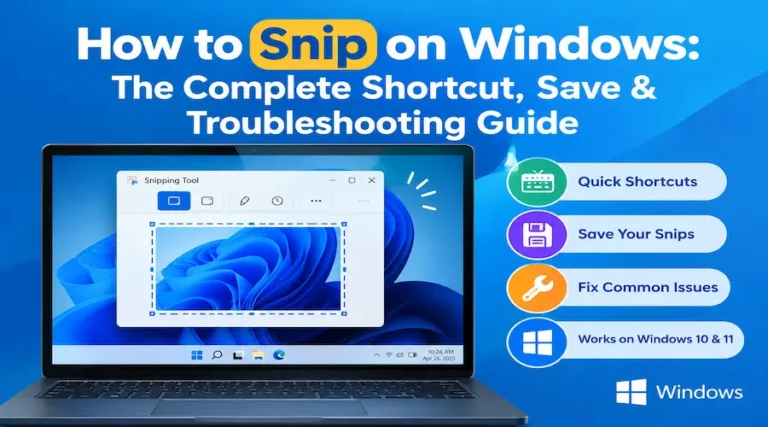
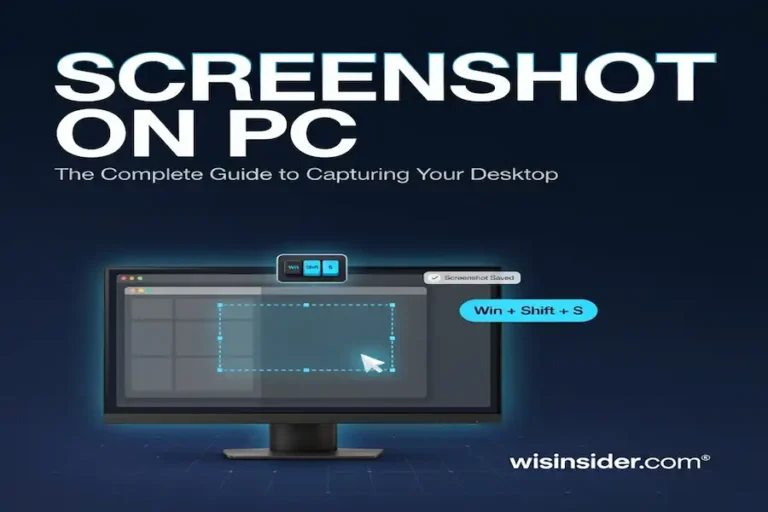
Capture the error before you close it. Press Win + Shift + S to grab a screenshot. The exact wording and code speed up any search or support request. If the image goes missing, here’s where screenshots are saved in Windows.
Then repair your system files. Open Command Prompt as administrator and run these two commands in order:
sfc /scannow
DISM /Online /Cleanup-Image /RestoreHealth
Restart and run the assistant again. If it still fails, use the mounted ISO or the Media Creation Tool.
Windows 10 Update Assistant and Windows 10 Installation Assistant
The Windows 10 Update Assistant is a separate Microsoft tool. It installs Windows 10 version 22H2, and if your PC already reports 22H2 it can’t install a newer regular Windows 10 version.
On Microsoft’s Windows 10 page, Update now downloads the Update Assistant, while Download now under the installation media section downloads the Media Creation Tool. People also search for a “Windows 10 Installation Assistant,” but I found no tool by that name on Microsoft’s Windows 10 page. They usually mean one of those two.
The bigger question is whether to stay on Windows 10 at all. Standard support ended on October 14, and the assistant isn’t a replacement for Windows Update or a source of post-support security fixes. If your PC qualifies, Windows 11 keeps getting regular updates.
When You Need Windows Installation Media Instead
The assistant upgrades only the PC you’re using. For anything else, you need Windows installation media:
- installing on a different PC
- doing a clean install
- repairing a PC that won’t start
- building a virtual machine
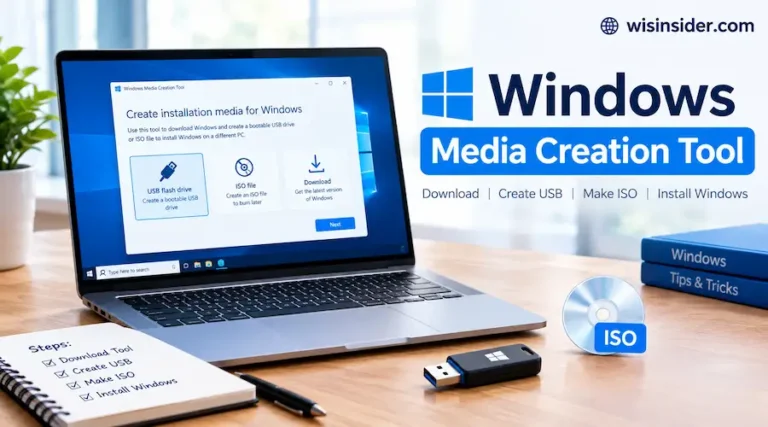
The Microsoft Media Creation Tool (also searched as the Windows 11 media creation tool) builds a Windows 11 bootable USB or saves a Windows ISO. Microsoft describes it as the option to reinstall or clean install Windows 11 on a new or used PC. In short, here’s how to install Windows 11 this way: build the USB, boot from it, choose a custom install, and select your drive carefully. Our Windows Media Creation Tool guide covers every step.
Is Windows 11 Free?
For many people, yes. Microsoft’s page says you need a license to install Windows 11, or a Windows 10 device that qualifies for the upgrade. A qualifying Windows 10 PC upgrades without paying again. A new build with no existing license needs one.
FAQ
What is the Windows 11 Update Assistant?
It’s Microsoft’s tool for upgrading the PC you’re using to Windows 11. The official name is the Windows 11 Installation Assistant.
Is the Update Assistant the same as the Installation Assistant?
Yes. People use both names for the same tool on Microsoft’s download page.
How do I open Windows Update Assistant?
Download it from Microsoft, then right-click the file and choose Run as administrator. It doesn’t appear in the Start menu.
Do I need the Windows 11 Installation Assistant if I have Windows 11?
Usually not. On 24H2 or 25H2, use Windows Update. It helps mostly on 23H2 or older, or on Windows 10.
How do I manually update Windows 11?
Open Settings > Windows Update and check for updates. If that fails, try the assistant or a mounted ISO.
Why can’t I upgrade to Windows 11 anymore?
Common causes are unmet hardware requirements, TPM or Secure Boot off, a legacy BIOS setup, a compatibility hold, low disk space, an old Windows 10 version, or an Arm PC.
When does Windows 11 24H2 support end?
Home and Pro editions reach end of updates on October 13, 2026.
Can I install Windows 11 version 26H1?
Only on select new Snapdragon X2 PCs that ship with it.
Where is the Windows 11 25H2 download?
Microsoft’s page now centers on 26H2. PCs on 25H2 move to 26H2 through Windows Update.
Does the assistant work on Arm PCs?
No. It supports only x64 processors.
Will I lose my files?
The assistant is built to keep files, apps, and settings. Back up anyway.
How do I make a Windows 11 bootable USB?
Use the Media Creation Tool. Our guide has the steps.
Final Thoughts
The Windows 11 Update Assistant, officially the Installation Assistant, solves one problem well: upgrading the PC in front of you when Windows Update won’t. It’s the wrong tool for PCs already on 24H2 or 25H2, for Arm devices, and for clean installs. With 24H2 Home and Pro support ending on October 13, picking the right path this week matters more than usual.
Back up first, check your hardware, and read any refusal message closely, because it usually points to the fix. When the Windows 11 Update Assistant isn’t the answer, Windows Update, a mounted ISO, or the Media Creation Tool will be.