
How to Connect Keyboard to iPad: A Complete Step-by-Step Guide

Connecting a keyboard to an iPad can make typing emails, writing documents, and completing work much easier. Whether you use an Apple Magic Keyboard, a Bluetooth keyboard, or a wired USB keyboard, the setup is usually straightforward.
However, the connection method depends on your keyboard model and iPad port. Some keyboards connect wirelessly, while others require a cable or compatible adapter.
In this guide, you’ll learn how to connect keyboard to iPad step by step. You’ll also discover troubleshooting tips, compatibility information, and ways to improve your typing experience.
How to Connect Keyboard to iPad
You can connect a keyboard to an iPad using Bluetooth, a USB cable, or a compatible keyboard case. Before choosing a method, check whether your keyboard supports your iPad model.
Here are the three main options:
- Bluetooth keyboard: Connects wirelessly through your iPad’s Bluetooth settings.
- USB keyboard: Connects through a compatible USB-C or Lightning adapter, depending on your iPad.
- Apple Magic Keyboard: Compatible models attach directly to supported iPads through the Smart Connector.
For most users, a Bluetooth keyboard offers the simplest setup. However, a compatible keyboard case may provide a more convenient experience for everyday work.
How to Connect a Bluetooth Keyboard to iPad
A Bluetooth keyboard lets you type without connecting a physical cable. It works well for students, professionals, writers, and anyone who frequently uses their iPad for productivity.
Follow these steps to pair your keyboard.
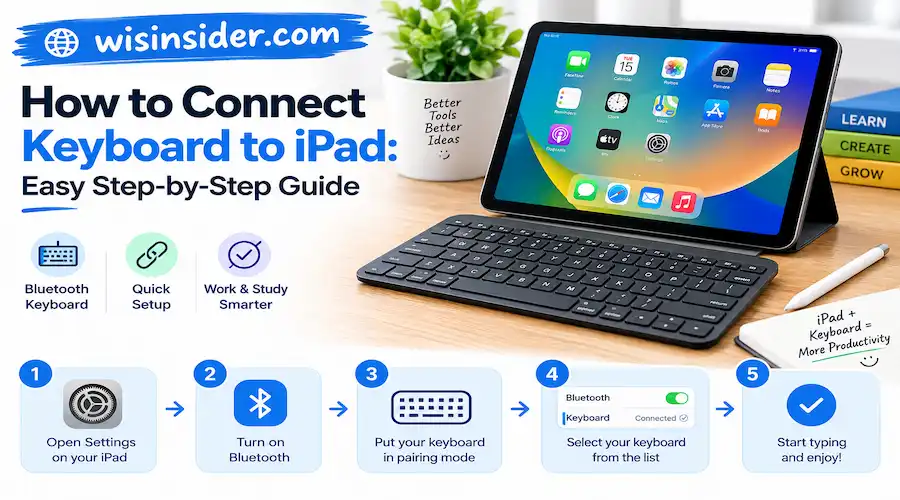
Step 1: Turn On Your Keyboard
First, switch on your wireless keyboard. Make sure its battery has enough charge or install fresh batteries if necessary.
Next, activate pairing mode. Most Bluetooth keyboards have a dedicated pairing button or require you to hold a specific key combination.
Check your keyboard’s instructions if you’re unsure how to activate pairing mode.
Step 2: Open Bluetooth Settings on Your iPad
Unlock your iPad and open the Settings app.
Select Bluetooth from the settings menu. Then, switch Bluetooth on if it is currently disabled.
Your iPad will search for nearby Bluetooth devices while Bluetooth remains enabled.
Step 3: Select Your Keyboard
Keep your keyboard close to your iPad. Once pairing mode is active, its name should appear under the available devices section.
Tap the keyboard’s name to begin pairing.
Some keyboards connect immediately. Others may display a pairing code on your iPad’s screen.
Step 4: Enter the Pairing Code if Required
If your iPad displays a code, type it using the physical keyboard. Then, press Enter or Return to complete the process.
Wait for the keyboard to appear as connected in your Bluetooth settings.
You can now open Notes, Pages, Safari, or another app and start typing.
Step 5: Test Your Keyboard
Open a text field and type a few words. Check whether letters, numbers, and essential shortcuts work correctly.
If the keyboard responds normally, the connection is complete.
Quick tip: If your keyboard does not appear, switch it off and on again. Then, reactivate pairing mode and check the available devices list.
How to Connect an Apple Magic Keyboard to iPad
Apple offers different keyboard products, and their connection methods vary by model. The standard Magic Keyboard for Mac generally uses Bluetooth or a USB cable, depending on its generation.
The iPad-specific Magic Keyboard and Magic Keyboard Folio use a different connection method.
Connecting an iPad Magic Keyboard Case
If you own an iPad-compatible Magic Keyboard case, follow these steps:
- Check whether your iPad model supports the keyboard.
- Align the iPad with the keyboard case’s connectors.
- Attach the iPad securely according to the product instructions.
- Open the keyboard case into a comfortable typing position.
- Open an app and test the keys.
Compatible iPad Magic Keyboard models use Apple’s Smart Connector. Therefore, they generally do not require Bluetooth pairing or separate keyboard charging.
However, compatibility depends on the exact iPad and keyboard model. Check Apple’s official compatibility information before purchasing a keyboard case.
Connecting a Standard Apple Magic Keyboard
If you have a standalone Magic Keyboard designed for Mac, you can usually connect it through Bluetooth.
- Turn on the keyboard.
- Open Settings on your iPad.
- Select Bluetooth.
- Choose your keyboard from the available devices.
- Follow any pairing instructions displayed on the screen.
Some models also support a USB connection. The available options depend on the keyboard generation and your iPad’s port.
How to Connect a Wired USB Keyboard to iPad
You can also use a wired keyboard with many iPad models. This option can be useful if you prefer a stable physical connection or already own a USB keyboard.
However, you may need an adapter.
For iPads With a USB C Port
Many newer iPads feature a USB-C port. If your keyboard uses USB-C, you may be able to connect it directly.
For a keyboard with a traditional USB-A connector, use a compatible USB-C adapter or hub.
Follow these steps:
- Connect the keyboard to the appropriate cable or adapter.
- Plug the adapter into your iPad’s USB-C port.
- Wait for the iPad to recognize the keyboard.
- Open a text field and test the connection.
Most standard USB keyboards work without installing additional software. Nevertheless, certain keyboards may require more power or have compatibility limitations.
For iPads With a Lightning Port
Older iPad models may use Apple’s Lightning connector.
In that case, you may need a compatible Lightning to USB adapter. Apple offers adapters designed to connect USB accessories to supported devices.
Connect the keyboard to the adapter, then attach the adapter to your iPad.
If the keyboard does not work, check the adapter’s compatibility and power requirements. Some keyboards may draw more power than the iPad can provide.
How to Connect a Keyboard Case to iPad
A keyboard case combines a protective cover with a physical keyboard. It can turn your iPad into a more convenient device for writing and everyday productivity.
However, keyboard cases use different connection methods.
Some models attach through Apple’s Smart Connector. Others connect through Bluetooth and require separate charging.
To connect a Bluetooth keyboard case:
- Charge the case if necessary.
- Turn on its keyboard.
- Activate Bluetooth pairing mode.
- Open Settings and select Bluetooth on your iPad.
- Tap the keyboard’s name.
- Test typing in a notes app.
For a Smart Connector case, follow the manufacturer’s attachment instructions instead.
Always confirm compatibility with your specific iPad generation before buying a case.
How to Fix Keyboard Connection Problems on iPad
Sometimes, a keyboard may fail to connect or stop responding unexpectedly. Fortunately, several basic troubleshooting steps can resolve common problems.
1. Check the Keyboard Battery
A low battery can prevent a Bluetooth keyboard from appearing in the device list.
Charge the keyboard or replace its batteries. Then, try pairing it again.
2. Turn Bluetooth Off and On
Open Settings and select Bluetooth.
Turn Bluetooth off, wait a few seconds, and turn it back on. Next, activate pairing mode on your keyboard and check the available devices.
3. Forget and Reconnect the Keyboard
If your keyboard appears in Bluetooth settings but refuses to connect, try pairing it again.
Open Settings, select Bluetooth, and tap the information button beside the keyboard’s name. Choose Forget This Device if that option appears.
Then, place the keyboard in pairing mode and connect it again.
Remember that forgetting a device removes its existing pairing information.
4. Disconnect the Keyboard From Other Devices
Some Bluetooth keyboards connect automatically to previously paired devices.
If your keyboard is connected to a laptop or phone, disconnect it from that device. Then, select the appropriate pairing channel on your keyboard, if available.
Try connecting it to your iPad again.
5. Check the Cable or Adapter
For wired keyboards, inspect the cable and adapter for damage.
Try another compatible adapter or USB port on a supported hub. If the keyboard requires additional power, use a suitable powered hub when appropriate.
6. Restart Your iPad
Restarting your iPad may resolve temporary connection issues.
After restarting, open Bluetooth settings or reconnect the wired keyboard. If the problem continues, check Apple’s support documentation for your specific device.
Best Keyboard Settings to Improve Your iPad Typing Experience
Once your keyboard connects, you can adjust several settings to make typing more comfortable.
Enable Useful Keyboard Shortcuts
Many external keyboards support shortcuts for common actions. For example, Command+C copies selected text, while Command+V pastes it.
On supported iPadOS versions, holding the Command key may display available shortcuts for the current app.
These shortcuts can save time when writing documents, editing content, or managing emails.
Adjust Keyboard Settings
Open Settings and look for the keyboard options available on your iPadOS version.
Depending on your device, you may find settings for hardware keyboards, modifier keys, and text input.
You can customize certain modifier keys to suit your workflow. This feature is particularly useful if your keyboard layout differs from your usual typing setup.
Use Keyboard Shortcuts in Productivity Apps
Apps such as Pages, Notes, and other writing tools may support additional keyboard shortcuts.
Learn the shortcuts for your most frequently used tasks. Over time, this can reduce your reliance on touchscreen controls.
Can You Connect Any Keyboard to an iPad?
Not every keyboard works with every iPad, but many standard Bluetooth and USB keyboards are compatible.
Compatibility depends on the keyboard’s connection type, power requirements, and available iPad ports.
Consider these points before connecting a keyboard:
- Bluetooth keyboards: Usually work with iPads that support compatible Bluetooth accessories.
- USB keyboards: May require a USB-C or Lightning adapter.
- Apple Magic Keyboard cases: Work only with supported iPad models.
- Third-party keyboard cases: May use Bluetooth or a dedicated connector.
- Specialized keyboards: May require additional software or have limited functionality.
Before purchasing a keyboard, verify the supported iPad models and operating system requirements.
FAQs
How do I connect a keyboard to my iPad wirelessly?
Turn on your Bluetooth keyboard and activate pairing mode. Open Settings, select Bluetooth, and tap the keyboard’s name when it appears.
Why is my Bluetooth keyboard not showing up on my iPad?
Your keyboard may not be in pairing mode, or its battery may be low. Charge it, restart pairing mode, and check whether another device is already connected.
Can I connect a USB keyboard to my iPad?
Yes, many iPads support compatible USB keyboards. Depending on your model, you may need a USB-C or Lightning adapter.
Does an Apple Magic Keyboard require Bluetooth?
An iPad specific Magic Keyboard case generally uses the Smart Connector. A standalone Magic Keyboard designed for Mac typically connects through Bluetooth or a supported USB connection.
How do I disconnect a keyboard from my iPad?
For Bluetooth keyboards, open Settings, select Bluetooth, and disconnect the device if the option is available. You can also turn off the keyboard or forget the device.
Can I use a keyboard and mouse with my iPad?
Yes, compatible iPads support external keyboards and mice. You can connect supported Bluetooth accessories or use compatible wired devices and adapters.
How do I change keyboard shortcuts on my iPad?
Open Settings and explore the Keyboard or Hardware Keyboard options. Available customization features depend on your iPadOS version and keyboard.
Do I need an app to connect a keyboard to my iPad?
Usually, no. Standard Bluetooth keyboards and compatible USB keyboards generally connect through the iPad’s built-in settings.
Conclusion
Learning how to connect keyboard to iPad is simple once you identify the right connection method. Bluetooth offers a convenient wireless setup, while USB keyboards provide a practical wired alternative.
Meanwhile, compatible Apple Magic Keyboard cases offer an integrated typing experience without traditional Bluetooth pairing.
If your keyboard fails to connect, check its battery, pairing mode, cable, and compatibility. With the right setup, you can turn your iPad into a more efficient device for studying, writing, and everyday work.
Choose a compatible keyboard, follow the appropriate steps, and enjoy a smoother typing experience.
Read More information content Follow Wisinsider