
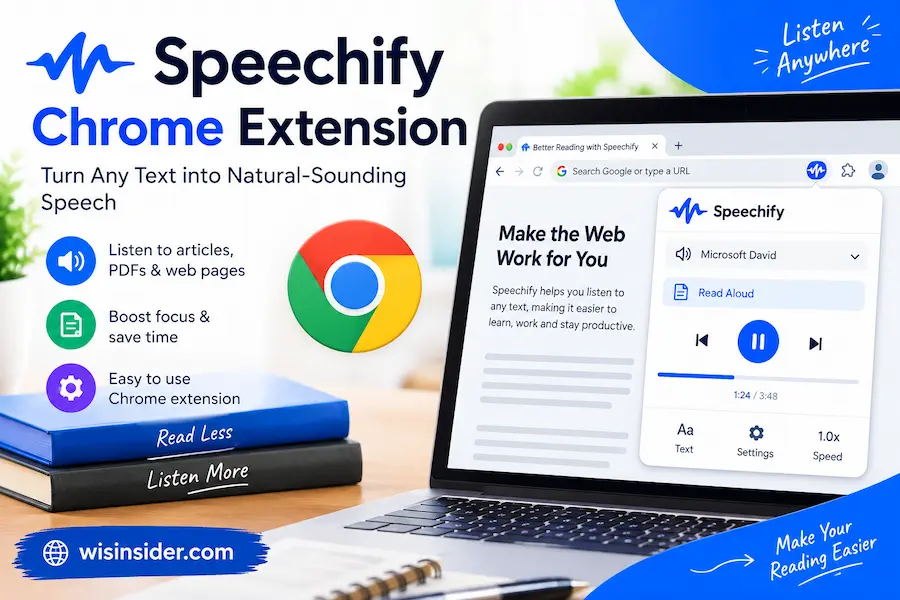
Speechify Chrome Extension: Setup, Cost, Fixes and Alternatives

The Speechify Chrome extension turns text on your screen into audio. Open an article, press play, and listen while you cook, walk, or rest your eyes. The idea is simple. The questions around it are not. Is it free? Will it run on a phone? What do you do when it stops working?
This guide answers each one in plain words. You will see how to install it, how to use it, and what it costs. You will also get fixes for common errors, cancel tips, and free tools to compare. Jump to the part you need.
What Is the Speechify Chrome Extension?
It is a text to speech (TTS) add-on for your browser. It sits in your toolbar and reads the page you are on.
Speechify’s store page says it handles web pages, PDFs, Google Docs, and books. It lists 60+ languages and playback up to 4.5x. Cliff Weitzman founded the company and serves as its CEO.
| Detail | Summary |
| Tool type | Text to speech browser extension |
| Works on | Web pages, PDFs, Google Docs, books |
| Languages | 60+ |
| Top speed | 4.5x |
| Browsers | Chrome and Microsoft Edge |
| Plans | Free tier and paid Premium |
Voice counts differ between Speechify’s own pages. The Chrome Web Store mentions about 1,000. The Chrome landing page says 200+. Check your plan to see what you actually get.
How Do You Add the Speechify Chrome Extension?
Setup takes about a minute. Here is the path.
- Open Chrome on a desktop or laptop.
- Leave guest and incognito windows. They can block installs.
- Search “Speechify” in the Chrome Web Store.
- Select “Add to Chrome” and confirm.
- Open the Extensions menu (the puzzle icon) and pin Speechify.
The icon now stays visible next to your address bar.
How Do You Use the Speechify Chrome Extension?
You have three simple options. Choose the one that matches your page.
- Whole page: Click the icon on an article, then press play.
- One passage: Highlight the text, then click the icon.
- PDF or Google Doc: Open the file in Chrome, then start the player.
Next, adjust the voice and speed. Begin slower than you think you need. Raise the speed only when the words stay easy to follow. Fast playback works best for light reading. Slow it down for dense material.
Is the Speechify Chrome Extension Free?
Yes, a free version exists. It comes with limits.
Reviewers describe those limits differently. One lists five basic voices and a 2x speed cap. Another mentions a weekly word allowance near 2,000 words. Because plans change, test the free tier yourself before deciding.
Speechify also offers a Premium trial. One reviewer reported that starting it required card details. So mark the trial end date on your calendar.
How Much Does the Speechify Chrome Extension Cost?
Most reviews put Premium at about $139 a year. That works out to roughly $11.58 a month when billed annually.
| Plan | Typical inclusions | Reported price |
| Free | Basic voices, slower top speed, usage limits | $0 |
| Premium | More voices, up to 4.5x speed, OCR scanning, unlimited PDF and ebook imports | About $139 per year |
Another site lists $15 monthly, or $8 a month on annual billing. These numbers clash, so treat them as estimates. Region and promotions can change the price. Confirm it on Speechify’s pricing page before you pay.
What New Features Does It Have?
The extension does more than read aloud now. Look for these tools:
- Voice typing: It converts speech to text and cleans up filler words.
- Voice assistant: You can ask questions about what is on your screen.
- Cross-device sync: Your library and progress follow you between the Chrome extension, web app, and iOS app.
Many older guides skip these. They still describe a basic reader.
Does It Work on Mobile, Android and Safari?
The extension is made for desktop browsers. On phones, use the apps or the web app instead.
| Where you listen | What to use |
| Chrome on Windows, Mac or Linux | The extension |
| Microsoft Edge | The Edge extension |
| Safari on iPhone | The Safari extension, opened from the Share menu |
| Safari on Mac | The Safari extension |
| Android phone | The Speechify Android app or web app |
| Brave | The Chrome extension can install, but one review found it less smooth |
| Firefox | Sign in to the web app |
Chrome on Android has long lacked desktop extension support. So Android users should choose the app. Check the Chrome Web Store on your own device for the latest status.
Why Is the Speechify Chrome Extension Not Working?
Most issues have a fast fix. Work through this list from the top.
- Reload the page. Then reopen the player.
- Check the toggle. Make sure the extension is on in your Extensions menu.
- Try “Report Site.” Speechify says this button sits above the player. The team may add support for that site.
- Enable file access for local PDFs. Open chrome://extensions, choose Details, and switch on “Allow access to file URLs.”
- Look at the PDF type. Scanned PDFs are images, so the extension cannot read them. Run OCR first.
- Disable other readers. Two read-aloud tools on one page can talk over each other.
- Update and reinstall. Update Chrome, remove the extension, and add it again.
Still stuck? Contact Speechify support.
How Do You Log In to Speechify?
Click the Speechify icon and choose the log-in option. Use the same account as your app or web version. Your saved items then appear everywhere.
If login fails, check your spelling first. Then try the web app in a new tab. Also confirm you use the same sign-in method you used before.
Is the Speechify Chrome Extension Safe?
Think about two things: permissions and payments.
Permissions. A reader must access page text to speak it. Speechify’s store page says the extension follows recommended Chrome practices. Even so, read the permission prompt before you approve any extension.
Payments. Trustpilot summaries mention slow support and charges that arrived earlier than users expected. Protect yourself with these habits:
- Note your trial end date.
- Cancel where you signed up.
- Keep your confirmation emails.
How Do You Cancel Speechify?
Cancel in the same place you subscribed. That could be Speechify’s website, the App Store, or Google Play. Menus change, so check the help center for current steps.
Some users say support granted refunds when they asked directly. If you need one, ask early. Refund rules for annual plans vary, so read the terms before you buy.
Who Should Use the Speechify Chrome Extension?
It fits people who read a lot on screens. Here are typical cases.
- Students: A long PDF becomes something you can hear on a walk.
- People with dyslexia or ADHD: Word highlighting while listening may help some readers stay focused. Results differ by person.
- Busy professionals: Listen to long emails and articles during other tasks.
- Language learners: Slower speeds help you catch each word across 60+ languages.
- Budget shoppers: Test the free plan, then compare it with the tools below.
What Are the Best Free Alternatives?
If the price feels high, try a free option first. Compare these before you pay.
| Tool | Best for | Notes |
| Read Aloud (extension) | Everyday free reading | Widely installed. Can read PDFs when file access is on. |
| Microsoft Edge Read Aloud | Reading without installing anything | Built into Edge. |
| NaturalReader | A Speechify-style experience | About $99.50 a year, with a more usable free tier. |
| Talkie | Privacy | Open source, no tracking, no account. |
Free tools can sound more robotic. Many use voices from your device. Richer voices usually cost extra.
FAQs
Is the Speechify Chrome extension free?
Yes, with limits. The free plan has fewer voices and lower speeds. Premium costs extra.
Does the Speechify Chrome extension work on Android?
It is built for desktop browsers. On Android, use the Speechify app or web app.
Can it read PDFs?
Yes, if the PDF contains real text. Scanned PDFs need OCR first.
Is it safe to use?
Review the permissions and watch your billing dates. Those are the two main risks.
Is Speechify better than Natural Reader?
Reviews describe Speechify’s voices as stronger. Natural Reader costs less. Try both free tiers and decide.
Final Thoughts
The Speechify Chrome extension suits readers who want natural voices and quick playback. It installs fast and is easy to use. The main risks are unclear plan limits and billing surprises.
So start with the free plan. Confirm the price on the official page. Set a reminder if you try Premium. If the cost is too high, Read Aloud or Edge’s built-in reader may be enough.
