Windows Media Creation Tool: Uses, Setup, Errors & Fixes Guide

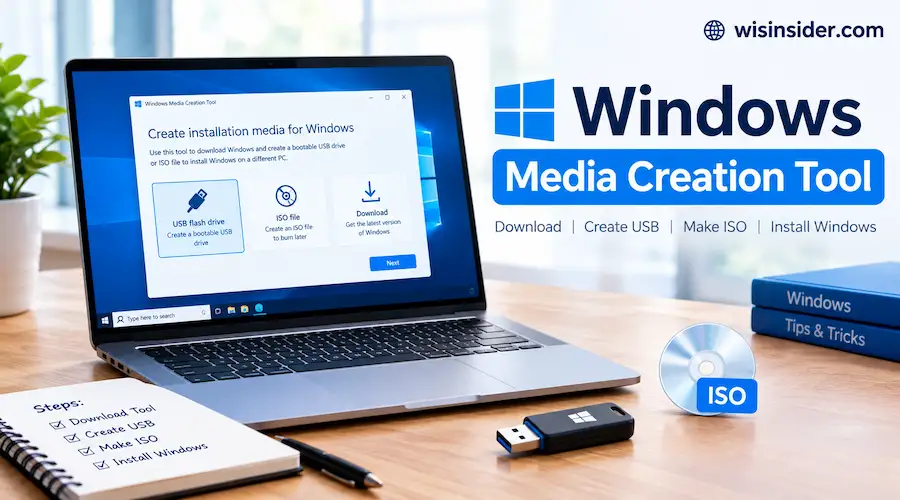
The Windows Media Creation Tool is a free Microsoft program that downloads Windows and prepares it for installation. You can write it to a USB drive or save it as an ISO file. People use it to reinstall Windows after a failure set up a new PC or install on a computer that can’t update itself. It is not a video editor, despite what several low-quality web pages claim.
This guide goes beyond the button by button steps Microsoft already publishes. It helps you decide whether you need the tool at all, prepare so you don’t lose data and recover when something breaks. The details reflect Microsoft’s pages in October 2026 when the current release is Windows 11 2026 Update, version 26H2.
Quick answer
- Get it from: Microsoft’s Windows 11 or Windows 10 download page only.
- You need: Internet, admin rights and an empty USB drive of 8 GB or more.
- It produces: A bootable USB or an ISO file.
- It won’t: Run on Mac or Linux or build Windows 11 media for Arm PCs.
- You might not need it: If you only want to upgrade the PC you’re using, Windows Update is simpler.
What Is the Windows Media Creation Tool?
Think of it as a delivery and packaging tool. It fetches the official Windows files from Microsoft, then packages them so a PC can start from them. A PC that can’t boot into Windows can still boot from that USB which is the whole point.
It does four things well:
- Downloads the right Windows version for your language and edition
- Wipes and prepares a USB drive so it starts a PC
- Saves a reusable ISO if you prefer a file
- Works from a different, healthy PC when yours is broken
It doesn’t diagnose problems, fix drivers or move your files. Those jobs fall to you and to Windows itself.
Which Scenario Are You In?
Your situation decides the best tool. Start here.
| Your situation | Best option | Why |
| PC works, qualifies for Windows 11, you want to upgrade | Windows Update | No USB, no data risk |
| Windows Update won’t offer the upgrade but PC is eligible | Installation Assistant | Upgrades the current PC directly |
| PC won’t boot | Media Creation Tool on another PC | Needs bootable USB |
| New PC with a blank drive | Media Creation Tool | Clean install |
| Infected or badly slow PC | Media Creation Tool, clean install | Fresh start |
| Virtual machine | Direct ISO | No USB needed |
| Mac user | ISO + another method | The tool doesn’t run on macOS |
| PC fails Windows 11 requirements | Stay on Windows 10 or replace the PC | See the risk below |
Microsoft’s own page recommends the Installation Assistant for installing on the device you’re currently using. It reserves the media tool for reinstall and clean install jobs.
Ten Minute Prep Before You Touch Anything
Skipping prep causes most of the pain people report. Do these in order.
A warning on unsupported PCs. Microsoft says installing Windows 11 on hardware below the minimum is not recommended. It warns of compatibility problems and says such a PC isn’t entitled to updates and that manufacturer warranty may not cover resulting damage. Workarounds exist but weigh that risk.
How to Download the Windows Media Creation Tool
Always use Microsoft’s own site. The tool is a small executable file, so it’s a tempting target for imitation.
Windows 11
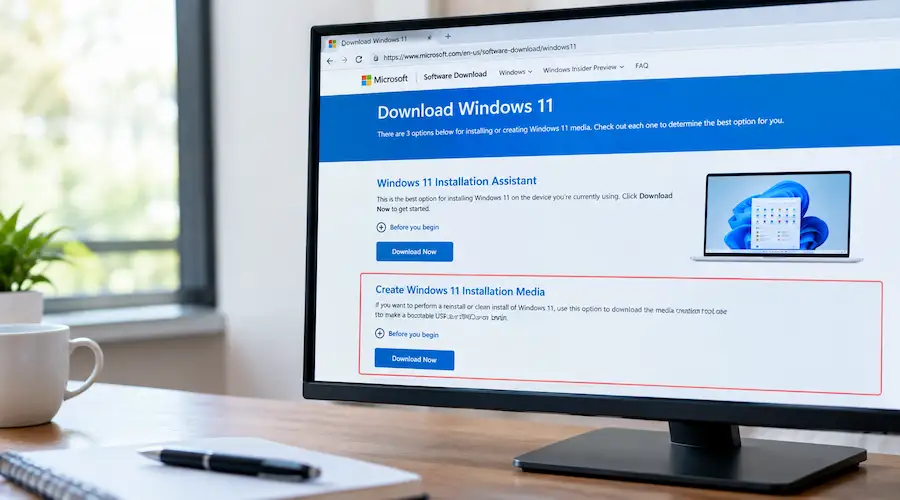
Open microsoft.com/en-us/software-download/windows11. The page offers three options: the Installation Assistant, installation media (the tool) and a direct ISO. Under the installation media section select Download Now. Microsoft states that this tool builds media for x64 processors only not Arm.
Windows 10
The Windows 10 tool has its own page at microsoft.com/en-us/software-download/windows10. It creates 64 bit or 32 bit media and currently lists Windows 10 version 22H2.
Windows 7 and 8.1
Microsoft no longer offers a media creation tool for these versions. Its download hub points those two entries to lifecycle pages instead.
A PC still running one of them can be upgraded to Windows 10 with a valid license according to Microsoft’s Windows 10 page. Because Windows 10 is also past its end of support check the Windows 10 section below before choosing that path.
Mac and Linux
The tool is a Windows program so it won’t run on macOS or Linux. You have three realistic options:
- Borrow a Windows PC to build the USB.
- Download the Windows ISO from Microsoft’s page and write it with another tool.
- For virtual machines use the ISO directly.
Apple Silicon Macs need the separate Windows 11 Arm ISO which Microsoft hosts on its own page.
How to spot a fake download page
Some pages call this utility a “video editor” or “creative suite.” That description is wrong. Warning signs include:
- The domain isn’t microsoft.com
- The page says the tool edits video, audio or animation
- It asks for payment (the tool is free)
- It wants you to install a “downloader” first
How to Create a Windows 11 Bootable USB
The process takes a while mostly because of the download. Your connection speed sets the pace.
- Plug in the empty USB drive.
- Right-click the downloaded file and run it as administrator.
- Accept the license terms.
- Choose Create installation media for another PC. This is the option for a USB even if you plan to use it on this same PC.
- Confirm the language, edition and 64 bit architecture. If Use the recommended options is ticked untick it only if you need to change the language.
- Choose USB flash drive and pick your drive from the list.
- Wait. Leave the drive plugged in until the tool says it’s finished.
Common mistake: Picking the wrong drive in step 6. The tool erases whatever you select. If you have an external backup drive attached unplug it first.
Choose the ISO option instead if you want a reusable file or a virtual machine image. Next you’d write the ISO to a USB yourself.
How to Get a Windows 11 ISO Instead
An ISO is a single file that contains the full Windows setup. Choose it when you want flexibility rather than a ready USB.
You can get an ISO two ways: from the media tool’s ISO option, or from the direct download section on Microsoft’s page. For the direct route pick the multi edition ISO for x64 devices, choose your language and download. Microsoft notes the links expire after 24 hours so download promptly.
Verify the download. Microsoft publishes a checksum for each language. In PowerShell, run Get File Hash on your ISO and compare the result. A match proves the file arrived intact.
What you can do with an ISO:
- Write it to a USB with a tool like Rufus
- Burn a DVD
- Attach it to a virtual machine
- Mount it in Windows and run setup.exe which Microsoft says performs an upgrade of the current system
Enterprise editions and Insider Preview builds come from separate Microsoft portals.
Windows 11 Home vs Pro: Which Edition to Choose
The Windows 11 ISO is a multi-edition image and your license decides the edition that unlocks. The practical rule is to install the edition you already own.
| Home | Pro | |
| Who it suits | Families, students, everyday use | Remote workers, small businesses, tinkerers |
| Notable extras | Device encryption on supported hardware | Full BitLocker management, Remote Desktop host, Group Policy, Hyper-V, domain join |
| Safe choice when reinstalling | The edition shown in your Activation settings | The edition shown in your Activation settings |
If setup asks you to pick an edition and you don’t know which to choose cancel and check the Activation page first. Choosing a higher edition than your license leaves the PC un activated.
How to Install Windows 11 Cleanly from the USB
Booting from a USB confuses people more than the tool itself. Here’s the flow with the decision points that matter.
Boot from the USB
Insert the drive, restart and tap the boot menu key right as the logo appears. Common keys are F2, F12, Delete and Esc and the right one depends on the manufacturer. Pick the USB entry. If you see two entries for the same drive one marked UEFI is usually the right choice.
USB doesn’t appear
Check the boot mode and whether Secure Boot is blocking it. Microsoft says you might need to turn off Secure Boot temporarily. If the PC jumps straight back into the old Windows shut it down fully first.
Choose the install type
At the setup screen pick Custom: Install Windows only (advanced) for a clean install. The Upgrade option only works when you start setup from inside Windows.
Choose the drive carefully
This is the highest risk moment.
- With one drive select it and continue. Windows can partition it itself.
- With several drives, identify the right one by its size. Unplug other drives beforehand to avoid mistakes.
- Delete partitions only on the drive you mean to wipe.
Let it restart
The PC reboots several times. If you changed the boot order, you may see the install screen again. Remove the USB drive or reset the boot order to the internal drive.
What to Do After Installation
Don’t stop when the desktop appears. A short checklist protects the install.
- Run Windows Update until it shows nothing pending. Updates often install missing drivers too.
- Install manufacturer drivers for graphics, chipset and Wi Fi if anything looks wrong.
- Check activation in Settings. A reinstalled, previously activated PC normally activates on its own.
- Restore your files from backup.
- Re-enable anything you disabled Such as Secure Boot if you turned it off for setup.
- Reset the boot order so the PC starts from its internal drive.
- Keep the USB drive. It becomes a handy recovery tool.
Can You Repair Windows with the Media Creation Tool?
The tool itself doesn’t repair anything. But the installation media it makes carries repair options and you can use it as the last step on a repair ladder. Start with the gentlest fix and move up only if it fails.
| Step | Fix | Data risk | When to use |
| 1 | Restart; try Safe Mode | None | Odd behavior after an update |
| 2 | Startup Repair (boot from USB then Repair your computer) | None | PC won’t start |
| 3 | System Restore | Low (apps may change) | A recent change broke things |
| 4 | sfc /scan now then DISM /Online /Cleanup Image /Restore Health (run in an admin Command Prompt) | None | Corrupt system files |
| 5 | In-place repair: mount the ISO, run setup.exe choose to keep files and apps | Low | Windows runs but is unstable |
| 6 | Reset this PC | Medium | Software mess no hardware fault |
| 7 | Clean install with the USB | High | Everything else failed or malware |
Why in place repair works well: It replaces Windows system files while leaving your documents and installed apps in place. The version, edition and language of the ISO should match your current Windows.
If the drive itself is failing no software fix will hold. Strange noises repeated disappearing drives or constant file errors point to hardware.
Media Creation Tool vs Installation Assistant vs Rufus
Each tool answers a different need. The clearest way to choose is by what you want to end up with.
| Tool | Best for | Output | Main limits |
| Media Creation Tool | Clean install on a supported PC | USB or ISO | x64 only for Windows 11; Windows program |
| Installation Assistant | Upgrading the PC you’re using | Direct upgrade | Needs Windows 10 version 2004 or later; about 9 GB free; x64 only |
| Direct ISO | VMs, Mac users, custom builds | ISO file | You write the USB yourself |
| Rufus | Fast USB creation from an ISO | USB | Third-party; Windows only |
Which is better, Rufus or the media creation tool? For a supported PC, Microsoft’s tool wins on simplicity and trust. Rufus wins when you already have an ISO need to choose a partition scheme or want a faster workflow.
One Rufus detail matters: The partition scheme must match your PC. Use GPT for UEFI systems and MBR for older BIOS or legacy-mode machines. A mismatch is a common reason a Rufus-made USB isn’t recognized.
On bypass options. Rufus can also remove some Windows 11 setup checks including TPM 2.0 Secure Boot and RAM. Those options don’t make unsuitable hardware suitable and they bring the support and warranty risks Microsoft describes.
Where possible fixing the underlying setting beats bypassing it. Download Rufus only from its official site.
Windows Media Creation Tool Not Opening or Not Working
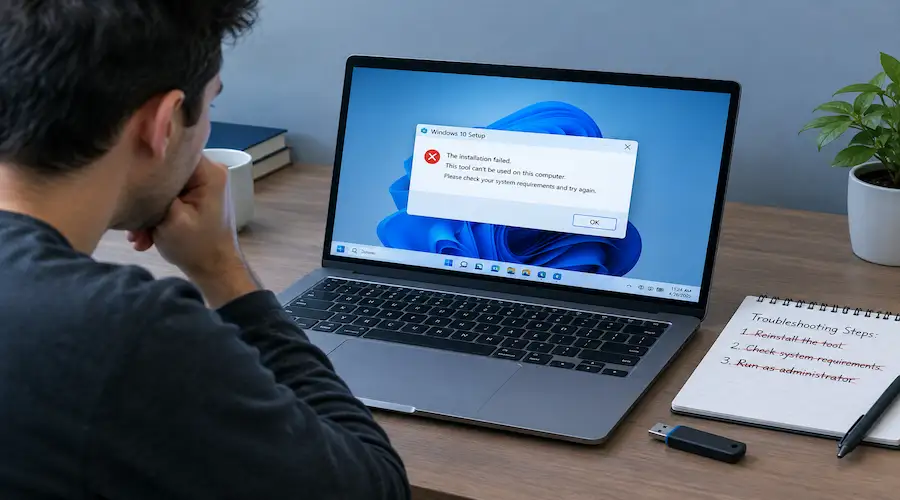
Match your symptom to the likely cause. This is faster than trying random fixes.
| Symptom | Likely cause | What to try |
| Double click does nothing | Blocked or corrupted download | Delete it and download again; run as administrator |
| Opens then closes | Security software or missing admin rights | Pause antivirus briefly; run as administrator |
| Stuck at “Getting a few things ready” | Weak or filtered connection | Turn off VPN; use wired internet; retry |
| Error starting with 0x80072F8F | Often a date, time or connection problem | Correct the clock; check network |
| Fails while writing to USB | Faulty or slow drive | Try another drive and another port |
| “Not enough space” type errors | Low disk space on the PC | Free up space or save the ISO to another drive |
| USB made but PC won’t boot from it | Boot mode or Secure Boot mismatch | Choose the UEFI entry; adjust BIOS settings |
| Works on one PC not another | PC-specific issue | Build the USB on a different PC |
Last resort: Download the ISO directly from Microsoft’s page and write it with Rufus. That bypasses the tool entirely and often succeeds when the tool fails.
If setup says the PC can’t run Windows 11 The tool isn’t broken. Check TPM 2.0, Secure Boot and processor support in your BIOS and in Microsoft’s device specifications.
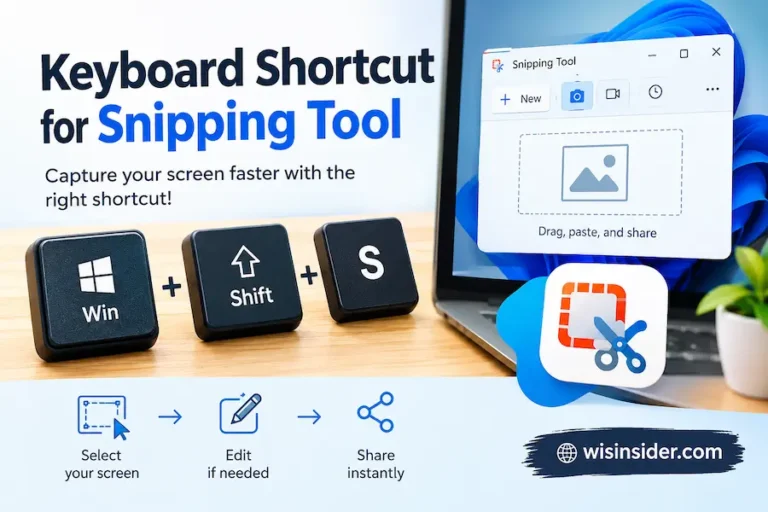
If none of these fixes work collect evidence before asking for help Forums and support agents solve problems faster when they see the exact error. Press Win + Shift + S, capture the error window, and note the error code and your Windows version. If you can’t find the saved image, here is where screenshots go on Windows. Post it along with the fixes you’ve already tried.
Windows 10 Media Creation Tool: Still Worth Using?
For reinstalling Windows 10 yes. Microsoft says that if you previously upgraded the PC to Windows 10, you don’t need to enter a product key to reinstall because the digital license activates it later.
The bigger question is whether Windows 10 is the right target. Mainstream support ended on October 14, 2025.
A June 2026 report says Microsoft extended its consumer Extended Security Updates program through October 12, 2027 with eligibility limited to Windows 10 version 22H2 on Home, Pro, Pro Education or Workstation editions.
Treat that extension as a bridge. If your PC meets the Windows 11 requirements moving to Windows 11 gives you a supported system.
Check Microsoft’s official ESU page before relying on the exact date since it has already changed once.
FAQ
How do I get the Windows Media Creation Tool?
Go to Microsoft’s Windows 11 or Windows 10 download page and select Download Now under the installation media section. Run it as administrator.
How do I create a bootable USB for Windows 11?
Run the tool, choose Create installation media for another PC, confirm language and edition, pick USB flash drive and select your empty drive. Unplug other external drives first.
Can you repair Windows with the Media Creation Tool?
Not directly. Boot from the USB it creates and use Repair your computer for Startup Repair and System Restore. You can also mount the ISO and run setup.exe to repair in place.
Which is better, Rufus or the media creation tool?
For a supported PC, Microsoft’s tool is simpler and official. Rufus is better if you already have an ISO or need control over partition schemes.
What is the difference between the media creation tool and the Installation Assistant?
The Installation Assistant upgrades the PC you’re using. The media tool builds a USB or ISO for a clean install or another PC.
Is the Windows Media Creation Tool free?
Yes. You still need a valid license for the Windows you install.
Does it work on Mac or Linux?
No. Use a Windows PC, or download the ISO from Microsoft and write it another way.
Is there a Windows 7 or 8.1 Media Creation Tool?
No current one exists. Microsoft’s download hub links those versions to lifecycle pages.
Does it work on Arm PCs?
No. The Windows 11 tool creates media for x64 processors only. Microsoft hosts a separate Arm ISO.
Which edition will I get, Home or Pro?
Your license or digital license decides. Install the edition shown on your current Activation page.
How do I update Windows 11?
Go to Settings > Windows Update and select Check for updates.
Will I lose my files?
The USB drive is erased. A clean install also wipes the system drive, so back up first. An in place repair or upgrade can keep your files.
How big should the USB drive be?
At least 8 GB, empty, ideally in a USB 3 port.
Final Thoughts
The Windows Media Creation Tool remains the simplest official way to build Windows installation media, but the tool is only half the job. Good results come from preparation back up your data, save your recovery key match your language and edition and choose the right drive. If something fails work up the repair ladder instead of jumping straight to a wipe.
Use Windows Update or the Installation Assistant when you only want to upgrade and reserve the Windows Media Creation Tool for clean installs dead PCs and second computers. If it won’t run, download the ISO and try Rufus. Either way stay on Microsoft’s own download pages.