Mac Keyboard Shortcuts Cheat Sheet: Free PDF & Quick Guide

I still remember the first time strikethrough beat me. I was cleaning up a shared to do list in Apple Notes, trying to cross off a finished task instead of deleting it. I pressed Command + Shift + X, the same shortcut I use in Google Docs every day. Nothing happened. I tried it again. Still nothing. It felt small, but it broke my focus for a good five minutes.
That mix up is common. Macs do not have one strikethrough Mac Keyboard Shortcuts that works in every app. The keys change depending on where you are typing. In this guide, I’ll give you the exact shortcut for each major app, explain why the keys shift from program to program, and show you how to build your own shortcut for apps that skip this feature entirely.
Quick answer
The strikethrough shortcut on Mac is Command + Shift + X in most apps, including Google Docs, Google Sheets, Excel, Slack and Microsoft Word. Apple’s own apps Notes, Pages, and TextEdit do not include a default shortcut, but you can add one yourself.
Is There a Default Strikethrough Mac Keyboard Shortcuts?
No. macOS does not ship with one built-in strikethrough shortcut. Each app decides its own shortcut, or skips the feature entirely. This is different from copy and paste, where Command + C and Command + V work almost everywhere on Mac.
That is why the same shortcut can work in one app and fail in the next. It is not a bug. It is simply how each app was built, and it is a common source of confusion for anyone learning keyboard shortcuts Mac in general.
Shortcut That Works in Most Apps
Command + Shift + X is the closest thing to a universal strikethrough shortcut on Mac. Select your text, press the keys, and a line appears through the words. Press the same keys again to remove it.
This shortcut works in:
- Google Docs
- Google Sheets
- Microsoft Excel
- Microsoft Word
- Slack
Interestingly, Word and Excel come from the same company but were built years apart, which explains a few of the small formatting inconsistencies beteen them. They do, however, share this same strikethrough shortcut.
Strikethrough Shortcuts by App
| App | Shortcut | Notes |
|---|---|---|
| Google Docs | Command + Shift + X | Toggles on and off |
| Google Sheets | Command + Shift + X | Works inside a selected cell |
| Microsoft Excel | Command + Shift + X | Same shortcut as Windows |
| Microsoft Word | Command + Shift + X | Command + D also opens the Font dialog as an alternate route |
| Slack | Command + Shift + X | Works while typing a message |
| Notion | Command + Shift + S | Uses S instead of X the one exception worth remembering |
| Evernote | Control + Command + K | Different pattern from most apps |
| OneNote | Control + Command + Minus (–) | Another different pattern |
| Apple Stickies | Shift + Command + T | Or use Font > Strikethrough from the menu |
If you only remember one thing from this table, remember this: Notion does not use Command + Shift + X. That single detail causes most of the confusion for people switching between apps.
Apps With No Default Shortcut
Apple’s own apps are the biggest exception. Notes, Pages and TextEdit do not include a built-in strikethrough shortcut. You still get the feature you just reach it through a menu instead of a key combination.
In Notes or Pages:
- Select the text you want to cross out.
- Click Format in the top menu bar.
- Go to Font.
- Choose Strikethrough.
In TextEdit (make sure the document is in rich text mode first):
- Select your text.
- Click Format > Font > Show Fonts.
- In the Fonts window, click the S icon and choose single or double strikethrough.
How to Create Your Own Custom Strikethrough Shortcut
If you use strikethrough often in Notes, Pages, or TextEdit, you can build your own shortcut in a few minutes. Once it is set, it works exactly like a built in one.
- Click the Apple menu, then choose System Settings.
- Click Keyboard in the sidebar.
- Click Keyboard Shortcuts.
- Select App Shortcuts from the list.
- Click the + button to add a new one.
- Choose the app from the dropdown menu, for example Notes.
- Type the menu command exactly as it appears in the app. In Notes, type Strikethrough, word for word, including capital letters.
- Click the empty shortcut field and press the key combination you want, such as Command + Shift + X.
- Click Add to save it.
Test it right away. Open the app, select some text, and press your new shortcut. If nothing happens, the menu title you typed probably doesn’t match the app’s own wording exactly.
A faster route for multiple apps: if you want the same shortcut working across many apps without repeating these steps each time, a macro tool like Key smith lets you record the strikethrough action once and assign it a hot key that works everywhere you use it.
Why Your Strikethrough Shortcut Isn’t Working
A few small things cause most strikethrough problems on Mac:
- You’re in the wrong app. The shortcut for Word will not do anything in Notes.
- No text is selected. Strikethrough only applies to highlighted text.
- The menu wording doesn’t match. For custom shortcuts, even one wrong word or capital letter stops it from attaching to the right command.
- Another shortcut is already using those keys. Check System Settings > Keyboard > Keyboard Shortcuts for conflicts.
FAQs
What is the strikethrough shortcut on Mac?
Command + Shift + X, in most apps including Google Docs, Excel, Word and Slack.
How do I use keyboard shortcuts on a Mac?
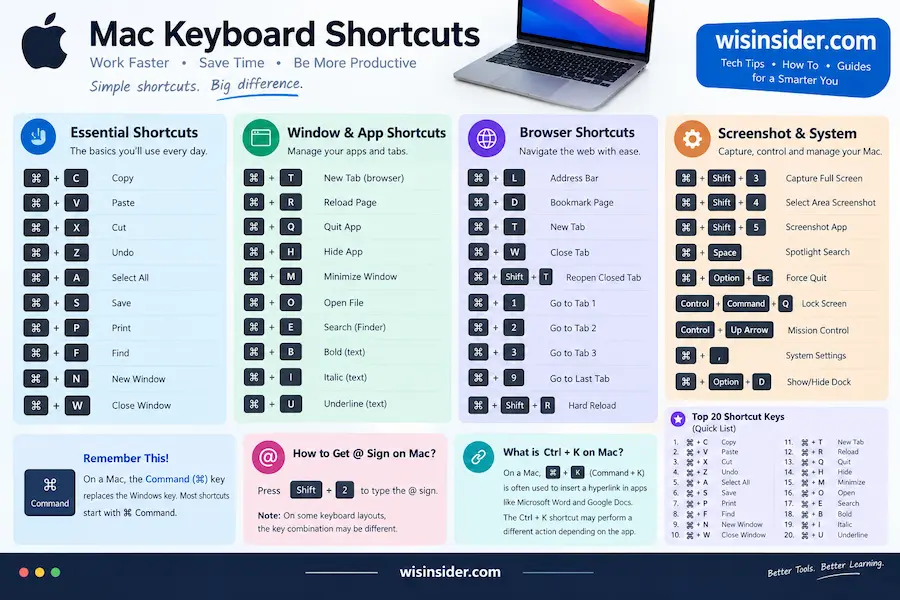
On a Mac, press the Command (⌘) key with another key to use shortcuts. For example, ⌘ + C copies, ⌘ + V pastes, and ⌘ + Z undoes your last action.
How to get @ sign on Mac?
On most Mac keyboards, press Shift + 2 to type the @ sign. On some keyboard layouts, you may need a different key combination.
What is Ctrl + K on Mac?
On a Mac, Command + K (⌘ + K) often inserts a hyperlink in apps such as Microsoft Word and Google Docs. The Ctrl + K shortcut may perform a different action depending on the application.
Conclusion
I’ve spent years bouncing between Notes, Docs and Excel every day, and strikethrough is still the one formatting shortcut that trips people up the most, even experienced Mac users. What fixed it for me wasn’t memorizing every combination. It was building one custom shortcut in the two apps that needed it, Notes and Pages and leaving the rest as they were.
That one small setup saved me from second guessing myself every time I crossed something off a list. If you take one thing from this guide take the custom Mac Keyboard Shortcuts steps above. They turn a small daily annoyance into something you never have to think about again.