Android Hidden Game: How to Find and Play Secret Games on Your Phone

Have you ever heard that your Android phone has a hidden game but couldn’t find it in your settings? You’re not alone. Many Android users know about secret phone features but get stuck because the steps are different across Android versions and phone brands. Some hidden games also look like simple logos or animations at first, so it’s easy to miss the fun part.
The good news is that Android has included hidden Easter eggs for years, and some are full mini-games you can play without installing anything.
This article explains how to find the Android hidden game, how to open it on Samsung and Google Pixel phones, and what to expect from different Android versions.
What Is the Android Hidden Game?
The Android hidden game is part of a feature Google calls an Easter egg. In software, an Easter egg is a hidden surprise, such as a game, animation, image, or interactive feature that users can discover by following a specific set of steps.
Google has added Easter eggs to Android for many years. Some versions include simple animations, while others offer puzzles or playable mini-games. Examples include the cat-collecting activity in Android 7, the Nonogram puzzle in Android 10, and the space exploration game introduced in Android 14.
These features are built into the operating system. You usually don’t need to download a separate app or pay to access them. However, the experience depends on the Android version installed on your phone.
How to Find and Unlock the Hidden Game on Android
Most modern Android phones use a similar method to open the Easter egg. The exact menu names may differ, but you can usually find the option under your phone’s software information.
Step 1: Check Your Android Version
Before opening the hidden game, find out which Android version your phone uses.
- Open Settings.
- Scroll down and select About phone.
- Find the Android version section.
- Check the number displayed on the screen.
On some phones, you may need to open Software information before seeing the Android version. Samsung devices commonly use this extra menu.
Step 2: Activate the Android Easter Egg
Once you know your Android version, follow these steps:
- Open Settings and go to About phone.
- Find the Android version option.
- Tap the Android version number several times.
- Wait for the Easter egg screen to appear.
- Look for another interaction, such as tapping or holding a logo, moving a clock, or turning a dial.
The final step depends on your Android version. Opening the Easter egg screen does not always start the game immediately.
How to Open the Hidden Game on Samsung Phones
Samsung phones use One UI, so the settings menu may look different from Google’s standard Android interface.
Try this route:
- Open Settings.
- Select About phone.
- Tap Software information.
- Find Android version.
- Tap the version number repeatedly.
If you cannot find the option, use the Settings search bar and search for “Android version” or “Software information.”
The Android Easter egg depends on the Android version running on your Samsung phone. One UI can change the menu layout, but it does not automatically mean your phone has a different Android Easter egg.
How to Open the Hidden Game on Google Pixel Phones
Google Pixel phones usually follow the standard Android menu layout.
- Open Settings.
- Tap About phone.
- Find Android version.
- Tap the version number several times.
- Follow the on-screen interaction to open the Easter egg or mini-game.
Pixel phones often receive Android updates early, but the Easter egg still depends on the version installed on the device.
Android Hidden Games by Version
Android’s Easter eggs have changed over time. Some are proper mini-games, while others are interactive screens or animations.
Here is what you can find in several major Android releases.
Android 17 Hidden Game
Android 17 continues the space-themed Easter egg introduced in recent Android releases. On builds that include the feature, you first open the Android 17 Easter egg from the Android version screen.
The initial screen uses a star puzzle. Connect the stars to reveal the Android logo, then press and hold the logo to launch the Landroid space game.
Android 17 also has a Landroid screensaver option on supported builds. After activating the Easter egg and launching the game, look under Settings > Display > Screensaver to see whether the option is available.
The exact availability can depend on the Android 17 build and device. If you do not see the screensaver option, your phone may not include that version of the feature. Source: Android Authority.
Android 16 Hidden Game
Android 16 continues the space exploration game from Android 14 and Android 15.
You control a small spaceship and explore a field of stars and planets. You can move the ship manually and land on celestial bodies to plant flags.
The main addition is an AUTO option. When enabled, the spaceship navigates on its own. Android 16 can also show a progress-style notification that tracks the ship’s journey through the space game.
To open it, go to Settings > About phone > Android version, tap the version number repeatedly, and press and hold the Android 16 logo when it appears.
Android 15 Hidden Game
Android 15 uses a space exploration Easter egg similar to Android 14’s version.
After opening the Android 15 logo, press and hold it to launch the mini-game. You can then guide a small spaceship through space and explore nearby planets.
One notable addition is the ability to plant flags on planets you visit. This gives the game a simple exploration goal, although it does not work like a traditional mobile game with levels and a final score.
Android 14 Hidden Game
Android 14 introduced the space-themed mini-game that later versions continued to develop.
The Easter egg begins with a NASA-inspired Android logo. Press and hold the logo until your phone vibrates, which signals that the spacecraft game is starting.
You can control the ship by touching it and dragging your finger. The screen displays information such as velocity, thruster status, and coordinates. The goal is to explore space and find a star rather than complete a conventional level.
Android 13 Hidden Game
Android 13 has a colorful Easter egg based on a clock and emoji.
After opening the Easter egg, you will see a clock on the screen. Move its hands to 1:00 to trigger a display of colorful bubbles.
You can then press and hold a bubble to change it into different emoji designs. The colors are based on your phone’s wallpaper and theme.
This is an interactive Easter egg rather than a traditional game with levels or a score.
Android 12 Hidden Game
Android 12 includes a clock-based Easter egg that highlights its Material You design.
When you open it, a clock appears over your wallpaper. Move the hands until they reach 12:00. The screen then changes to a colorful design based on your device’s theme.
It is more of a visual surprise than a playable game, but it is still worth trying if you enjoy Android’s hidden features.
Android 11 Hidden Game
Android 11 brings back the cat-collecting idea with a feature called Cat Controls.
First, open the Android 11 Easter egg and turn the dial until it reaches 11. A cat emoji should appear, indicating that you have activated the hidden feature.
Next, open the power menu and look for Cat Controls. Depending on your phone, you may need to use the menu to add the controls manually.
The controls let you interact with a food bowl, water bubbler, and toy to attract virtual cats. When a cat appears, you can collect it through the notification.
Some newer phone interfaces have changed how the power menu works, so the original Cat Controls may not appear in the same place on every device.
Android 10 Hidden Game
Android 10 includes a hidden Nonogram puzzle.
To access it, open the Android 10 Easter egg and look for the number 10 logo. Rotate the number 1 and position it with the 0 to form a letter Q.
Once the logo is arranged correctly, interact with the screen until the puzzle appears.
The Nonogram is a picture puzzle. You fill in boxes using number clues along the edges. When you complete the pattern correctly, the filled boxes reveal an image.
This Easter egg offers more puzzle-solving than the simple animations found in some other Android versions.
Android 9 Hidden Game
Android 9 Pie features a colorful P logo with an additional drawing interface on supported devices.
After opening the Easter egg, try pressing and holding the P logo. You may reach a simple drawing screen where you can change brush colors and sizes.
The drawing feature is not available on every device, so your experience may differ depending on the phone and software build.
Android 8 Hidden Game
Android 8 Oreo features an interactive octopus.
When you open the Easter egg, you will see the Oreo-themed logo. Press and hold it to reveal an octopus on the screen.
You can drag the octopus around by its head and stretch its body. It is a small visual interaction rather than a game with objectives or levels.
Android 7 Hidden Game
Android 7 Nougat introduced the Android Neko cat-collecting Easter egg.
After activating the N logo, tap it repeatedly until the cat indicator appears. Then open Quick Settings and use the edit option to add the Android Easter Egg tile.
Tap the tile to place food on a virtual dish. Wait for a cat to visit, then collect it through the notification.
The aim is to attract and collect different cats. It is one of Android’s more game-like Easter eggs and takes inspiration from cat-collecting games.
Android 6 Hidden Game
Android 6 Marshmallow includes a Flappy Bird-style mini-game.
The game uses a small Android character and obstacles shaped like marshmallows. You tap the screen to keep the character moving and avoid hitting the obstacles.
One interesting feature is multiplayer support. You can add up to six players, making it a fun challenge to try with friends.
Android 5 Hidden Game
Android 5 Lollipop introduced a mini-game inspired by Flappy Bird.
After opening the Lollipop Easter egg, press and hold the logo to start the game. You control a small Android character and try to move through obstacles without crashing.
The controls are simple, but the game can be surprisingly difficult. It is one of the earliest Android Easter eggs that feels like a complete mini-game.
Which Android Hidden Games Are Actually Playable?
Not every Android Easter egg is a full game. Some are animations or interactive designs, while others let you control a character, solve a puzzle, or explore a virtual environment.
| Android version | Easter egg | What you can do |
|---|---|---|
| Android 17 | Landroid space game | Explore space on supported builds |
| Android 16 | Space exploration | Pilot a ship and use autopilot |
| Android 15 | Space exploration | Visit planets and plant flags |
| Android 14 | Space exploration | Pilot a spacecraft |
| Android 13 | Emoji bubbles | Trigger and change emoji |
| Android 12 | Clock and colors | Create a themed visual display |
| Android 11 | Cat Controls | Attract and collect cats |
| Android 10 | Nonogram | Solve a picture puzzle |
| Android 9 | Drawing interface | Create simple drawings on supported devices |
| Android 8 | Octopus | Drag and stretch an octopus |
| Android 7 | Neko | Attract and collect cats |
| Android 6 | Marshmallow game | Avoid obstacles, including in multiplayer |
| Android 5 | Lollipop game | Play a Flappy Bird-style challenge |
The most game like experiences are found in Android 5, 6, 7, 10, 11, and the space-themed releases from Android 14 onward. Android 12 and 13 are more focused on visual interactions.
Why Is the Android Hidden Game Not Working?
If the Android hidden game does not open, the problem may be related to your phone’s software or the way you are accessing the Easter egg.
Here are some common issues and what you can try.
You Cannot Find the Android Version Option
Phone manufacturers sometimes move the software information menu.
Try searching for Android version in your Settings app. On Samsung devices, check About phone > Software information.
Tapping the Version Number Does Nothing
Make sure you are tapping the Android version number rather than the build number or security patch level.
Tap the correct option several times in succession. If nothing happens, return to the main Settings screen and try again.
Logo Appears but the Game Does Not Start
Some Easter eggs have a second activation step.
For example, Android 14, 15, and 16 require you to press and hold the space-themed logo. Android 12 and 13 use a clock interaction, while Android 7 requires you to add a Quick Settings tile.
Check the instructions for your Android version rather than repeating the first step.
Cat Controls Are Missing on Android 11
The Android 11 dial and Cat Controls are separate parts of the Easter egg. Even after activating the dial, you may need to add Cat Controls through the power menu.
Some phone manufacturers have changed or replaced the original power menu. As a result, the feature may not be available in the same way on every device.
Your Phone Uses Modified or Older Software
A manufacturer’s software changes, an outdated build, or a custom Android version can affect how an Easter egg appears.
Check for available system updates if the feature is missing. Keep in mind that an update does not guarantee that every older Easter egg will become available.
Can You Play Old Android Hidden Games on New Phones?
In most cases, you cannot simply open an older Android Easter egg by changing your phone’s current Android version.
The built-in Easter egg normally matches the Android version installed on your device. A phone running Android 16, for example, will generally show the Android 16 Easter egg rather than the original Android 7 Neko game.
If you want to explore older Easter eggs, you can look for a reputable Android Easter egg collection app. Check its developer, permissions, reviews, and compatibility before installing it. Avoid downloading APK files from unfamiliar websites.
You can also use an older device that still runs the Android version you want to explore. This is often the simplest way to experience the original Easter egg.
Other Secret Games You Can Play on Android
Android’s built-in Easter eggs are not the only hidden games available on your phone. Google also offers small games through its browser, search features, and interactive Doodles.
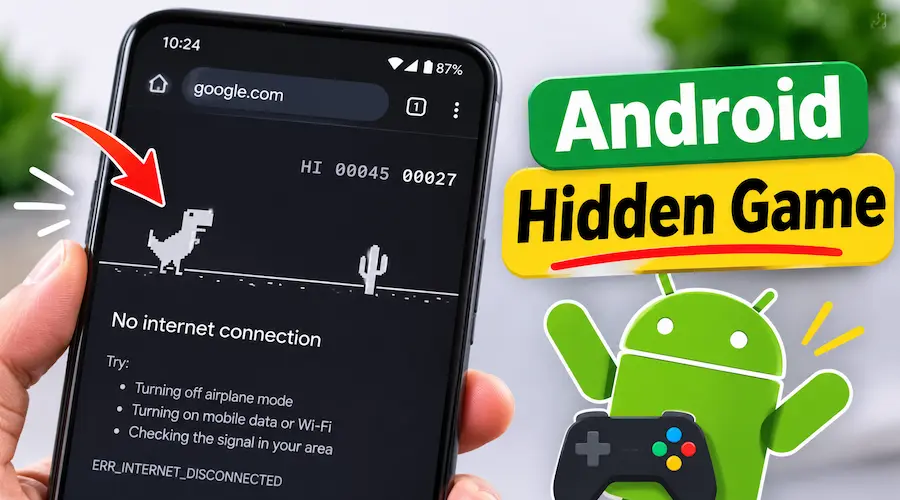
Chrome Dino Game
https://www.google.com/chrome/dino
The Chrome Dino game appears when Chrome cannot connect to the internet. You control a small dinosaur as it runs across the screen, jumping over obstacles.
You can also visit the game directly using the link above. It is a simple way to pass the time without installing a separate game.
Google Doodle Games
Google Doodles sometimes include interactive games created to celebrate events, people, and special occasions.
Some Doodles are short activities, while others offer longer challenges. You can explore older interactive games through the Google Doodles archive.
Google Search Games
Google Search has also featured small games and interactive surprises over the years. Availability can change, so a game that worked previously may not always appear.
Try searching for the name of a specific Google game or Easter egg to see whether it is still available in your region and browser.
FAQs
Does every Android phone have a hidden game?
Most Android releases include an Easter egg, but the content depends on the Android version and software build. Some Easter eggs are full mini-games, while others are animations or interactive screens.
Do I need to install an app to play the Android hidden game?
No. The built-in Android Easter egg is part of the operating system. You can usually open it through the Android version option in Settings without installing another app.
Can the Android hidden game damage my phone?
No. Simply opening and using the built-in Easter egg is a normal software interaction. It should not damage your phone or erase your personal files.
Can I turn off the Android Easter egg?
You usually do not need to turn it off. The Easter egg does not normally run in the background as a regular game. Simply leave the screen or close it when you finish.
Is the Android Easter egg available on tablets?
Many Android tablets include the same Easter egg as phones running the same Android version. The settings menu may use About tablet instead of About phone.
Why does my Android Easter egg look different from a video?
The Android version, manufacturer interface, and software build can affect what you see. A video may also show a beta version or a device with a different software update.
Conclusion
The Android hidden game is a fun reminder that your phone can have more to offer than the apps you use every day. Whether you want to collect virtual cats, solve a Nonogram puzzle, or explore a tiny universe in the newer space-themed Easter eggs, there is something interesting to discover. The best place to start is your phone’s Android version screen. Try the steps for your version, explore the extra interaction, and see which hidden feature your device has been keeping out of sight.