How to Restart PC With Keyboard (Windows 10 and 11)

Have you ever needed to restart your computer but found that your mouse or touchpad was not working? It can be frustrating when you cannot click the Start menu or reach the power options, especially when your PC is already running slowly or acting strangely.
The good news is that you do not need a mouse to restart a Windows computer. You can use simple keyboard shortcuts to open the power menu, choose Restart, and reboot your PC. Here are four easy methods that work on Windows 10 and Windows 11, along with solutions for common problems.
What Is the Fastest Way to Restart a PC With a Keyboard?
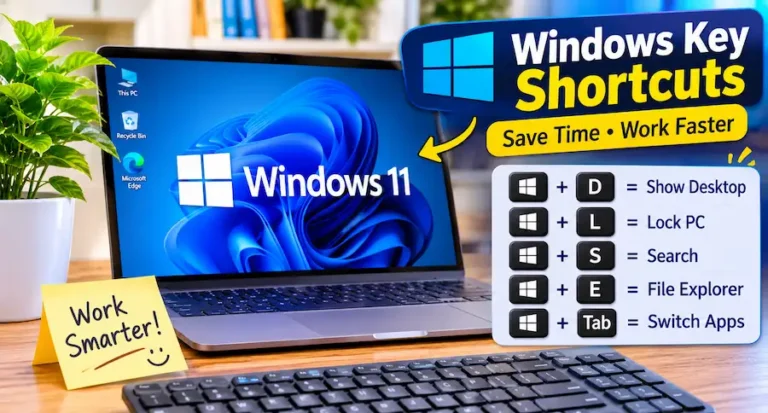
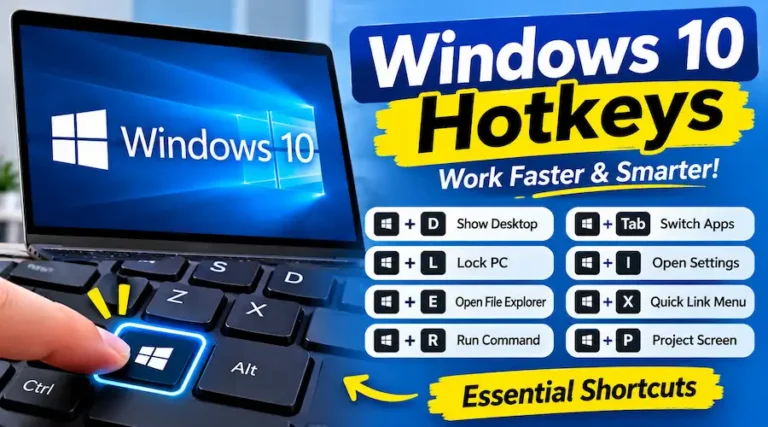
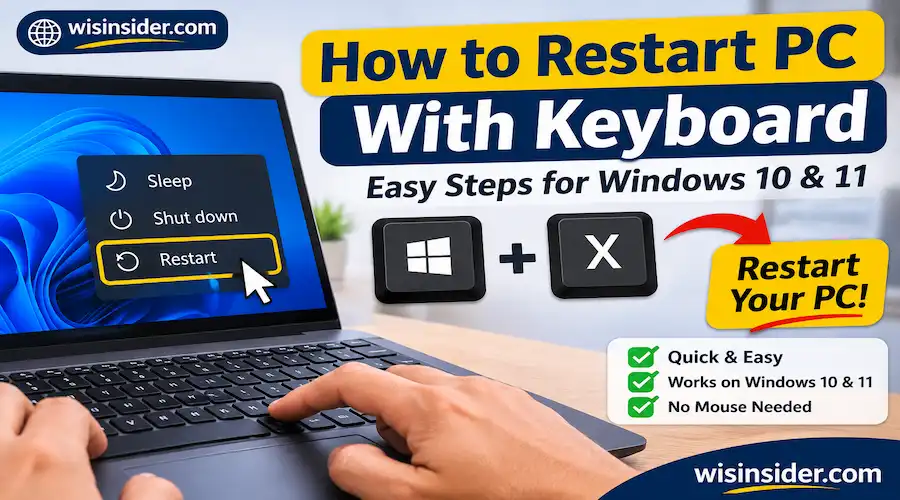
The quickest method for many users is the Windows + X, U, R shortcut. It opens the Quick Link menu and selects the restart option without requiring a mouse.
Follow these steps:
- Press Windows + X.
- Press U to open the power options.
- Press R to restart your computer.
Your PC should begin restarting.
Quick tip: If this shortcut does not work on your computer, try the Alt + F4 method below.
4 Ways to Restart Your PC Using a Keyboard
You can restart Windows in several ways. Choose the method that best matches your situation.
Method 1: Restart Your PC With Alt + F4
The Alt + F4 shortcut opens the Windows shutdown dialog when you are on the desktop. You can then select Restart using your keyboard.
Follow this workflow:
- Save any open files.
- Press Windows + D to show the desktop.
- Press Alt + F4.
- Use the arrow keys to select Restart.
- Press Enter.
Windows will close open applications and restart your computer.
Important: If you press Alt + F4 while an application is active, it may close that application instead of opening the shutdown dialog. That is why you should show the desktop first.
Method 2: Restart Your PC With Windows + X
This is a convenient option when your mouse is not working but your keyboard still responds.
Follow these steps:
- Press Windows + X to open the Quick Link menu.
- Press U to open the power options.
- Press R to restart.
You do not need to open the Start menu or use your mouse.
Method 3: Restart Using Ctrl + Alt + Delete
The Ctrl + Alt + Delete shortcut opens the Windows Security screen. From there, you can reach the power options.
Follow this workflow:
- Press Ctrl + Alt + Delete together.
- Press Tab until the power button is selected.
- Press Enter.
- Use the arrow keys to choose Restart.
- Press Enter again.
The exact keyboard navigation can vary slightly between Windows versions and screen layouts. If you cannot reach the power menu, try another method in this article.
Method 4: Restart Your PC Using the Run Dialog
Windows also lets you restart your computer with a command. This method is useful when you can open the Run dialog but prefer not to navigate through menus.
Follow these steps:
- Press Windows + R.
- Type this command:
shutdown /r /t 0 - Press Enter.
Your computer will restart.
What does this command mean?
- shutdown tells Windows to perform a power action.
- /r tells Windows to restart.
- /t 0 sets the timer to zero seconds.
You can also enter the same command in Command Prompt or PowerShell. For more command options, see our Windows restart command guide
Do These Keyboard Shortcuts Work on Windows 10 and Windows 11?
Yes. The main keyboard restart methods work on both Windows 10 and Windows 11.
| Keyboard shortcut or method | Windows 10 | Windows 11 |
| Alt + F4 | Yes | Yes |
| Windows + X, U, R | Yes | Yes |
| Ctrl + Alt + Delete | Yes | Yes |
| Windows + R command | Yes | Yes |
The appearance of some menus may differ, but the basic restart process is very similar.
How to Restart a Frozen PC or When Keyboard Shortcuts Don’t Work
Sometimes the problem is not the mouse. Windows itself may stop responding. Before forcing your computer to shut down, identify what is actually frozen.
| What is happening? | What you should try |
| Only one application is frozen | Open Task Manager and close that application |
| Windows still responds to keyboard shortcuts | Try one of the restart methods above |
| The screen is black | Check the display and try the graphics reset shortcut |
| The entire PC is unresponsive | A forced power-off may be necessary |
When Only an Application Is Frozen
If one program stops responding but Windows still works, you may not need to restart the entire computer.
- Press Ctrl + Shift + Esc to open Task Manager.
- Use the arrow keys and Tab to navigate to the unresponsive application.
- Select End task.
- Press Enter if prompted.
This closes the affected application. Be aware that unsaved work in that program may be lost.
When Your PC Has a Black Screen
A black screen does not always mean that Windows has frozen. The problem could be related to the monitor, display connection, or graphics driver.
First, check that your monitor is turned on and its cables are connected properly.
You can also try this keyboard shortcut:
Windows + Ctrl + Shift + B
This attempts to reset the graphics driver. You may hear a beep or see the screen briefly flicker.
Remember: This shortcut resets the graphics driver. It does not restart your computer.
If the display problem continues, see our guide to the Windows graphics reset shortcut.
When the Entire Computer Stops Responding
If the keyboard, mouse, and screen are all unresponsive, normal restart shortcuts may not work.
In that situation, you may need to use the physical power button:
- Press and hold the computer’s power button until it turns off.
- Wait a few seconds.
- Press the power button again to turn it on.
This is a forced shutdown, not a normal restart. It can cause you to lose unsaved work, so use it only when the computer does not respond to other methods.
Why Is Your Laptop Keyboard Restart Shortcut Not Working?
If a keyboard shortcut does not work on your laptop, check these common causes:
- Function key settings: Some laptops require the Fn key for certain function-key combinations.
- Fn Lock: The function-key mode may change how your keyboard handles shortcuts.
- Keyboard connection: A loose USB connection or low wireless keyboard battery can prevent key presses from registering.
- Keyboard settings: Accessibility features or changed keyboard settings may affect how keys behave.
- System freeze: If Windows is completely unresponsive, the shortcut may not work at all.
Try connecting an external USB keyboard if your built-in laptop keyboard is not responding.
You can also read our article about useful Windows keyboard shortcuts to learn more about navigating Windows without a mouse.
Restart vs. Shut Down vs. Sleep: What’s the Difference?
These options may look similar, but they do different things.
| Option | What it does | When to use it |
| Restart | Closes Windows and starts it again | When fixing a problem or applying updates |
| Shut down | Turns off the computer | When you are finished using your PC |
| Sleep | Puts the computer into a low-power state | When taking a short break |
If your PC is running slowly or experiencing a temporary problem, a restart is often a useful first step. If the problem keeps returning, you may need further troubleshooting.
For example, see our guide on how to fix slow Windows startup.
FAQs
Can I restart my PC without a mouse?
Yes. You can restart your PC using shortcuts such as Windows + X, U, R, Alt + F4, or Ctrl + Alt + Delete. You only need a working keyboard.
Can I restart my PC without losing unsaved work?
A normal restart may close open programs and cause unsaved changes to be lost. Save your files before restarting whenever possible. A forced shutdown carries an even greater risk of losing unsaved work.
Does Alt + F4 work on Windows 11?
Yes. Alt + F4 works on Windows 11 when you are on the desktop. Press Windows + D first, then Alt + F4, choose Restart, and press Enter.
Can I restart a computer with a completely black screen?
It depends on whether Windows is still responding. Try checking the monitor and connections first. You can also try Windows + Ctrl + Shift + B to reset the graphics driver. If the entire computer is unresponsive, you may need to use the physical power button.
Final Thoughts
You do not need a working mouse to restart a Windows PC. Shortcuts such as Windows + X, U, R and Alt + F4 make the process simple on both Windows 10 and Windows 11. If one method does not work, try another before forcing the computer to shut down.
In my experience, starting with a normal keyboard restart is the better approach because it gives Windows a chance to close programs and restart properly.