Windows Key Shortcuts: The Complete List for Windows 11, 10 and 7

One key can save you hours every week. It sits between Ctrl and Alt. Yet most people only use it to open the Start menu.
The Windows key can do far more. Press it with one more key, and you can lock your PC, snap windows, grab screenshots, and open Settings. These combos are called Windows key shortcuts.
This guide gives you the full list of Windows key shortcuts for Windows 11, Windows 10, and Windows 7. You will also get a cheat sheet tip, fixes for a dead key, and steps to turn the shortcuts off.
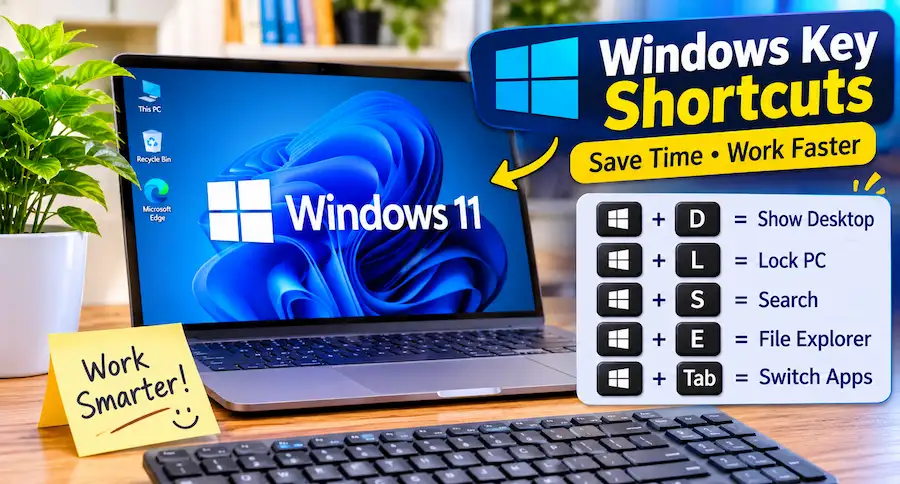
Quick answer: Press Win + D to show the desktop. Press Win + L to lock your PC. Press Win + Shift + S to take a screenshot. Press Win + V to open clipboard history.
What Are Windows Key Shortcuts?
Windows key shortcuts are key combos that start with the Windows logo key. They replace mouse clicks with quick taps.
The Windows key has the Windows logo on it. Look between Ctrl and Alt on most keyboards. Some keyboards label it Win. A plus sign means you hold the keys together. So Win + D means hold Win, then tap D.
Here are three quick notes:
- Press Win alone to open or close the Start menu.
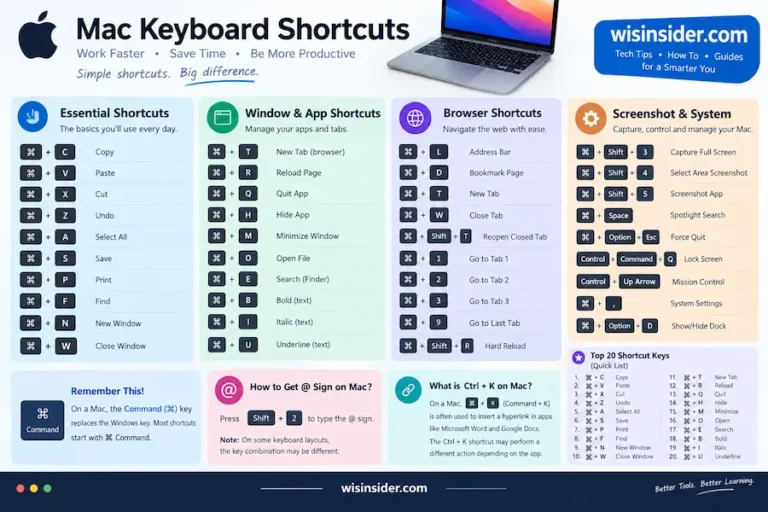
- On a Mac keyboard, the Command key plays the same role.
- No Windows key on your laptop? Press Ctrl + Esc to open Start.
What Are the Best Windows Key Shortcuts to Learn First?
Start with these ten. They cover most daily tasks.
| Shortcut | What it does |
| Win + D | Show or hide the desktop |
| Win + E | Open File Explorer |
| Win + L | Lock your PC |
| Win + I | Open Settings |
| Win + R | Open the Run box |
| Win + V | Open clipboard history |
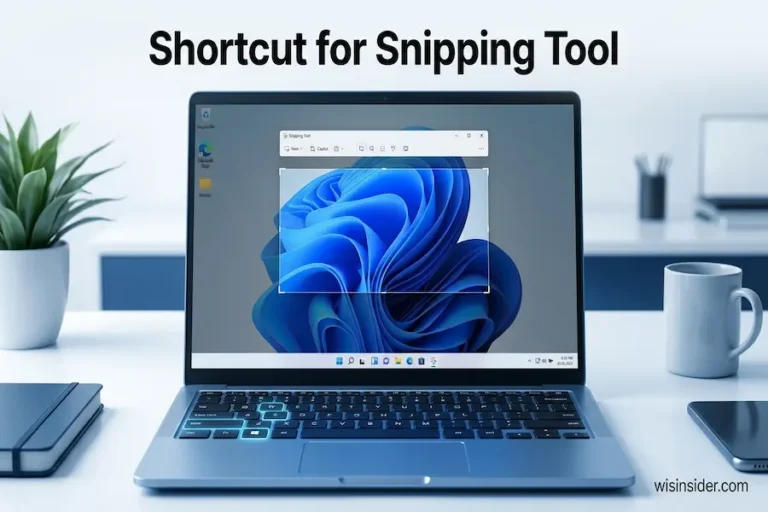
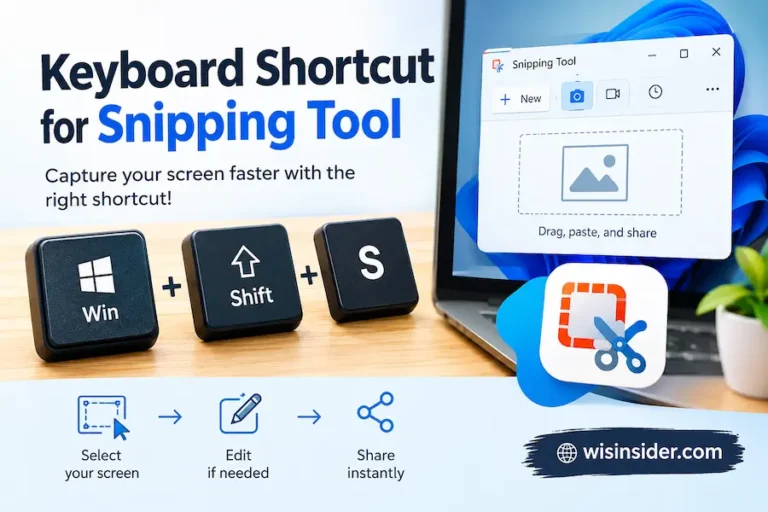
| Win + Shift + S | Capture part of the screen |
| Win + Tab | Open Task View |
| Win + Left or Right arrow | Snap a window to one side |
| Win + period (.) | Open the emoji panel |
Clipboard history is off by default. Press Win + V once, then choose the prompt to turn it on.
Learn one or two shortcuts per week. Soon your hands will do it without thinking.
What Is the Full List of Windows Key Shortcuts (A to Z)?
This is the full list of Windows key shortcuts by letter. The last column shows which version supports each one.
| Shortcut | Action | Works on |
| Win + A | Open Quick Settings (Action Center on Windows 10) | 10 and 11 |
| Win + B | Focus the system tray icons | 10 and 11 |
| Win + C | Open Copilot, or search if Copilot is off | 11 |
| Win + D | Show or hide the desktop | All |
| Win + E | Open File Explorer | All |
| Win + F | Open Feedback Hub | 10 and 11 |
| Win + G | Open Xbox Game Bar | 10 and 11 |
| Win + H | Start voice typing | 10 and 11 |
| Win + I | Open Settings | 10 and 11 |
| Win + J | Open Recall on supported PCs | 11 |
| Win + K | Open Cast to connect a display | 10 and 11 |
| Win + L | Lock your PC | All |
| Win + M | Minimize all windows | All |
| Win + N | Open notifications and calendar | 11 |
| Win + O | Lock screen orientation | 10 and 11 |
| Win + P | Pick a display mode | All |
| Win + Q | Open search | 10 and 11 |
| Win + R | Open the Run box | All |
| Win + S | Open search | 10 and 11 |
| Win + T | Cycle through taskbar apps | 10 and 11 |
| Win + U | Open Accessibility settings | 10 and 11 |
| Win + V | Open clipboard history | 10 and 11 |
| Win + W | Open Widgets | 11 |
| Win + X | Open the Quick Link menu | 10 and 11 |
| Win + Y | Switch between Mixed Reality and desktop | 10 and 11 |
| Win + Z | Open Snap Layouts | 11 |
Here is a pattern worth knowing. Many lists are out of date. Some still say Win + C opens Teams Chat. Today Win + C opens Copilot. Microsoft says it opens Windows search when Copilot is off or missing.
Also, Win + J no longer just points to a Windows tip. On supported PCs, it opens Recall.
Want to double-check any row? Compare it with Microsoft Support’s keyboard shortcuts page.
Which Windows Key Shortcuts Are New in Windows 11?
Windows 11 added a few handy combos. Most of them help with layouts, AI, and recording.
| Shortcut | Action |
| Win + Z | Open Snap Layouts |
| Win + W | Open Widgets |
| Win + N | Open notifications and calendar |
| Win + A | Open Quick Settings |
| Win + C | Open Copilot |
| Win + Alt + Up or Down arrow | Snap a window to the top or bottom half |
| Win + Shift + R | Record a screen region |
| Win + Ctrl + V | Open sound output settings |
| Win + Alt + K | Mute or unmute your mic in supported apps |
| Win + J | Open Recall on supported PCs |
Newer keyboards also have a Copilot key. It acts like Win + C. If Copilot is not available, it opens or closes Windows search.
You can change what it does. Microsoft’s page points to Settings, then Personalization, then Text input. A September 2026 update added a new option. It lets you set the key to act as Right Ctrl or the Context Menu key. Depending on your build, you may find it under Bluetooth and devices, then Keyboard.
Be careful with lists that show long sets of Ctrl + Alt Copilot shortcuts. Microsoft’s official page lists only the Copilot key and Win + C.
What Are the Best Windows 10 Hotkeys?
Most Windows key shortcuts from the A to Z list also work on Windows 10. Microsoft ended regular Windows 10 support in October 2025, but many PCs still run it.
Here are the Windows 10 hotkeys that matter most.
| Shortcut | Action |
| Win + A | Open Action Center |
| Win + S | Open search |
| Win + V | Open clipboard history |
| Win + X | Open the Quick Link menu |
| Win + K | Connect to a wireless display |
| Win + H | Start dictation |
| Win + Shift + S | Capture part of the screen |
| Win + Ctrl + D | Create a new virtual desktop |
| Win + Tab | Open Task View |
| Win + Ctrl + Q | Open Quick Assist |
These Windows 10 shortcuts will not work on Windows 11: Win + A for Action Center. On Windows 11, that key opens Quick Settings instead.
Do Windows Key Shortcuts Work on Windows 7 and 8?
Yes, many of them do. The core ones are older than Windows 11.
These Windows key shortcuts work on Windows 7:
- Win + D: show the desktop
- Win + E: open Computer or File Explorer
- Win + L: lock your PC
- Win + M: minimize all windows
- Win + R: open the Run box
- Win + P: choose a display mode
- Win + Home: minimize all windows except the active one
- Win + Tab: flip through open windows with Aero Flip 3-D
- Win + Pause: open System Properties
Windows 8 added two things. Win + C opened the Charms bar. Win + Q searched for apps. Those two have changed meaning since, so skip them on newer PCs.
How Do You Manage Windows and Desktops With the Windows Key?
This is where Windows key shortcuts save the most time. You can arrange your screen without touching the mouse.
| Shortcut | Action |
| Win + Left or Right arrow | Snap a window to the left or right |
| Win + Up arrow | Maximize the window |
| Win + Down arrow | Minimize the window |
| Win + Shift + Down arrow | Restore a snapped or maximized window |
| Win + Shift + Up arrow | Stretch the window to the top and bottom |
| Win + Shift + Left or Right arrow | Move the window to another monitor |
| Win + Home | Minimize all windows except the active one |
| Win + M, then Win + Shift + M | Minimize all, then restore all |
| Win + Tab | Open Task View |
| Win + Ctrl + D | Create a new virtual desktop |
| Win + Ctrl + Left or Right arrow | Switch between virtual desktops |
| Win + Ctrl + F4 | Close the current virtual desktop |
Use Win + Ctrl + F4 to close a desktop. Plain Win + F4 is not the right key.
If you use two screens, Win + Shift + Left or Right is a big win. It moves a window across monitors in one tap.
Alt + Tab and Alt + Esc also help. Alt + Tab switches between open apps. Alt + Esc cycles through windows in the order you opened them.
Which Windows Key Shortcuts Take Screenshots?
Windows gives you several ways to capture your screen. Pick the one that fits the job.
| Shortcut | What you get |
| Win + Shift + S | Snip a region and copy it to the clipboard |
| Win + PrtScn | Full-screen shot saved in Pictures, then Screenshots |
| Alt + PrtScn | Shot of the active window, copied to the clipboard |
| PrtScn | Region capture to the clipboard (can be switched off in Settings) |
| Win + Shift + R | Screen recording of a region, saved as an MP4 |
The recording shortcut opens the Snipping Tool. The file lands in the Screen Recordings folder inside Videos.
Which Windows Key Shortcuts Control Display and Accessibility?
These Windows key shortcuts help with screens, readers, and zoom. They are also useful in meetings.
Press Win + P to pick a display mode. You will see four choices:
- PC screen only
- Duplicate
- Extend
- Second screen only
Here are more display and accessibility keys:
| Shortcut | Action |
| Win + Alt + B | Turn HDR on or off |
| Win + K | Cast to a wireless display |
| Win + Plus (+) | Zoom in with Magnifier |
| Win + Minus (-) | Zoom out in Magnifier |
| Win + Esc | Close Magnifier |
| Win + Ctrl + Enter | Start or stop Narrator |
| Win + Ctrl + C | Turn color filters on or off (if enabled) |
| Win + Ctrl + O | Open the On-Screen Keyboard |
| Win + U | Open Accessibility settings |
| Win + H | Start voice typing |
Screen goes black but the PC is still running? Press Win + Ctrl + Shift + B. It wakes the display.
What Are the Windows Key Shortcuts for Gaming?
Game Bar has its own set. They work while you play.
| Shortcut | Action |
| Win + G | Open Xbox Game Bar |
| Win + Alt + R | Start or stop recording |
| Win + Alt + G | Record the last 30 seconds |
| Win + Alt + PrtScn | Take a game screenshot |
| Win + Alt + M | Turn the mic on or off while recording |
If a game keeps closing to the desktop, the Windows key may be the cause. Check your keyboard for a Win lock button. The next sections cover that.
Which Shortcuts Speed Up File Explorer and the Taskbar?
File Explorer and the taskbar are where you spend your day. A few keys make both faster.
File Explorer
| Shortcut | Action |
| Win + E | Open File Explorer |
| Ctrl + Shift + N | Create a new folder |
| F2 | Rename the selected item |
| Ctrl + E or Ctrl + F | Go to the search box |
| Alt + Enter | Show properties |
| Alt + Up arrow | Go up one folder |
| Ctrl + T | Open a new tab |
| Shift + Delete | Delete without the Recycle Bin |
Taskbar
| Shortcut | Action |
| Win + 1 to 9 | Open or switch to the app in that taskbar spot |
| Win + T | Cycle through taskbar apps |
| Win + B | Focus the system tray |
| Shift + click an app icon | Open another copy of the app |
| Ctrl + Shift + click an app icon | Open the app as an administrator |
Which Windows Key Shortcuts Open System Tools and Settings?
Use these to reach system tools fast. You skip the menus.
| Shortcut | Action |
| Win + I | Open Settings |
| Win + R | Open the Run box |
| Win + X | Open the Quick Link menu (same as right-clicking Start) |
| Win + Pause | Open the About page in Settings |
| Win + Ctrl + Q | Open Quick Assist |
| Ctrl + Shift + Esc | Open Task Manager |
| Ctrl + Alt + Del | Open the security screen |
How Do You Shut Down Windows 10 With a Shortcut Key?
The Windows 10 shutdown shortcut key is a three-step combo. It also works on Windows 11.
- Press Win + X.
- Press U to open the shut down menu.
- Press U again to shut down.
Use R instead of the last U to restart. Use S for sleep.
There is a second way. Press Win + D to clear the desktop. Then press Alt + F4. A shutdown prompt appears.
What Is the Restore Shortcut Key in Windows 10?
There is no single restore key. The right one depends on what you want back.
- Minimized windows: Win + Shift + M
- A maximized or snapped window: Win + Shift + Down arrow
- A deleted file in File Explorer: Ctrl + Z
- A closed browser tab: Ctrl + Shift + T
What Command Prompt and Dialog Box Shortcuts Should You Know?
These are not Windows key shortcuts. But they help when you work with Command Prompt or pop-up windows.
| Shortcut | Action |
| Ctrl + C or Ctrl + V | Copy or paste in Command Prompt |
| Ctrl + M | Enter Mark mode |
| Up arrow | Bring back a past command |
| F7 | Show command history |
| Tab or Shift + Tab | Move forward or back through dialog options |
| Ctrl + Tab | Move through tabs in a dialog |
| Spacebar | Tick or clear a check box |
| Esc | Close a dialog box |
What Is the Paste Shortcut Key, and Which Ctrl Shortcuts Matter Most?
The paste shortcut key is Ctrl + V. Shift + Insert also works. Both paste the last copied item.
These Ctrl shortcuts are a good base for any computer shortcut keys list from A to Z:
| Shortcut | Action |
| Ctrl + C | Copy |
| Ctrl + X | Cut |
| Ctrl + V | Paste |
| Ctrl + Shift + V | Paste as plain text (not in every app) |
| Ctrl + Z | Undo |
| Ctrl + Y | Redo |
| Ctrl + A | Select all |
| Ctrl + F | Find |
| Ctrl + H | Find and replace |
| Ctrl + B, I, U | Bold, italic, underline |
In browsers, Ctrl + T opens a tab. Ctrl + W closes it. Ctrl + Shift + T brings back the last closed tab.
Win + V is the smarter paste. It shows your clipboard history, so you can pick an older item.
Is There a Windows Key Shortcuts PDF or Cheat Sheet?
Many people search for a Windows 10 hotkeys PDF or a Windows 11 shortcut keys PDF. A printable list is handy to keep near your desk.
You can make your own in under a minute:
- Open this page.
- Press Ctrl + P.
- Choose Microsoft Print to PDF or Save as PDF.
- Save the file.
This way you get a clean Windows key shortcuts download that you trust. It also stays free.
Be careful with random sites that offer a Windows 10 hotkeys free download. Files from unknown sources can carry unwanted software. Stick to sites you know.
Tip: print only the best-ten table and the A to Z table. Those two cover most needs.
Why Are Windows Key Shortcuts Not Working?
When the Windows key stops working, the shortcuts stop too. The cause is often small. Try these fixes in order.
- Test another keyboard. On a laptop, plug in a USB keyboard. This shows if the problem is hardware.
- Tap the Windows key once. Windows may think a key is stuck after you unplug a keyboard.
- Restart your PC. Shut it down fully, not just sleep.
- Check for a Win lock key. Gaming keyboards often have one. Some laptops use an Fn key combo.
- Turn off Filter Keys. Go to Settings, then Accessibility, then Keyboard.
- Update the keyboard driver. Open Device Manager and update or reinstall the keyboard.
- Run a system scan. Open Command Prompt as admin and type sfc /scannow.
- Look for a remap. A Scancode Map value in the registry can disable the key. Some guides also suggest turning off Windows Game Mode.
On a work PC, your admin may have switched Windows key shortcuts off on purpose. Ask your IT team before you change settings.
Still stuck on Windows 10 Fixes 4 to 8 work there too.
How Do You Turn Off Windows Key Shortcuts?
Sometimes you want the opposite. Maybe you hit the key by mistake in games. Here are safe ways to disable Windows key shortcuts.
Option 1: Group Policy (Windows Pro and up).
- Press Win + R, type gpedit.msc, and press Enter.
- Go to User Configuration, Administrative Templates, Windows Components, File Explorer.
- Open Turn off Windows Key hotkeys.
- Choose Enabled, then OK.
- Sign out and back in.
Option 2: PowerToys Keyboard Manager. Microsoft’s PowerToys has a key remapper. Windows 11 has no built-in one. It ships turned off. Turn it on in PowerToys settings. Then remap or disable the Windows key.
Option 3: Your keyboard’s Win lock. Many gaming keyboards have a button that locks the Windows key. It is the simplest fix for games.
Windows Home does not include Group Policy. Use PowerToys there. Avoid registry edits unless you know how to back them up.
To turn the shortcuts back on, reverse the same steps.
FAQs
What does the Windows key do?
The Windows key opens the Start menu. With other keys, it runs shortcuts. Examples are Win + D for the desktop and Win + L to lock your PC.
What is Win + Shift + S?
It opens the screen snip tool. You drag over an area. Windows copies it to the clipboard so you can paste it anywhere.
How do I shut down Windows 10 with the keyboard?
Press Win + X, then U, then U. For a restart, press R at the end. Alt + F4 on an empty desktop also works.
What is the shortcut to restore a minimized window?
Press Win + Shift + M to restore all minimized windows. Or press Alt + Tab to bring one back.
Is there a Windows 10 hotkeys PDF to download?
Yes, you can make one. Press Ctrl + P on this page and save it as a PDF. That avoids unknown download sites.
Is there a Windows key on a Mac?
No. Mac keyboards use the Command key in its place. On a Windows PC with a Mac keyboard, Command often acts as the Windows key.
Do Windows key shortcuts work on Windows 7?
Many do. Win + D, Win + E, Win + L, Win + M, and Win + R work on Windows 7. Newer ones like Win + Z and Win + W do not.
Conclusion
Windows key shortcuts are the fastest way to get around your PC. You now have the full list for Windows 11, Windows 10, and Windows 7.
Start small. Learn Win + D, Win + L, Win + E, and Win + Shift + S first. Then add window snapping and virtual desktops. If the key stops working, use the fixes above. If it gets in the way, use the steps to turn it off.
Save a PDF of this page and keep it close. In a few weeks, these shortcuts will feel natural.