Windows 10 Hotkeys: Complete List of Keyboard Shortcuts

Windows 10 hotkeys let you do common tasks fast, with no mouse. This guide gives you a clear list of all Windows 10 keyboard shortcuts that still matter in 2026. You will find the best Windows key shortcuts, a shutdown shortcut key, and a restore shortcut key. You will also get a free PDF cheat sheet, quick fixes, and tips to change or turn off any hotkey. Each shortcut is short, so you can try it right now. Keep your PC open and test them as you read.
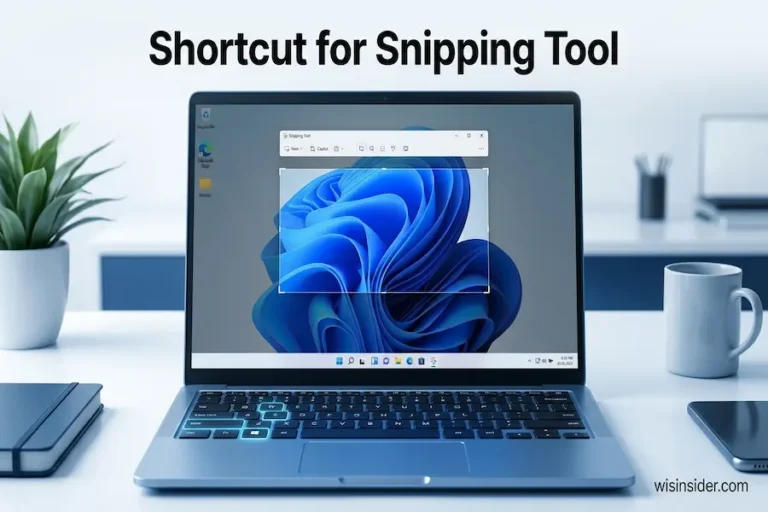
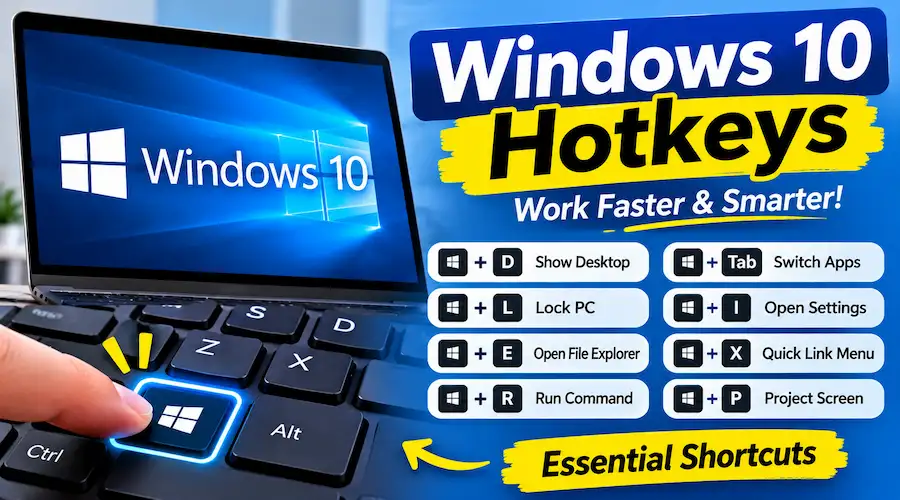
Windows 10 hotkey cheat sheet showing the most useful Windows key shortcuts.
Quick Answer
If you only have a minute, start here. These 15 Windows 10 hotkeys save the most time for most people. Each one works on a normal Windows 10 PC.
| Hotkey | What it does |
| Win | Opens the Start menu |
| Win + E | Opens File Explorer |
| Win + D | Shows or hides the desktop |
| Win + L | Locks your PC |
| Win + I | Opens Settings |
| Win + V | Opens clipboard history (turn it on first) |
| Win + Shift + S | Captures part of your screen |
| Win + Left or Right Arrow | Snaps a window to one side |
| Win + Tab | Opens Task View |
| Win + X | Opens the power user menu |
| Alt + Tab | Switches between open apps |
| Alt + F4 | Closes the active window |
| Ctrl + Shift + Esc | Opens Task Manager |
| Ctrl + Z | Undoes your last action |
| F2 | Renames the selected file |
First, learn five of these. After a week, they will feel natural. Then add more from the lists below.
Easy Ways to Remember Windows Key Shortcuts
Most Windows key shortcuts use a letter that hints at the action. That makes them easier to recall. For example, E is for Explorer. D is for Desktop. L is for Lock. I is for Settings, like “info” or “inside.” A is for the Action Center. S is for Search. R is for Run. P is for Project. M is for Minimize. X is for the extra menu.
Not every letter fits. Still, this trick covers about half of the Windows 10 hotkey you will use every day.
A Simple Plan to Learn Windows 10 Hotkeys
Do not try to learn everything at once. Instead, follow a slow plan.
- Pick three hotkeys for tasks you do every day.
- Use them each time, even if the mouse feels faster at first.
- Tape a note to your monitor until you stop looking at it.
- After one week, add three more.
In one month, you will know about a dozen. That alone can save you many minutes each day.
Do Windows 10 Hotkeys Still Work in 2026?
Yes, they do. Windows 10 reached end of support on October 14, 2025. That means Microsoft no longer sends regular updates, new features, or tech support. However, your PC still runs, and every hotkey in this guide still works.
There is one more thing to know. Microsoft offers Extended Security Updates for home users. In June 2026, Microsoft moved the end date of that program from October 13, 2026 to October 12, 2027. Many older articles still show the old date, so check it before you trust any guide.
These updates fix security holes only. They do not add features or change shortcuts. So the Windows 10 hotkeys you learn today will stay the same. If you plan to move to Windows 11 later, most of them will carry over too. We cover the small differences near the end of this guide.
Essential Windows 10 Hotkey for Everyone
These are the basics. Most apps use them, so they work almost everywhere.
| Hotkey | What it does | Note |
| Ctrl + C | Copies the selected item | Also works with Ctrl + Insert |
| Ctrl + X | Cuts the selected item | Moves it to the clipboard |
| Ctrl + V | Pastes the item | Also works with Shift + Insert |
| Ctrl + A | Selects everything | Works in files and text |
| Ctrl + Z | Undoes the last action | Can undo a file delete in File Explorer |
| Ctrl + Y | Redoes the action | The reverse of undo |
| Ctrl + Shift + N | Creates a new folder | On the desktop or in File Explorer |
| F2 | Renames the selected item | Fast way to rename files |
| Esc | Closes the current task | Closes menus and pop-ups |
| Alt + Tab | Switches between open apps | Hold Alt and tap Tab again |
| Alt + F4 | Closes the active window | On the desktop, it opens the shutdown box |
| Shift + Delete | Deletes a file for good | Skips the Recycle Bin |
| PrtScn | Copies a full screenshot | Saves it to the clipboard |
However, be careful with Shift + Delete. The file does not go to the Recycle Bin. So use it only when you are sure.
Windows Key Shortcuts in Windows 10
The Windows key sits between Ctrl and Alt on most keyboards. It opens the Start menu on its own. With another key, it runs many handy tasks. These Windows key shortcuts make up the core of any list of all Windows 10 keyboard shortcuts.
| Hotkey | What it does | Windows 10 note |
| Win | Opens or closes Start | Ctrl + Esc does the same |
| Win + A | Opens Action Center | Called Quick Settings in Windows 11 |
| Win + B | Moves focus to the system tray | Then use arrow keys |
| Win + C | Opens Cortana in listening mode | Off by default; turn it on in Settings |
| Win + D | Shows or hides the desktop | Press again to bring windows back |
| Win + E | Opens File Explorer | Fastest way to find files |
| Win + G | Opens the Xbox Game Bar | Works best with a game open |
| Win + H | Starts dictation | Older builds used it for the Share charm |
| Win + I | Opens Settings | Backspace returns to the Settings home |
| Win + K | Opens the Connect pane | Used for wireless displays |
| Win + L | Locks your PC | Also lets you switch users |
| Win + M | Minimizes all windows | Win + Shift + M brings them back |
| Win + P | Opens projection options | Duplicate, extend, or second screen only |
| Win + R | Opens the Run box | Type a command and press Enter |
| Win + S | Opens Search | Win + Q also works |
| Win + T | Cycles through taskbar apps | Press Enter to open one |
| Win + U | Opens Ease of Access settings | Called Accessibility in Windows 11 |
| Win + V | Opens clipboard history | Needs clipboard history turned on |
| Win + X | Opens the Quick Link menu | Right-clicking Start does the same |
| Win + Period (.) | Opens the emoji panel | Win + Semicolon (;) also works |
| Win + Comma (,) | Peeks at the desktop | Windows return when you let go |
| Win + Pause | Opens System Properties | Handy for checking your PC specs |
| Win + Home | Minimizes all but the active window | Press again to restore |
| Win + Number (1 to 9) | Opens the app in that taskbar spot | Win + 1 opens the first pinned app |
| Win + Space | Switches the keyboard language | Only if you added a second one |
| Win + Ctrl + Q | Opens Quick Assist | For remote help |
| Win + Shift + V | Cycles through notifications | Good for missed alerts |
| Win + PrtScn | Saves a screenshot to a file | Goes to Pictures, then Screenshots |
| Win + Plus (+) or Minus (-) | Zooms in or out with Magnifier | Win + Esc closes it |
| Win + Ctrl + Enter | Starts Narrator | Reads the screen out loud |
| Win + Ctrl + Shift + B | Wakes a black or blank screen | Try it if the display freezes |
Also, some Windows key shortcuts act differently on each build. For example, Win + C, Win + W, and Win + Z have changed over time. So test them on your own PC before you rely on them.
Windows key shortcuts on a Windows 10 keyboard
Windows 10 Hotkey for Managing Windows
You often have many windows open. So these hotkeys help you move, resize, and switch between them. In fact, they are some of the most useful Windows 10 hotkeys for office work.
| Hotkey | What it does |
| Win + Up Arrow | Maximizes the window |
| Win + Down Arrow | Shrinks a maximized window, then minimizes it |
| Win + Left Arrow | Snaps the window to the left half |
| Win + Right Arrow | Snaps the window to the right half |
| Win + Shift + Up Arrow | Stretches the window top to bottom |
| Win + Shift + Left or Right | Moves the window to another monitor |
| Win + Home | Minimizes all but the active window |
| Alt + Tab | Switches between apps |
| Ctrl + Alt + Tab | Keeps the app switcher on screen |
| Alt + Esc | Cycles through windows in order |
| Alt + Space | Opens the window menu |
To make a quarter-screen layout, snap a window left or right first. Then press Up or Down. The window moves into a corner. As a result, you can fit four apps on one screen.
Restore Shortcut Key in Windows 10
People search for a “restore shortcut key” because the word means different things. So here are the common cases.
Restore a window to its normal size. Press Alt + Space to open the window menu. Then press R. This works on any maximized window. Also, you can press Win + Down Arrow once.
Restore minimized windows. If you used Win + M to hide everything, press Win + Shift + M. It brings those windows back. Keep in mind that it may not restore windows you minimized by hand. In that case, press Alt + Tab or click the taskbar icon.
Show all windows again after using Win + D. Press Win + D a second time. Then the desktop view flips back.
Restore a closed browser tab. Press Ctrl + Shift + T. Chrome, Edge, and Firefox all support it. Press it again, and it reopens the one before that.
Restore a deleted file. Right after you delete a file in File Explorer, press Ctrl + Z. The file comes back. If that fails, open the Recycle Bin and restore it from there.
Restore your PC to an earlier point. Press Win + R, type rstrui, and press Enter. This opens System Restore. Still, use it only when Windows has a bigger problem. It can undo recent changes to drivers and apps.
Windows 10 Shutdown Shortcut Key
You can turn off your PC without touching the mouse. There are four easy ways. Pick the one that fits you.
Method 1: Alt + F4 on the Desktop
This is the classic Windows 10 shutdown shortcut key. First, press Win + D to show the desktop. Next, press Alt + F4. A box named “Shut Down Windows” opens. The shutdown option is already selected. Press Enter to confirm.
To restart instead, press the Down Arrow to pick Restart. Then press Enter. You can also choose Sleep the same way.
There is one catch. Alt + F4 only opens the shutdown box when the desktop is active. If an app is open, the shortcut closes that app. So always press Win + D first.
Method 2: Win + X, Then U, Then U
This method is fast and works from any app. Follow these steps.
- Press Win + X. Let go of both keys.
- Press U to open the “Shut down or sign out” menu.
- Press U again to shut down.
The second key changes the action. Use these letters after Win + X and U.
| Keys after Win + X, U | Action |
| U | Shut down |
| R | Restart |
| S | Sleep |
| I | Sign out |
| H | Hibernate (if turned on) |
The key is to let go of Win + X before you press U. If you hold them together, the menu may not respond.
Method 3: Ctrl + Alt + Del
Press Ctrl + Alt + Del. A blue screen appears. Then press Tab until the power icon is selected. Press Enter and choose Shut down. This method helps when an app freezes and other hotkeys fail.
Method 4: A Run Command
Press Win + R. Then type one of these commands and press Enter.
| Command | Result |
| shutdown /s /t 0 | Shuts down right now |
| shutdown /r /t 0 | Restarts right now |
| shutdown /l | Signs you out |
| shutdown /a | Cancels a shutdown that is counting down |
However, be careful. The /t 0 part means zero seconds. Windows will not ask you to save your work. So save first.
How to Create Your Own Shutdown Hotkey
Windows 10 has no built-in hotkey that shuts down in one press. But you can make one. Here is how.
- Right-click the desktop. Choose New, then Shortcut.
- Type shutdown /s /t 10 and click Next.
- Name it “Shut down” and click Finish.
- Right-click the new shortcut and choose Properties.
- Click the box named “Shortcut key.” Press the keys you want, such as Ctrl + Alt + S.
- Click OK.
The /t 10 part gives you ten seconds to change your mind. If you press it by mistake, run shutdown /a right away to cancel. Also, keep the shortcut on your desktop. The hotkey works only from the desktop or the Start menu.
A quick tip: The normal Shut down button in Windows 10 uses Fast Startup. That is a hybrid shutdown. For a full shutdown, hold Shift while you click Shut down. Holding Shift while you click Restart opens the advanced startup options.
Windows 10 Hotkey for Virtual Desktops
Virtual desktops give you extra workspaces on one screen. For example, you can keep work apps on one desktop and personal apps on another. These Windows 10 hotkeys control them.
| Hotkey | What it does |
| Win + Tab | Opens Task View |
| Win + Ctrl + D | Creates a new virtual desktop |
| Win + Ctrl + Right Arrow | Moves to the next desktop |
| Win + Ctrl + Left Arrow | Moves to the previous desktop |
| Win + Ctrl + F4 | Closes the current desktop |
When you close a desktop, its windows do not close. Instead, they move to another desktop. On some laptops, you may need to press Fn with the F4 key.
Windows 10 Screenshot Shortcuts
Windows 10 has four main screenshot hotkeys. Each one does something a little different.
| Hotkey | What it does | Where it goes |
| PrtScn | Captures the whole screen | Clipboard |
| Alt + PrtScn | Captures the active window | Clipboard |
| Win + PrtScn | Captures the whole screen | Saved as a file in Pictures, Screenshots |
| Win + Shift + S | Captures a part you choose | Clipboard, with a small pop-up |
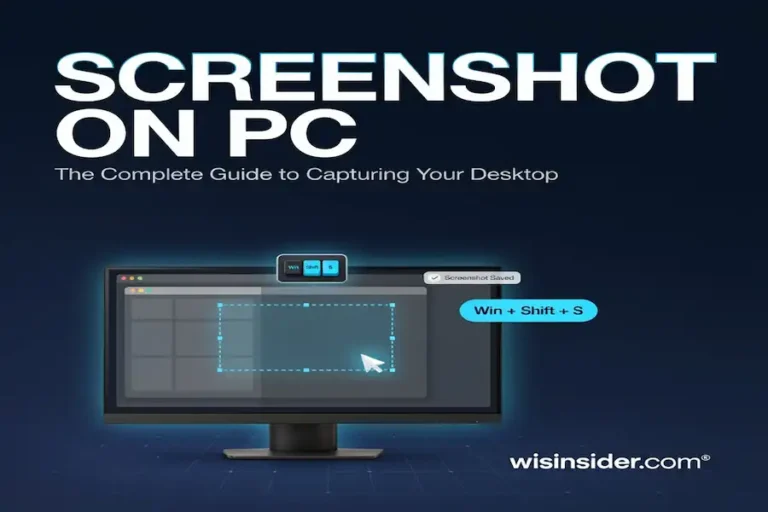
Win + Shift + S is the one most people use. Press it, then drag over the area you want. On Windows 10, it opens the Snip & Sketch tool. The image goes to your clipboard. So you can paste it into an email or chat right away. Click the pop-up if you want to edit and save it.
If Win + Shift + S does not work, see the fix section below.
Windows 10 Hotkey for File Explorer
File Explorer is where you manage files. The right hotkeys make it much faster.
| Hotkey | What it does |
| Win + E | Opens File Explorer |
| Alt + D | Selects the address bar |
| Ctrl + E or Ctrl + F | Selects the search box |
| Ctrl + N | Opens a new window |
| Ctrl + W | Closes the window |
| Ctrl + Shift + N | Creates a new folder |
| Ctrl + Shift + E | Expands all folders in the left pane |
| F2 | Renames the selected item |
| F5 | Refreshes the view |
| Alt + Up Arrow | Goes up one folder |
| Alt + Left Arrow | Goes back |
| Alt + Right Arrow | Goes forward |
| Alt + Enter | Opens Properties |
| Alt + P | Shows the preview pane |
| F11 | Switches full screen on or off |
| Home or End | Jumps to the top or bottom of the list |
You can also hold Ctrl and scroll your mouse wheel. That changes the icon size and view style.
Text Editing and Clipboard Hotkeys
These work in Notepad, Word, browsers, and most other apps.
| Hotkey | What it does |
| Ctrl + Left or Right Arrow | Moves the cursor one word |
| Ctrl + Shift + Arrow | Selects text word by word |
| Shift + Home or End | Selects to the start or end of a line |
| Ctrl + Home or End | Jumps to the start or end of a document |
| Ctrl + Backspace | Deletes the previous word |
| Ctrl + Delete | Deletes the next word |
| Win + V | Opens clipboard history |
| Win + Period (.) | Opens the emoji panel |
How to Turn On Clipboard History
Clipboard history is off by default. So the first time you press Win + V, Windows asks you to turn it on. Click Turn on. You can also open Settings, choose System, then Clipboard, and switch on Clipboard history. After that, Win + V shows the last items you copied. It can hold text and images, and you can pin items you use often.
Windows 10 Hotkey for Command Prompt
Command Prompt works better in Windows 10 than in older versions. In fact, you can copy and paste with the normal keys.
| Hotkey | What it does |
| Ctrl + C | Copies selected text |
| Ctrl + V | Pastes text |
| Ctrl + A | Selects all text on the line |
| Ctrl + M | Starts mark mode |
| Ctrl + F | Opens search |
| Up or Down Arrow | Moves through past commands |
| F7 | Shows a list of past commands |
| Tab | Completes a file or folder name |
| Ctrl + Home or End | Scrolls to the top or bottom |
Settings and Dialog Box Hotkeys
Old-style windows, like Folder Options, use these hotkeys. They also work in many pop-up boxes.
| Hotkey | What it does |
| Tab | Moves forward through options |
| Shift + Tab | Moves back through options |
| Ctrl + Tab | Moves forward through tabs |
| Ctrl + Shift + Tab | Moves back through tabs |
| Alt + underlined letter | Runs that command |
| Spacebar | Checks or clears a box |
| Backspace | Opens the parent folder in a Save As box |
| Arrow keys | Selects a button in a group |
Windows 10 Hotkey for Accessibility and Display
These hotkeys help people who need larger text, spoken help, or easier typing. Many other users find them handy too.
| Hotkey | What it does |
| Win + Plus (+) | Zooms in with Magnifier |
| Win + Minus (-) | Zooms out |
| Win + Esc | Closes Magnifier |
| Win + Ctrl + Enter | Starts or stops Narrator |
| Win + Ctrl + C | Turns color filters on or off |
| Win + U | Opens Ease of Access settings |
| Win + P | Picks a screen mode for a second display |
Color filters need setup first. Open Settings, go to Ease of Access, and enable the shortcut there. Also, pressing Shift five times turns on Sticky Keys. This lets you press hotkeys one key at a time, which helps if holding keys together is hard.
Windows 10 Hotkey for Gaming and Xbox Game Bar
Gamers can capture clips without leaving the game. However, the Game Bar needs to be on in Settings.
| Hotkey | What it does |
| Win + G | Opens the Game Bar |
| Win + Alt + G | Records the last 30 seconds |
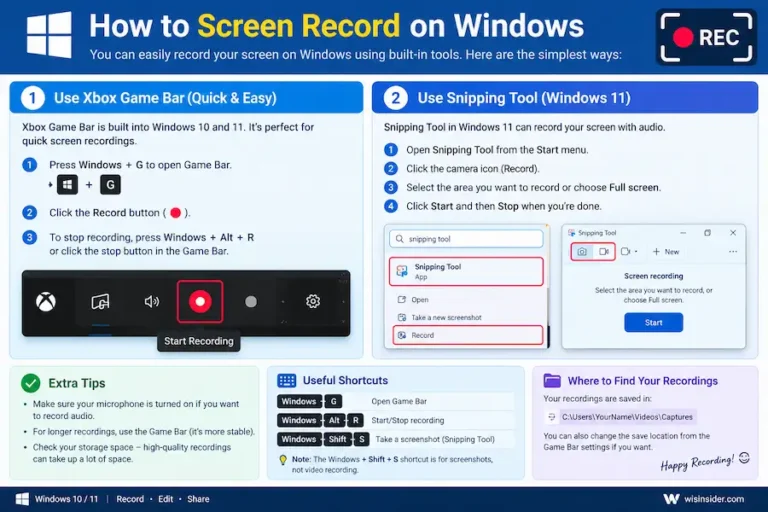
| Win + Alt + R | Starts or stops recording |
| Win + Alt + PrtScn | Takes a game screenshot |
So if a hotkey does nothing, check that Game Bar is enabled. Also, some keyboards have a game mode that turns off the Windows key. Switch that off if you see problems.
Browser Hotkeys That Work on Any Windows 10 PC
Your browser has its own hotkeys. The ones below work in Chrome, Edge, and Firefox. They are not part of Windows itself. Still, you will likely use them daily.
| Hotkey | What it does |
| Ctrl + T | Opens a new tab |
| Ctrl + W | Closes the current tab |
| Ctrl + Shift + T | Reopens the last closed tab |
| Ctrl + Tab | Moves to the next tab |
| Ctrl + L | Selects the address bar |
| Ctrl + D | Bookmarks the page |
| Ctrl + F | Finds text on the page |
| Ctrl + R or F5 | Reloads the page |
Windows 10 vs Windows 11 Hotkeys
Most shortcuts are the same in both systems. However, a few are not. This table shows the main differences.
| Hotkey | Windows 10 | Windows 11 |
| Win + C | Cortana, if turned on | Copilot, on builds that include it |
| Win + A | Action Center | Quick Settings |
| Win + U | Ease of Access settings | Accessibility settings |
| Win + Pause | System Properties | The About page in Settings |
| Win + W | Windows Ink Workspace | Widgets |
| Win + Z | Not a standard command | Snap Layouts |
| Win + N | Not a standard command | Notification Center |
| Win + Shift + S | Snip & Sketch | The newer Snipping Tool |
So if you move to Windows 11, learn these few changes. Everything else you read in this guide will keep working.
Windows 10 Hotkeys PDF Free Download
A printed cheat sheet is great when you are learning. So we made a simple one-page file. It lists the top Windows 10 hotkeys by task, with no ads and no sign-up.
Download the Windows 10 hotkeys PDF (free)
The Windows 10 hotkeys PDF free download covers:
- The Windows key shortcuts you will use most
- Window snapping and virtual desktop keys
- Screenshot, clipboard, and File Explorer shortcuts
- The shutdown shortcut key and restore shortcut key
You can print it on one sheet. You can also save the Windows 10 shortcut keys PDF on your phone or desktop. Since it is a plain PDF, you do not need extra software. It is a free download, not an app, so there is nothing to install. For the full list, keep this page open as your main reference.
Microsoft also has an official list of Windows shortcuts. You can see it on the Microsoft keyboard shortcuts page.
Windows 10 Hotkey Not Working? Easy Fixes
Sometimes a hotkey does nothing. So here are the common causes. Try them in order.
Quick Fixes to Try First
1. Restart your PC. It sounds simple, but it fixes many small glitches. So do this before anything else.
2. Check for a Windows key lock. Many gaming keyboards have a lock key or a game mode. It turns off the Windows key on purpose. Look for a small key with a Windows logo and a lock icon. Press it, or hold Fn with the Windows key, to unlock.
3. Check Filter Keys and Sticky Keys. Open Settings, go to Ease of Access, then Keyboard. Turn off Filter Keys. If combos act strange, look at Sticky Keys too.
4. Turn off Game Mode. Open Settings, then Gaming, then Game Mode. Switch it off and test again.
Fixes for Policy and Service Problems
5. Re-enable Windows key hotkeys. An old setting may have turned them off. Press Win + R, type gpedit.msc, and press Enter. Go to User Configuration, then Administrative Templates, then Windows Components, then File Explorer. Open “Turn off Windows Key hotkeys.” Set it to Not Configured or Disabled. Windows 10 Home does not have this tool. In that case, use the registry fix in the next section and set the value back to 0. On a work or school PC, an admin may control this setting.
6. Restart the Human Interface Device service. Press Win + R, type services.msc, and press Enter. Find “Human Interface Device Service.” Right-click it and pick Start, or Restart if it already runs.
7. Update your keyboard driver. Open Device Manager, expand Keyboards, right-click your keyboard, and choose Update driver.
8. Check the Fn lock. On many laptops, F keys act as media keys. Press Fn + Esc to swap them.
9. Look for other programs. Some apps, like screen recorders or graphics driver tools, grab hotkeys for themselves. Close them and test again.
Fix: Win + Shift + S Not Working
Open Settings, then Apps. Find Snip & Sketch and click Advanced options. Press Reset, then restart your PC. Also make sure no other screenshot app uses the same keys.
Fix: Win + V Does Nothing Useful
Clipboard history is probably off. So turn it on first. Open Settings, choose System, then Clipboard, and turn it on.
How to Disable or Change Windows 10 Hotkey
Maybe you press a hotkey by mistake. Or you want to give a shortcut a new job. Both are possible. However, you need an admin account for most of these steps.
Turn Off All Windows Key Hotkeys
Option A: Group Policy (Pro, Enterprise, and Education). Press Win + R, type gpedit.msc, and press Enter. Go to User Configuration, then Administrative Templates, then Windows Components, then File Explorer. Open “Turn off Windows Key hotkeys,” choose Enabled, and click OK. Restart your PC.
Option B: Registry (all editions, including Home). Back up the registry first. Then press Win + R, type regedit, and press Enter. Go to this key:
HKEY_CURRENT_USER\Software\Microsoft\Windows\CurrentVersion\Policies\Explorer
Create a new DWORD (32-bit) value named NoWinKeys. Set it to 1. Restart your PC. To undo it, set the value to 0 or delete it.
With both options, the Windows key still opens the Start menu. Only the combinations stop working.
Turn Off One Windows Key Hotkey
You can block a single combo. For example, you can stop Win + E. Back up the registry, then open Registry Editor and go to:
HKEY_CURRENT_USER\Software\Microsoft\Windows\CurrentVersion\Explorer\Advanced
Create a new String value named DisabledHotkeys. Type the letters of the hotkeys to block. Type E to block Win + E. Type RX to block both Win + R and Win + X. After that, sign out and sign back in, or restart File Explorer. This trick works only for Win + letter combos.
Remap a Key or Shortcut With PowerToys
Microsoft PowerToys is a free tool. Its Keyboard Manager can swap one key for another. It can also change a shortcut into a different one.
- Install PowerToys from Microsoft.
- Open it and click Keyboard Manager.
- Turn on Enable Keyboard Manager.
- Choose Remap a key or Remap a shortcut.
- Add your new mapping and click OK.
Keep three things in mind. PowerToys must keep running in the background. The remaps do not work on the sign-in screen. And you can limit a remap to one app. You can read the full steps on the PowerToys Keyboard Manager page. Check the current PowerToys system requirements before you install it on an older Windows 10 PC.
Make a Hotkey for Any App
You can give a program its own hotkey in one minute. Right-click the app’s shortcut and choose Properties. Click the “Shortcut key” box. Press a combo, such as Ctrl + Alt + N. Click OK. The shortcut must sit on your desktop or in the Start menu for the hotkey to work.
If you want more power, try AutoHotkey. It lets you write small scripts that run on any key combo. It takes some practice, so start with PowerToys first.
FAQs
What are the Windows 10 hotkeys?
Windows 10 hotkeys are key combinations that run a task fast. Most use the Windows key, like Win + E for File Explorer and Win + L to lock your PC. Others use Ctrl, Alt, or Shift, like Ctrl + C to copy and Alt + Tab to switch apps.
How do I see all keyboard shortcuts in Windows 10?
Windows has no built-in screen that lists every shortcut. The best option is a full list like this one. You can also check Microsoft’s official shortcut page. Or print the free PDF cheat sheet and keep it near your desk.
What is the shutdown shortcut key in Windows 10?
Press Win + D to show the desktop. Then press Alt + F4 and hit Enter. You can also press Win + X, then U, then U. Let go of Win + X before you press the letters. These work on any Windows 10 PC.
What is the restore shortcut key in Windows 10?
It depends on what you want to restore. Press Alt + Space, then R, to restore a window. Win + Shift + M brings back minimized windows. To reopen a closed browser tab, press Ctrl + Shift + T. Ctrl + Z undoes a delete.
How do I turn off Windows 10 hotkeys?
Open the Group Policy Editor. Then enable the setting “Turn off Windows Key hotkeys”. On Windows 10 Home, add a No Win Keys value of 1 in the registry. Restart your PC. The Windows key will still open the Start menu.
Why are my Windows 10 hotkeys not working?
The most common causes are a locked Windows key on a gaming keyboard, Game Mode, and Filter Keys. A policy can also turn hotkeys off. In addition, a stopped keyboard service or an old driver can cause trouble. Start with a restart, then work through the fixes above.
Are Windows 10 hotkeys the same as Windows 11 hotkeys?
Most of them are. Win + E, Win + D, Win + L, Win + I, and Alt + Tab work the same. A few differ, such as Win + C, Win + A, Win + W, and Win + Z. See the comparison table above.
Can I create my own hotkeys in Windows 10?
Yes. Right-click any shortcut, open Properties, and set a Shortcut key. For more control, use PowerToys Keyboard Manager to remap keys, or AutoHotkey to run scripts.
Is there a Windows 10 hotkeys free download?
Yes. You can download a free Windows 10 hotkeys PDF from this page. It is a plain file with no software to install. Print it or save it to your phone.
Final Thoughts
Windows 10 hotkeys still work after the end of support, and they can save you real time each day. Start small. Learn the top 15, then add the shutdown and restore shortcuts, and pick up the rest over time.
If a hotkey stops working, use the fixes in this guide. If one gets in your way, turn it off or remap it. Finally, download the free PDF and keep it close. In a few weeks, you will use your mouse far less.
Do you have a favorite Windows 10 hotkey that we missed? Share it in the comments.