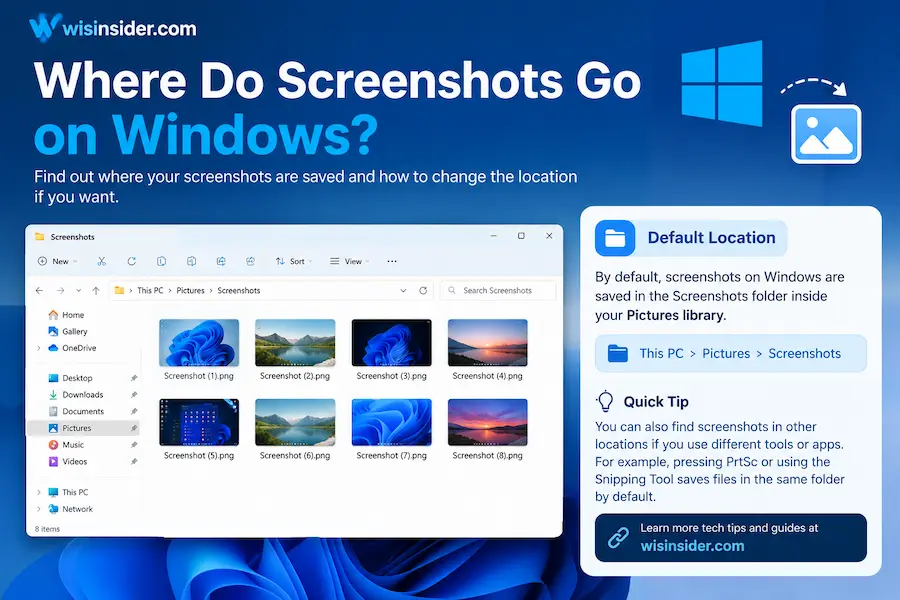
Where Do Screenshots Go on Windows? Find Them Fast

Where do screenshots go on Windows? Often, they land in Pictures > Screenshots. But that only applies to some methods. Others copy the image to your clipboard, and nothing gets saved at all.
This guide shows the location for each method. You will also see how to find a missing screenshot, why some appear in OneDrive, and how to change the folder. Start with the table below.
Where Do Screenshots Go on Windows?
There is no single folder for every screenshot. Where it goes depends on how you took it.
How To Geek notes that Windows has no central place where all screenshots are stored.
| Method | Where it goes |
| Win + PrtScn | A file in Pictures > Screenshots |
| PrtScn | Clipboard only |
| Alt + PrtScn | Clipboard only |
| Win + Shift + S | Clipboard first, then a notification |
| Snipping Tool app (Windows 11) | Pictures > Screenshots, when auto-save is on |
| Xbox Game Bar | Its own captures folder |
| Games | The game’s own folder |
If you use OneDrive to back up your Pictures folder, the path can change. More on that below.
How Do You Find Win + PrtScn Screenshots?
This shortcut saves a real file. By default, it saves screenshots in C:\Users\YourUsername\Pictures\Screenshots.
Follow these steps:
- Press Win + E to open File Explorer.
- Click Pictures in the left pane.
- Open the Screenshots folder.
Here is a faster way. Type %USERPROFILE%\Pictures\Screenshots into the File Explorer address bar and press Enter. Windows takes you straight there. Screensnap
Files are named “Screenshot (#).png,” and the number counts up with each capture. The folder does not exist until you use the shortcut once. Windows creates it the first time. Android AuthorityScreensnap
Where Do PrtScn and Alt + PrtScn Screenshots Go?
They go to your clipboard. No file is created. The clipboard is a temporary piece of memory used for copy and paste. Alt + PrtScn works the same way but captures only the active window. yahoo
To save the image, do this:
- Open Paint.
- Press Ctrl + V to paste.
- Choose File > Save as and pick a folder.
Tip: if you copy something else first, the screenshot is replaced. Save it right away.
On some Windows 11 setups, PrtScn opens the Snipping Tool instead. You can turn that off under Settings > Accessibility > Keyboard.
Where Does Win + Shift + S Save Screenshots?
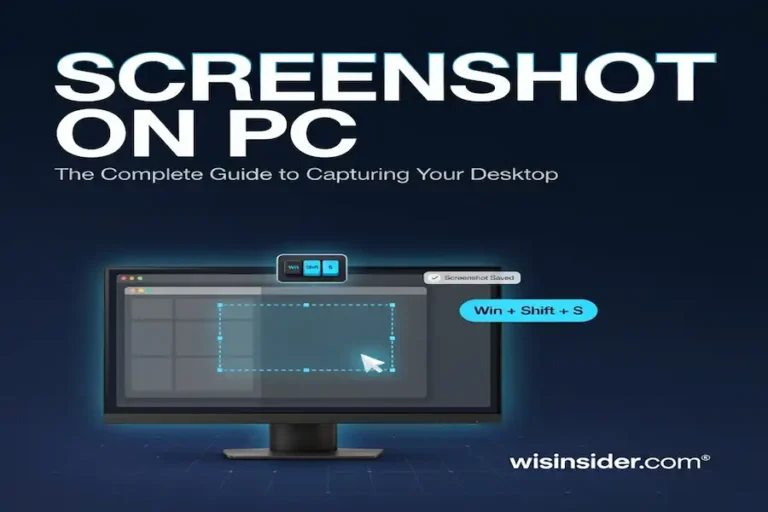
Win + Shift + S copies your selection to the clipboard. A notification then appears in the bottom-right corner. Click it to open the editor and save the image.
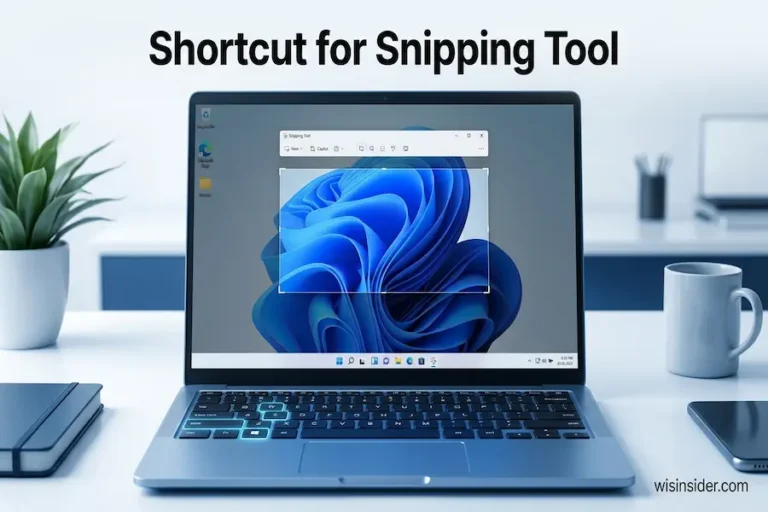
Missed the pop-up? Open the Snipping Tool from the Start menu. Your recent captures show in its history.
Windows 10 works a little differently. The Snip & Sketch app there has no supported auto-save feature. It mainly copies the capture, so you must save it yourself.
Where Does the Snipping Tool Save Screenshots?
In Windows 11, it can auto save to Pictures > Screenshots. Snipping Tool version 11.2209.2.0 and later saves screenshots there by default. The files are PNG images.
You can check or change this setting:
- Open the Snipping Tool.
- Click the three dots (See more).
- Choose Settings.
- Switch “Automatically save screenshots” on or off.
The app has no setting for a custom folder. You change the destination by moving the Screenshots folder itself. Snipping tool shortcuts
Where Do Xbox Game Bar Screenshots Go?
Game Bar saves captures in a folder of its own. Usually that is Videos > Captures. To open it without hunting:
- Press Win + G.
- Click the camera button.
- Choose “See my captures.”
- Click the folder icon to open File Explorer.
You can also select a screenshot and click “Open File Location.”
Why Are My Screenshots in OneDrive?
OneDrive may back up your Pictures folder. If so, your screenshots follow it. With OneDrive active, Snipping Tool’s auto-save goes to the Screenshots folder inside OneDrive’s Pictures directory. Microsoft Learn
That is why they seem to vanish from the local Pictures folder. Look in File Explorer under OneDrive > Pictures > Screenshots.
Want to stop it? Older OneDrive versions had a box for saving screenshots to OneDrive. Microsoft removed that dedicated setting. Now you control it through Pictures folder backup. Right-click the OneDrive icon, open Settings, and go to Backup.
Where Do Game Screenshots Go?
It depends on the game or launcher. Windows does not control these. F12 is not a default Windows screenshot key, and programs that use it, like some Steam games, choose their own save location. Android Authority
Some games use hidden folders. One indie game saves captures under AppData\Local Low. If a game shows a file path after a capture, note it. Or check the game’s settings for a screenshot folder.
How Do You Find a Screenshot You Can’t Locate?
Work through these steps in order.
- Take a new screenshot and save it. The tool remembers the last folder you used, so the save window opens there. Android Authority
- Check Pictures and Documents. File Explorer under This PC is the place to look. Android Authority
- Search by name. Type “Screenshot” in File Explorer and sort by Date modified.
- Look in OneDrive. Open OneDrive > Pictures > Screenshots.
- Check your clipboard. Press Win + V for clipboard history, or paste into Paint.
- Look in the temporary folder. Snipping Tool caches captures in %LocalAppData%\Packages\Microsoft.ScreenSketch_8wekyb3d8bbwe\TempState, which can help recover a missing one before it clears. Eleven Forum
- Update the Snipping Tool. Newer builds add the auto-save option, so update it through the Microsoft Store. Windows Forum
How Do You Change the Screenshot Folder?
You move the Screenshots folder. Windows then saves new shots there.
Follow these steps:
- Open File Explorer and go to Pictures.
- Right-click the Screenshots folder and choose Properties.
- Open the Location tab and click Move.
- Pick a new folder, then click Select Folder.
You can even move it to another drive, such as D:. That helps when your main drive is short on space. Windows may ask to move your old files too. Choose Yes to keep them together.
Which Screenshot Method Should You Use?
Pick the method that matches your goal.
| Your goal | Best method |
| Paste into a slide or email fast | Win + Shift + S, then Ctrl + V |
| Save every capture as a file | Win + PrtScn |
| Capture one window | Alt + PrtScn, then paste into Paint |
| Capture gameplay | Win + G (Game Bar) |
| Edit before saving | Snipping Tool |
| Automatic cloud backup | Save to Pictures with OneDrive backup on |
FAQs
Where do screenshots go on Windows 11?
Win + PrtScn saves to Pictures > Screenshots. The Snipping Tool does the same when auto-save is on. Other methods use the clipboard.
Where do screenshots go on Windows 10?
The same folder applies to Win + PrtScn. Snip & Sketch mostly copies to the clipboard, so save it manually.
Why didn’t my screenshot save?
You may have used PrtScn or Alt + PrtScn. Those copy to the clipboard. Paste into Paint to save.
Do screenshots go to the Downloads folder?
Not by default. Check Pictures > Screenshots first.
Can I change where screenshots are saved?
Yes. Move the Screenshots folder from its Properties > Location tab.
Final Thoughts
Most Windows screenshots end up in Pictures > Screenshots, but only when you use Win + PrtScn or Windows 11’s Snipping Tool with auto-save on. Other shortcuts copy to your clipboard. OneDrive and games can move files elsewhere.
Next time you can’t find a capture, check the method you used. Then look in Pictures, OneDrive, and the clipboard. If you want full control, move the Screenshots folder to a place you like.