Keyboard Shortcut for Snipping Tool: Fast Ways to Capture Your Screen

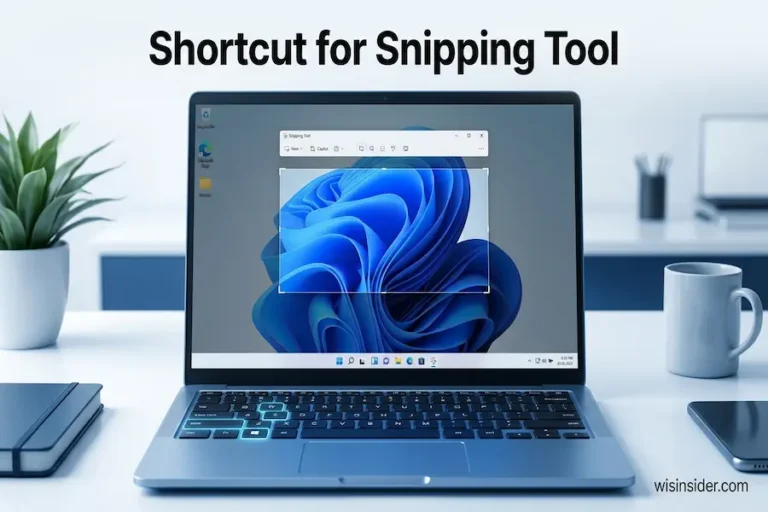
An error box pops up while you’re working. You want to send it to a coworker before it disappears. This is where the keyboard shortcut for Snipping Tool helps. Press Windows + Shift + S, drag across the box, and paste the picture into your chat. That is the whole trick.
Below, you’ll find the exact steps, a quick key chart, and fixes for when nothing happens. You will also learn how to change the keys, find your saved files, and take screenshots on Mac, Chromebook, and Surface.
Keyboard Shortcut for Snipping Tool at a Glance
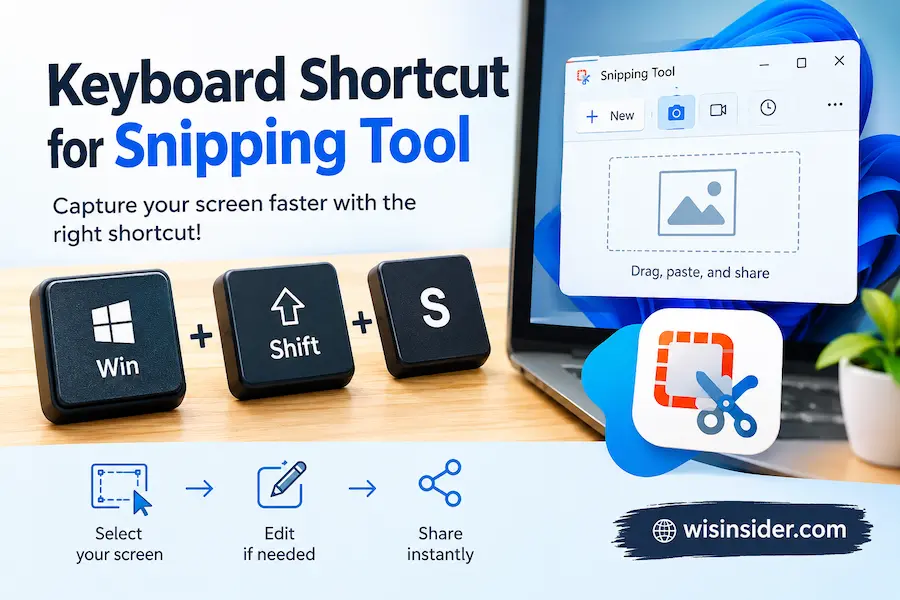
The short answer is Windows + Shift + S. Hold the Windows key and Shift, then tap S. Microsoft names this combo as the way to open the snipping overlay. The table below maps the keys you’ll use most.
| I want to… | Press |
| Snip part of the screen | Windows + Shift + S |
| Record part of the screen (Windows 11) | Windows + Shift + R |
| Copy the whole screen | PrtScn |
| Copy only the active window | Alt + PrtScn |
| Save the whole screen as a file | Windows + PrtScn |
| Start a new snip inside the app | Alt + N |
| Wait a few seconds before capturing | Alt + D |
| Save a snip | Ctrl + S |
On some laptops, you need to hold Fn while you press PrtScn.
Take Your First Snip in Six Moves
Try it once, and it will stick.
- Hold Windows and Shift, then tap S.
- The screen turns slightly gray, and a bar appears at the top.
- Choose the shape you want.
- Drag across the area. For window or full-screen mode, one click does the job.
- Open a chat or document and press Ctrl + V.
- To edit or save, click the small preview that pops up in the corner.
That preview doesn’t stay long. If you miss it, you can still paste, because the snip waits on your clipboard. Windows also reuses your last shape. So a repeat snip takes one less click.
Pick the Right Snip Shape
The bar offers four image shapes. Each one suits a different job.
- Rectangle works for most tasks, like grabbing an error message or a price table.
- Freeform lets you trace an odd outline, such as a round logo.
- Window captures one app or dialog box and leaves the desktop out.
- Full screen takes everything on your display at once.
Snipping Tool can also record video. Choose an area, press Start, and press Stop when you finish. Then you can save the clip or open it in Clipchamp to edit.
Keyboard Shortcut for Snipping Tool on Windows 11, 10, 7, and 8
The key combo stays the same on current versions. What changes is how the toolbar looks and which extras you get.
Windows 11
Use Windows + Shift + S. Windows 11 also adds video recording and text tools. Newer features depend on your Windows build and your hardware.
Windows 10
The combo is the same, but you need the Creators Update or later. The toolbar layout looks different from Windows 11. Still, all four shapes are there.
Windows 7 and 8
These versions don’t have Windows + Shift + S. Open the app from the Start menu and pin it to your taskbar. You can also give the app its own key, as explained below.
Turn the Print Screen Key into a Keyboard Shortcut for Snipping Tool
Pressing three keys at once feels awkward on a small laptop. One key is simpler. Some Windows 11 PCs already send PrtScn to the snip bar. If yours only copies the whole screen, switch the setting on:
- Press Windows + I to open Settings.
- Choose Accessibility, then Keyboard.
- Turn on the option that lets the Print screen button open screen snipping.
The exact wording changes between Windows builds, so look for something close. After that, PrtScn opens the same bar.
Can You Change the Keyboard Shortcut for Snipping Tool?
Windows keeps Windows + Shift + S fixed. You can’t rebind it in Settings. Still, two workarounds exist.
Add a shortcut key to the app
- Make a desktop shortcut to Snipping Tool. The app file sits in the WindowsApps folder, inside AppData\Local\Microsoft in your user folder.
- Right-click the shortcut and choose Properties.
- Click the Shortcut key box and press a letter. Windows adds Ctrl + Alt for you.
- Click Apply.
Keep in mind that this opens the app window, not the gray overlay. Some users also report that it stops working after an update.
Remap with PowerToys
PowerToys is a free Microsoft utility. Its Keyboard Manager turns one key combo into another. So you can point your own keys at Windows + Shift + S.
Also, Ctrl + Alt + S is not a built-in snip key. It only works if you set it up. And Ctrl + Shift + S often means “Save As” in other apps.
Keyboard Shortcut for Snipping Tool Not Working? Check These First
When the keys do nothing, work through this list. Start at the top, because those fixes are the fastest.
- Restart the app. Press Ctrl + Shift + Esc, right-click Snipping Tool, and pick End task. Then try again.
- Test the Windows key. Some keyboards lock it. Press Fn + Windows to switch the lock off.
- Repair the app. Open Settings > Apps > Installed apps > Snipping Tool > Advanced options. Click Repair. If that fails, click Reset.
- Install pending updates. A bad update can break the shortcut, and a later one can fix it.
- Close other capture apps. A second screenshot tool may claim the same keys.
- Reinstall the app. Remove it, then download it again from the Microsoft Store.
- Check notifications. If your snips seem to vanish, notifications may be off. You can still paste with Ctrl + V.
While you troubleshoot, use the Print Screen setting above as a backup.
Where Your Snips End Up
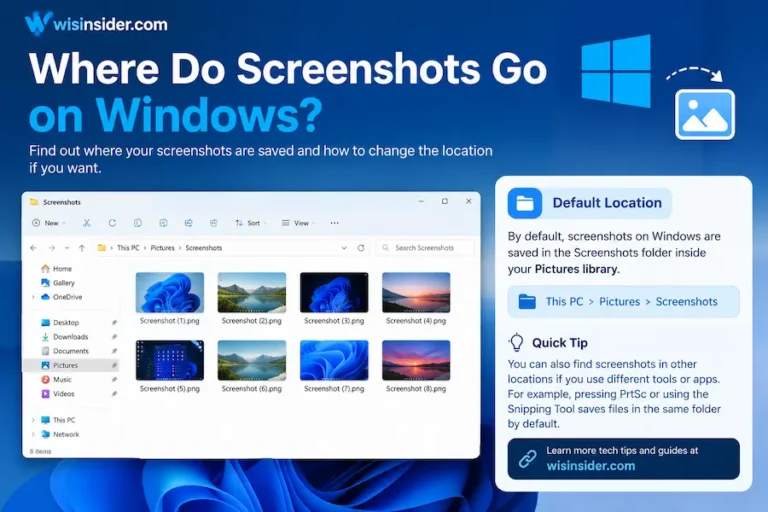
Microsoft says the app files each snip in your Screenshots folder on its own. That folder usually sits inside Pictures. To change the folder or turn auto-save off, open the app, select See more, and choose Settings.
The overlay also puts a copy on your clipboard. That’s why Ctrl + V works right away. Behavior can vary between versions, so test it. Take one snip, then look in Pictures > Screenshots. If no file appears, paste the snip somewhere and use Save as. Also, Windows + PrtScn drops a full-screen image in that same folder.
Handy Tricks After You Snip
The editor does more than most people expect.
- Delay the capture. Pick 1 to 5 seconds. This lets you open a menu before the screen freezes.
- Pull text out of a picture. The Text actions button reads the words in your snip. You can copy them or hide email addresses and phone numbers. Microsoft says this runs on your device.
- Mark it up. Use the pen, highlighter, shapes, and crop tools.
- Use Copilot+ tools. Perfect screenshot and Color picker work only on Copilot+ PCs.
- Pin the app. Search for Snipping Tool and select Pin to taskbar.
Screenshot Keys on Mac, Chromebook, and Surface
Snipping Tool is a Windows app. Other devices have their own keys.
| Device | Keys |
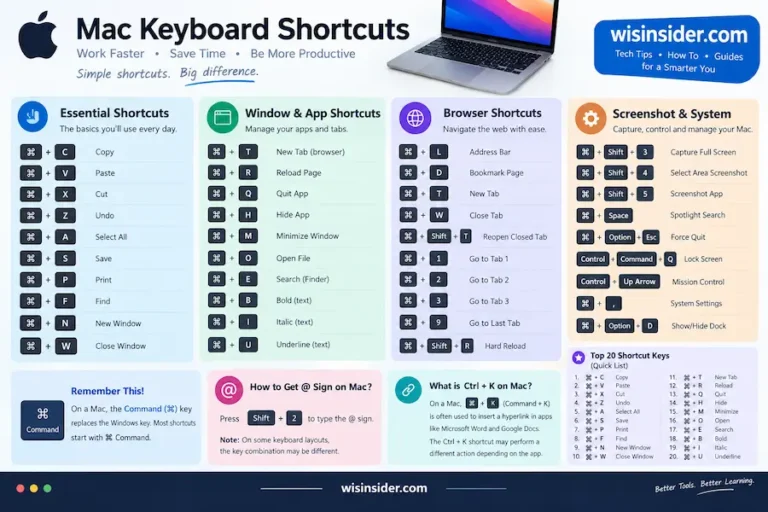
| Mac | Shift + Command + 4 for an area, Shift + Command + 3 for the full screen |
| Chromebook | Shift + Ctrl + Show windows (Ctrl + Shift + F5 on an external keyboard) |
| Surface Pro or Go (tablet) | Power + Volume Up |
| Surface with a keyboard | Windows + Shift + S |
| Older Surface with a Windows logo button | Windows button + Volume Down |
Chromebook screenshots go to the Downloads folder by default. Surface button combos vary by model. So check Microsoft’s Surface screenshot page for yours.
Real-Life Uses
Here’s where this shortcut earns its keep.
- Students: Grab a chart from a lecture slide and paste it into your notes.
- Office workers: Send one table from a big spreadsheet instead of the whole file.
- Support teams: Capture an error message and share it in seconds.
- Writers and bloggers: Crop just the part of a page you need for a tutorial.
- Everyday users: Save a receipt or booking page before you close the tab.
FAQs
What is the keyboard shortcut for Snipping Tool in Windows 11?
Press Windows + Shift + S. Then pick a snip shape from the bar at the top.
Why is Windows + Shift + S not working?
The app may be stuck, your Windows key may be locked, or an update may have caused a glitch. Try the seven fixes above.
Can I change the Snipping Tool shortcut?
Not directly. You can add a shortcut key to the app or remap keys with PowerToys.
How do I record my screen with Snipping Tool?
Press Windows + Shift + R on Windows 11. Then choose an area and press Start.
Where do my snips go?
Microsoft says they save to your Screenshots folder automatically. The overlay also copies them to your clipboard.
Does Snipping Tool work on a Mac?
No. Mac has its own keys. Use Shift + Command + 4 to capture an area.
Bottom Line
The keyboard shortcut for Snipping Tool is Windows + Shift + S. If three keys feel like too many, set PrtScn to do the same job. When the keys fail, restart the app, check your Windows key, and repair the app. For the official steps, see Microsoft’s Snipping Tool page.