Shortcut for Snipping Tool: Every Way to Trigger It, Fast

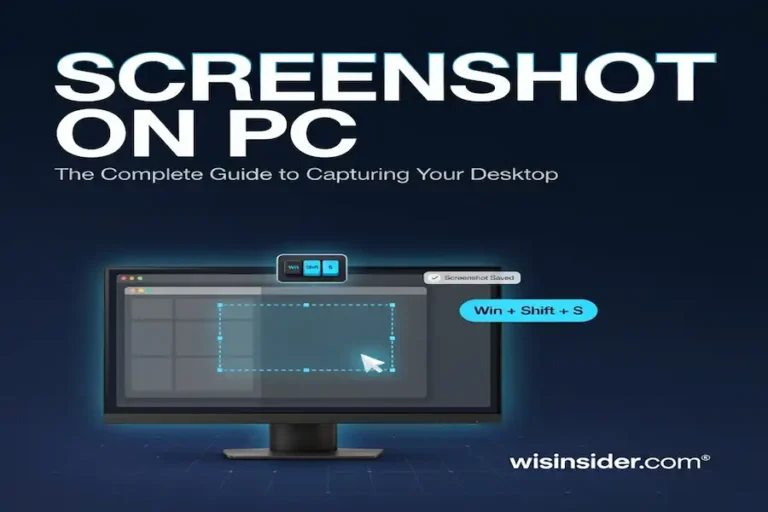
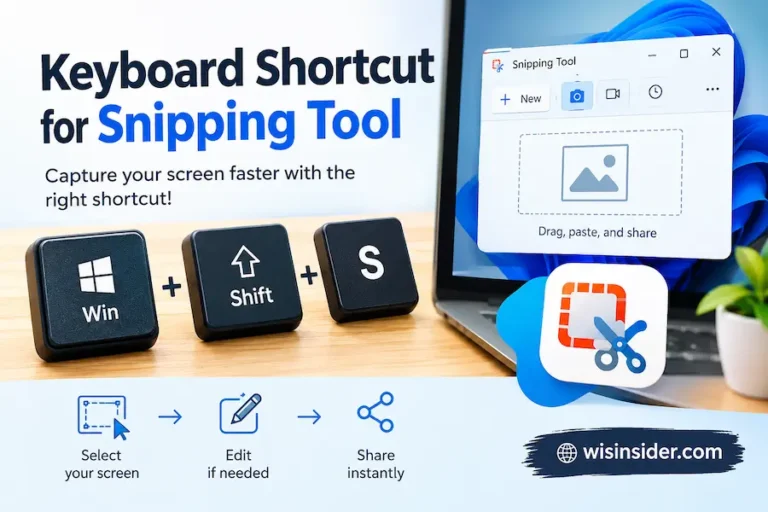
Three keys. That’s the whole shortcut. Windows key + Shift + S, and you’re capturing your screen in under a second.
But here’s what almost nobody tells you: that’s just one of at least six ways to trigger a snip, and depending on your setup, it might not even be the fastest one for you. Some people are better off with a taskbar pin. Some need a custom hotkey because Win + Shift + S is already taken by another app. This guide covers all of it.
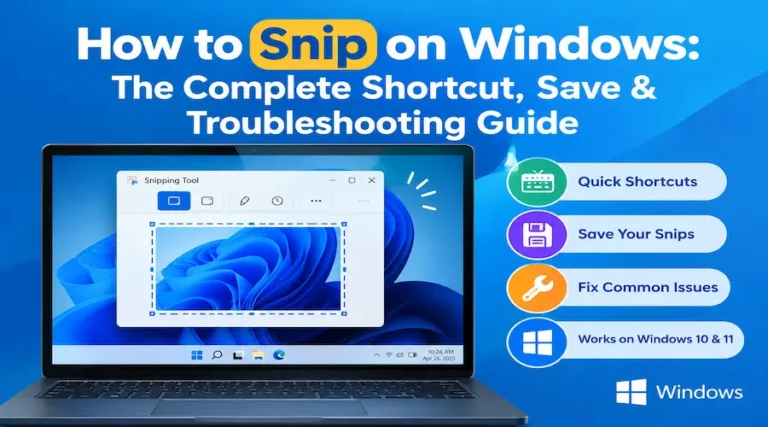
For the full walkthrough on troubleshooting, saving, and using every capture mode, see our complete guide on how to snip on Windows this one goes deep specifically on the shortcuts themselves.
Key takeaways:
- Windows key + Shift + S is the default shortcut on Windows 10 and 11
- You can create a fully custom shortcut key if the default gets overridden
- Pinning Snipping Tool to your taskbar unlocks a Win + number shortcut too
- Print Screen can be remapped to open the same overlay
The Main Shortcut for Snipping Tool
This is the one shortcut worth memorizing before any other. Everything else in this guide is a variation or a backup.
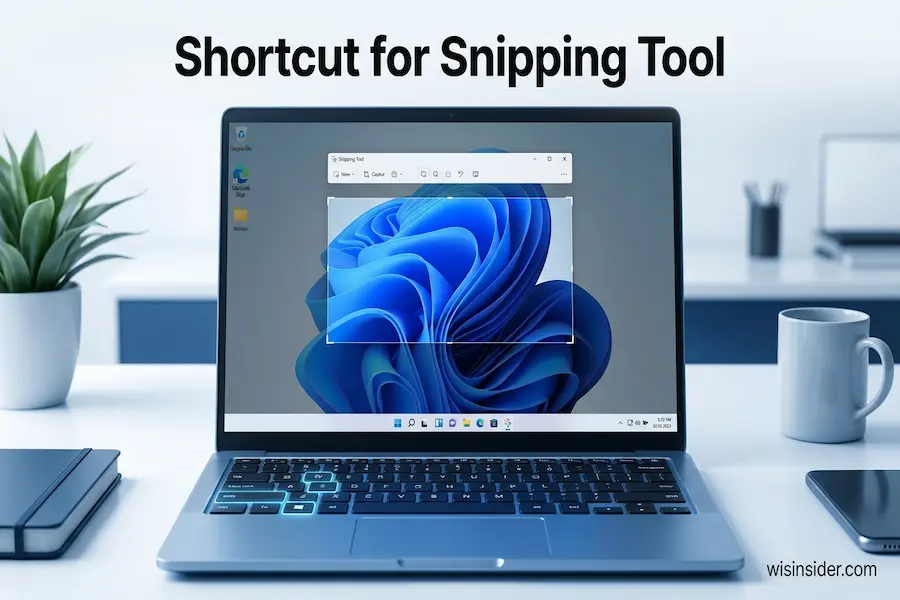
Press Windows key + Shift + S. Your screen dims, a small toolbar appears at the top, and you get four capture modes to choose from: rectangular, freeform, window, and full-screen. The moment you drag over an area, it’s copied straight to your clipboard, ready for Ctrl + V.
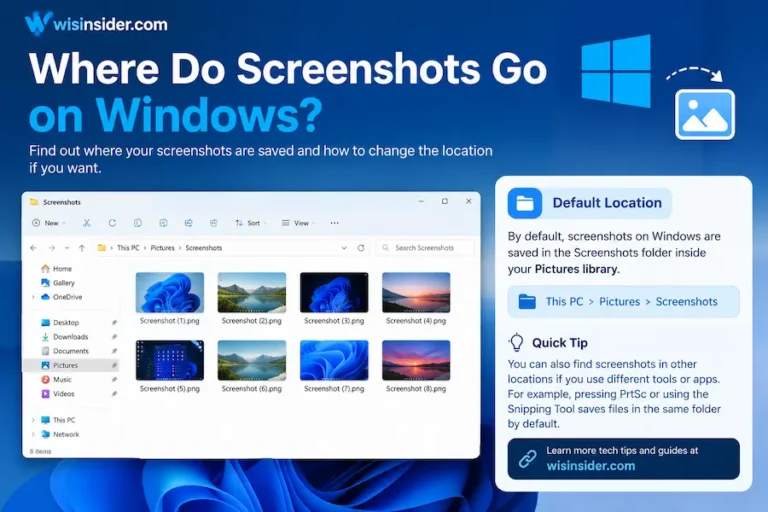
Here’s the part that trips people up: nothing gets saved as a file automatically. If you close the notification that pops up without clicking it, that snip is gone the instant you copy something else. Click the notification if you want to edit or save it properly.
Every Snipping Tool Shortcut in One Table
Most guides give you one shortcut and call it a day. Here’s the full set, because the situation you’re in determines which one actually helps.
| Shortcut | What it does |
|---|---|
| Win + Shift + S | Opens the snip overlay, copies to clipboard |
| Win + Shift + R | Opens the same overlay in screen-recording mode (Windows 11) |
| Print Screen | Captures full screen to clipboard (or opens Snipping Tool if remapped) |
| Alt + Print Screen | Captures only the active window to clipboard |
| Win + Print Screen | Captures full screen and auto-saves it as a file |
| Alt + N | Starts a new snip in the same mode as your last one |
| Alt + M | Opens the mode selector inside the app |
| Win + [number] | Opens Snipping Tool instantly if it’s pinned to the taskbar |
Notice the pattern: The Windows key combos mostly live on your clipboard, while Win + Print Screen is the one that quietly saves a file for you. Mixing those up is where a lot of “where did my screenshot go” confusion comes from.
How to Create a Custom Shortcut Key for Snipping Tool
If Win + Shift + S ever stops responding, it’s usually because another app grabbed it first. Discord, OneDrive, and several Nvidia tools are common culprits. When that happens, building your own dedicated hotkey solves it for good.
- Open the Start menu, find Snipping Tool, and right-click it
- Select More, then Open file location
- In that folder, right-click the Snipping Tool shortcut and choose Properties
- Click into the Shortcut key field and press a letter, for example S
- Windows automatically builds it as Ctrl + Alt + [your letter]
- Click Apply, then OK
From that point on, your custom combo launches the app directly, completely separate from whatever’s blocking Win + Shift + S. This is worth doing even if your default shortcut works fine, honestly, since it gives you a fallback that nothing else on your system can steal.
Pin It to Your Taskbar for a One Key Launch
Here’s a shortcut most people never discover because it isn’t advertised anywhere in the app itself.
- Open Snipping Tool once from the Start menu
- Right-click its icon in the taskbar
- Select Pin to taskbar
- Note its position, counted left to right
Now press Windows key + [that number]. If it’s your third pinned app, that’s Win + 3. One combo, instant launch, no searching. Combine this with the Properties hotkey from the last section and you’ve got two completely independent ways in, which matters more than it sounds like the day one of them breaks.
Remap Print Screen Into a Snipping Shortcut
If you’d rather use the single Print Screen key instead of a three-key combo, Windows lets you swap its behavior entirely.
- Press Win + I to open Settings
- Go to Accessibility, then Keyboard
- Turn on Use the Print Screen key to open screen capture
From here, tapping PrtScn alone opens the same overlay as Win + Shift + S. It’s a genuinely good option for anyone who finds three-finger combos awkward, or for laptops where the Windows key sits in an inconvenient spot.
Shortcuts That Are Missing on Some Laptops
Compact laptops love to remove the dedicated Print Screen key, which breaks a chunk of what’s above if you don’t know the workaround.
Try these, in order, until one works:
- Fn + PrtScn
- Fn + Insert
- Fn + Windows + Space bar
Which one applies depends entirely on the manufacturer. Check your keyboard’s function row for a small camera icon that’s usually your clue.
Windows 10 vs Windows 11: Shortcut Differences
The core shortcut hasn’t changed between versions, but a couple of extras only exist on the newer one.
| Shortcut | Windows 10 | Windows 11 |
|---|---|---|
| Win + Shift + S | Yes | Yes |
| Win + Shift + R (video) | No | Yes |
| Custom hotkey via Properties | Yes | Yes |
| Win + number taskbar pin | Yes | Yes |
| Print Screen remap | Yes | Yes |
If you’re still on Windows 10, don’t worry, almost everything here applies to you exactly the same way. The only thing you’re missing is the screen-recording shortcut.
When the Shortcut Just Won’t Work
Before assuming something’s broken, run through these in order. Most shortcut failures clear up in the first two steps.
- Check for a conflicting app. OneDrive, Discord, Dropbox, and Nvidia GeForce Experience are the repeat offenders. Close them one at a time and retest.
- Confirm you’re pressing the right keys. Ctrl + Shift + S is not the shortcut, that combo belongs to Firefox and to Save As in most apps. It’s an easy mix-up.
- Check your Windows key isn’t locked. Gaming keyboards often have a Win-lock toggle, usually marked with a small lock icon near the key itself.
- Restart the app. Ctrl + Shift + Esc to open Task Manager, end the Snipping Tool process, reopen it.
- Fall back to your custom hotkey from section 3, since it runs independently of whatever’s blocking the default combo.
Which Shortcut Should You Actually Use?
Six methods is a lot to remember. Here’s the shortcut version of this entire guide.
| Your situation | Use this |
|---|---|
| Default setup, no conflicts | Win + Shift + S |
| Recording a quick video | Win + Shift + R |
| Win + Shift + S got hijacked | Your custom Ctrl + Alt + [key] |
| You want a single-key press | Remapped Print Screen |
| App is already open, want instant access | Win + [taskbar number] |
| Need just the active window | Alt + Print Screen |
FAQs
What is the shortcut for Snipping Tool?
Windows key + Shift + S. It opens the capture overlay with all four snip modes and copies your selection straight to the clipboard.
What is the shortcut for Snipping Tool?
Windows key + Shift + S. It opens the capture overlay with all four snip modes and copies your selection straight to the clipboard.
Can I change the Snipping Tool shortcut?
Yes. Right-click the app’s shortcut file, open Properties, and set a custom key in the Shortcut key field. Windows builds it as Ctrl + Alt + your chosen letter.
Why did my Snipping Tool shortcut stop working?
Usually another app has claimed the same key combo. Discord, OneDrive, and Nvidia software are the most common causes. Close the suspect app and test again.
Is there a one-key shortcut for Snipping Tool?
Yes, if you remap Print Screen through Settings > Accessibility > Keyboard. After that, pressing PrtScn alone opens the same overlay as Win + Shift + S.
What’s the difference between Win + Shift + S and Print Screen?
Win + Shift + S opens a selection overlay and copies to the clipboard only. Plain Print Screen grabs the whole screen. Win + Print Screen grabs the whole screen and also saves it as a file automatically.
Does the shortcut work the same on Windows 10 and 11?
The core shortcut, Win + Shift + S, is identical on both. Windows 11 adds Win + Shift + R for screen recording, which Windows 10 doesn’t have.
Final Thoughts
Win + Shift + S covers you 90% of the time. Build a custom hotkey through Properties as a backup, since it’s the one shortcut on this whole list that nothing else on your system can accidentally steal from you. Everything else here is there for the specific day the default one lets you down.
For more Windows tips, you can also explore WISInsider Software.