Screen Shot on PC: How to Take a Screenshot on Windows

Taking a screen shot on PC is easy. Windows gives you several built-in ways to capture your screen. You can capture the whole screen, one window, or just part of it.
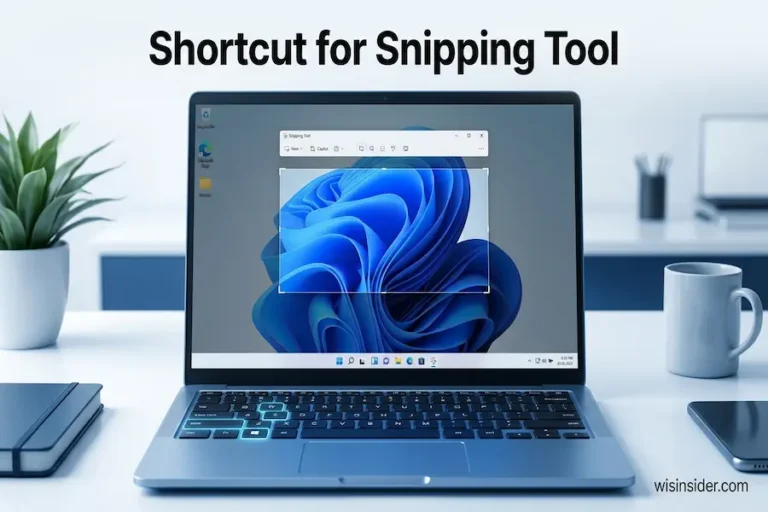
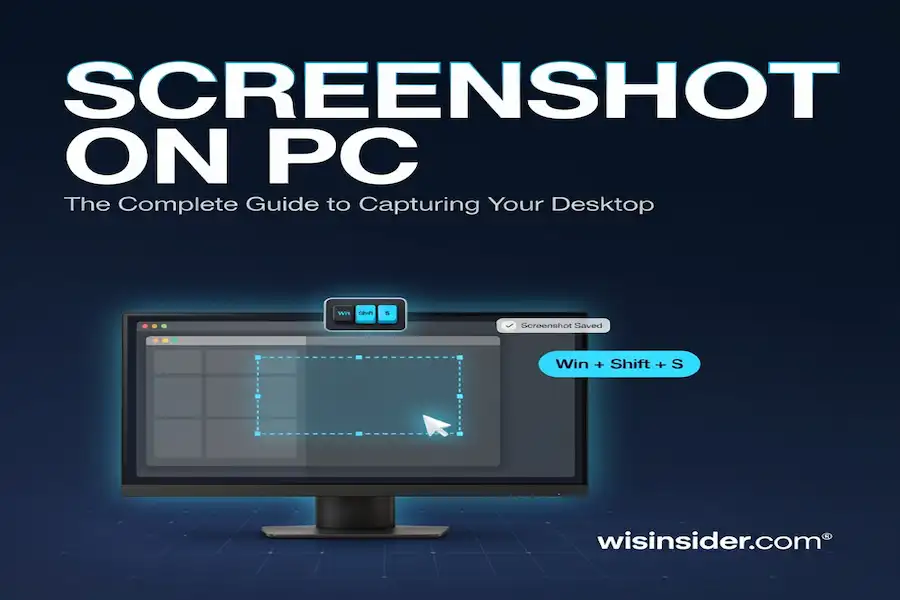
The quickest method for most people is Windows + Shift + S. It opens the Snipping Tool overlay and lets you select the area you want to capture.
If you want to save the whole screen as an image, press Windows + PrtScn. Windows saves the screenshot in your Screenshots folder.
Quick Answer: How to Take a Screen Shot on PC
Choose the method that matches what you want to capture.
| What you want | Shortcut or method |
|---|---|
| Part of the screen | Windows + Shift + S |
| Full screen | PrtScn |
| Full screen and save it | Windows + PrtScn |
| Active window | Alt + PrtScn |
| Screenshot with editing tools | Snipping Tool |
| Screenshot without a Print Screen key | Windows + Shift + S |
For most users, Windows + Shift + S is the easiest place to start.
Screenshot Shortcuts on Windows
Windows has several keyboard shortcuts for screenshots. Each one works a little differently.
Windows + Shift + S
Press Windows + Shift + S to open the Snipping Tool capture overlay.
You can then select the part of the screen you want to capture. This is useful when you do not want a screenshot of your entire desktop.
Windows + PrtScn
Press Windows + PrtScn to capture the full screen and save the screenshot as a file.
You can normally find it in:
Pictures → Screenshots
PrtScn
Press PrtScn, also called Print Screen, to capture the screen to the clipboard.
You can then open Paint, Word, an email, or another compatible app and press Ctrl + V to paste the image.
The behavior of the Print Screen key can vary with Windows settings. On some systems, it can be configured to open Snipping Tool.
Alt + PrtScn
Press Alt + PrtScn to capture the active window.
This is useful when you want one application window instead of the entire desktop.
How to Screenshot Part of Your Screen
Sometimes you only need one part of the screen.
For example, you may want to capture:
- A paragraph
- A picture
- A chart
- A message
- A section of a webpage
The easiest method is Windows + Shift + S.
- Press Windows + Shift + S.
- Your screen will become darker.
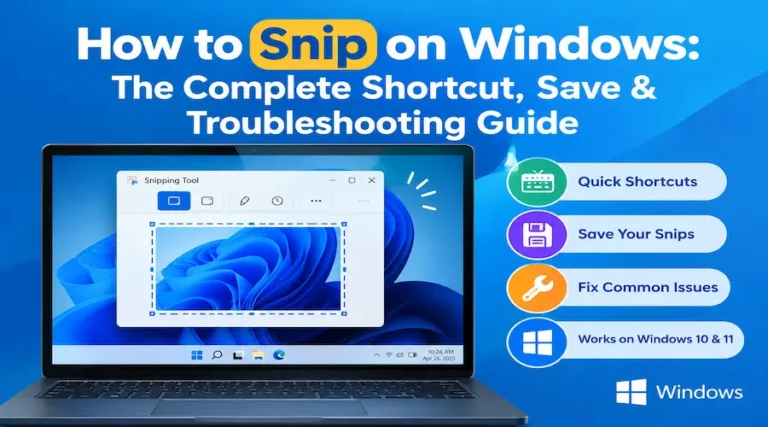
- The Snipping Tool menu will appear.
- Choose the capture mode you need.
- Drag your mouse over the area you want.
- Release the mouse button.
- The screenshot is copied to the clipboard.
- Select the notification if you want to open it in Snipping Tool.
- Edit or save the screenshot.
You can use rectangular, freeform, window, or full-screen capture modes.
How to Take a Full Screen Screenshot
If you want to capture everything on your screen, you have two simple options.
Use PrtScn
Press PrtScn.
The screenshot is copied to your clipboard. Open an app such as Paint and press Ctrl + V.
You can then save the image.
Use Windows + PrtScn
Press Windows + PrtScn.
This captures the full screen and saves the screenshot as an image file.
Open:
File Explorer → Pictures → Screenshots
This method is useful when you want Windows to save the screenshot for you.
How to Screenshot One Window
You may not want to show your entire desktop.
If you only need one application window, use Alt + PrtScn.
First, click the window you want to capture.
Then press:
Alt + PrtScn
The screenshot is copied to your clipboard.
Open Paint or another app and press Ctrl + V.
You can now edit and save the screenshot.
How to Use the Snipping Tool
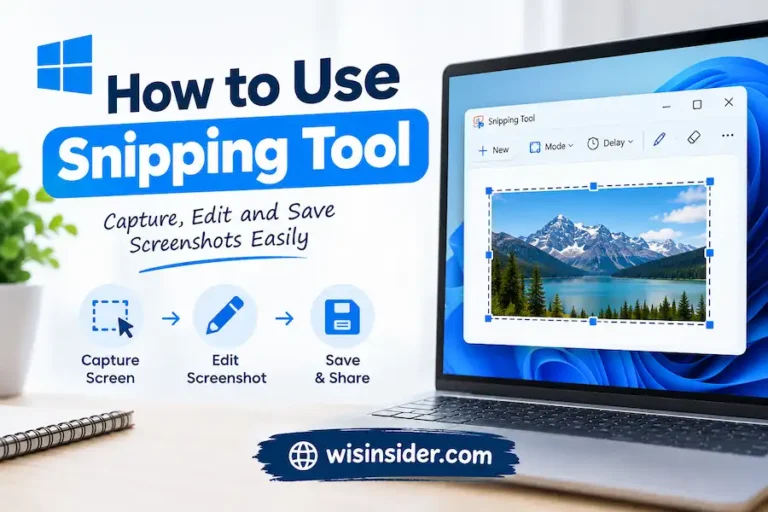
The Snipping Tool is Windows’ built-in screenshot app.
You can open it from the Start menu. Search for Snipping Tool and open the app.
You can also press Windows + Shift + S to start a screen capture.
Rectangular Snip
Use this mode to select a rectangular part of the screen.
It is useful for most normal screenshots.
Freeform Snip
Use freeform capture when you want to draw around an irregular area.
Window Snip
Use Window Snip when you want to capture one open window.
Full-Screen Snip
Use Full-Screen Snip to capture the entire screen.
After taking a snip, you can edit, crop, annotate, copy, save, or share it.
How to Save a Screenshot on PC
The way a screenshot is saved depends on the method you use.
With PrtScn, the screenshot is copied to the clipboard. You need to paste it into an app and save it.
With Windows + PrtScn, Windows saves the screenshot as an image file.
With Snipping Tool, you can open the captured image and use the save option to choose where to store it.
This difference is important because many people take a screenshot and then wonder where the image went.
Where Are Screenshots Saved on Windows?
If you used Windows + PrtScn, check:
File Explorer → Pictures → Screenshots
If you used PrtScn, the image may only be on your clipboard.
Try opening Paint and pressing:
Ctrl + V
You can also use Windows + V to check your clipboard history if it is enabled.
If you still cannot find the image, take another screenshot with Windows + PrtScn. Then check the Screenshots folder.
How to Screenshot Without a Print Screen Key
Some keyboards do not have a separate Print Screen key.
You can still take a screenshot.
The easiest option is:
Windows + Shift + S
This opens the Snipping Tool capture overlay.
Some laptop keyboards also place the Print Screen function on another key. In that case, you may need to use Fn with that key.
On supported devices without a dedicated PrtScn key, Microsoft also documents Fn + Windows logo key + Space Bar as an alternative screenshot shortcut.
How to Screenshot on a Laptop
You can use the same Windows screenshot methods on most Windows laptops.
Try:
Windows + Shift + S
or:
Windows + PrtScn
If your laptop uses the Print Screen function as a secondary key, try holding Fn while pressing that key.
The exact keyboard layout can vary between Dell, HP, Lenovo, ASUS, Acer, and other laptop brands.
You do not usually need a separate screenshot program just because you are using a laptop.
Windows 10 vs. Windows 11 Screenshot Methods
Both Windows 10 and Windows 11 support common screenshot methods such as:
- Print Screen
- Windows + PrtScn
- Windows + Shift + S
- Alt + PrtScn
- Snipping Tool
The design and some settings can look different between the two versions.
If you are unsure which method to use, Windows + Shift + S is a simple option for capturing a selected area.
How to Edit and Annotate a Screenshot
You may want to mark something before sending your screenshot.
Snipping Tool includes tools for working with captured images. You can crop, draw, highlight, and make other edits.
You can also paste the screenshot into Microsoft Paint if you need more editing options.
This is useful for:
- Highlighting an error
- Pointing to a button
- Marking important text
- Explaining a problem
- Preparing an image for a report
How to Take a Scrolling Screenshot
A normal screenshot only captures what is visible on your screen.
A scrolling screenshot can capture a longer page that extends below the visible area.
Windows does not have one universal shortcut that captures every long webpage or application.
For a long webpage, use a browser’s full-page capture feature when available. You can also use a dedicated screenshot tool that supports scrolling capture.
This is useful for long articles, receipts, webpages, and documents.
How to Screenshot a Webpage
There are two common situations.
If you only need the visible part of a webpage, use:
Windows + Shift + S
If you need the entire webpage, including content below the visible area, use a browser’s full-page capture option or a screenshot tool that supports scrolling captures.
A full webpage screenshot can be useful when saving:
- Online receipts
- Long articles
- Website designs
- Search results
- Online forms
How to Take a Screenshot While Gaming
You can also capture screenshots while gaming on a Windows PC.
Xbox Game Bar provides built-in game capture features. Some gaming platforms also have their own screenshot shortcuts.
For example, Steam has built in screenshot controls.
If you only need a normal desktop capture, the standard Windows screenshot shortcuts may also work.
Screenshot Not Working on PC? Try These Fixes
If your screenshot shortcut does not work, try these solutions.
Try Windows + Shift + S
This is a simple alternative to the Print Screen key.
Check the Fn Key
Your laptop may require Fn when using the Print Screen function.
Open Snipping Tool Manually
Search for Snipping Tool from the Start menu.
Open it and select New to take a screenshot.
Check the Screenshot Folder
If you used Windows + PrtScn, check:
Pictures → Screenshots
Check the Clipboard
If you used PrtScn, open Paint and press:
Ctrl + V
Check Your Keyboard
Make sure the screenshot keys are working.
Try another keyboard if one is available.
Restart Snipping Tool
Close Snipping Tool and open it again.
Check Windows Updates
If built-in screenshot features continue to have problems, check for available Windows updates.
Which Screenshot Method Should You Use?
The right method depends on what you need.
Need a small part of the screen?
Use Windows + Shift + S.
Need the entire screen saved as a file?
Use Windows + PrtScn.
Need to copy the full screen into another app?
Use PrtScn.
Need only one active window?
Use Alt + PrtScn.
Need to edit or annotate your screenshot?
Use Snipping Tool.
Need a long webpage?
Use a full-page browser capture feature or a tool that supports scrolling screenshots.
Do not have a Print Screen key?
Use Windows + Shift + S or an available Fn-based shortcut.
FAQs
What is the easiest way to take a screenshot on PC?
Press Windows + Shift + S. Select the area you want to capture, then edit or save the screenshot.
What is the screenshot shortcut on Windows?
Common screenshot shortcuts include Windows + Shift + S, Windows + PrtScn, PrtScn, and Alt + PrtScn.
Where do screenshots go on PC?
Screenshots taken with Windows + PrtScn are normally saved in Pictures → Screenshots. Clipboard-based screenshots need to be pasted or saved separately.
How do I screenshot without a Print Screen key?
Press Windows + Shift + S to open the Snipping Tool capture overlay.
How do I screenshot only part of my screen?
Press Windows + Shift + S and select the area you want to capture.
How do I screenshot one window?
Click the window you want to capture and press Alt + PrtScn.
Why is my Print Screen key not working?
Try Windows + Shift + S, check whether your keyboard needs the Fn key, and make sure Snipping Tool opens correctly.
Can I edit a screenshot without installing software?
Yes. Snipping Tool provides built-in tools for editing and annotating screenshots.
Can I take a screenshot on Windows 10?
Yes. Windows 10 supports several screenshot methods, including Print Screen shortcuts and Snipping Tool.
Can I take a screenshot on Windows 11?
Yes. Windows 11 supports Print Screen, Snipping Tool, and several keyboard shortcuts.
Can I take a scrolling screenshot on PC?
Yes, but the method depends on what you are capturing. For long webpages, use a browser feature or a screenshot tool that supports full-page or scrolling captures.
Final Answer
For most people, Windows + Shift + S is the easiest way to take a screen shot on PC.
Use Windows + PrtScn when you want to save a full-screen screenshot as an image.
Use Alt + PrtScn when you only need the active window.
If you do not have a Print Screen key, Snipping Tool gives you another simple way to capture your screen.
For more Windows tips, you can also explore WISInsider Software.