Managing Windows Updates: Complete Guide to Keeping Your PC Secure

Keeping your computer updated is one of the simplest ways to protect it from security threats, fix software problems, and maintain reliable performance. However, updates can sometimes arrive at inconvenient times, require restarts, or introduce unexpected changes. Understanding how updates work can help you avoid these frustrations and keep your computer running smoothly.
Managing Windows updates involves more than clicking the Update button. It includes checking for available updates, scheduling installations, managing restart notifications, troubleshooting errors, and understanding which updates your computer actually needs.
Whether you use Windows 10 or Windows 11, a well planned update routine can help you balance security, productivity, and system stability. In this guide, you will learn how Windows updates work, how to control their timing, how to resolve common problems, and how to build an update routine that fits your needs.
What Are Windows Updates?
Windows updates are software packages released by Microsoft to improve the Windows operating system. Depending on the update, they may address security vulnerabilities, fix bugs, improve compatibility, introduce features, or update system components.
Windows generally offers several types of updates.
Security Updates
Security updates address vulnerabilities that could allow attackers to compromise your computer, steal information, or run malicious software.
Installing relevant security updates promptly is especially important if you use your computer for online banking, work, email, shopping, or storing personal documents.
Quality Updates
Quality updates typically contain bug fixes, reliability improvements, and security fixes. They can help resolve known problems and improve the overall stability of Windows.
These updates are commonly delivered through Microsoft’s regular servicing process, although their contents and timing can vary.
Feature Updates
Feature updates introduce major Windows changes, new capabilities, or improvements to existing features. They may require more download time, additional storage, and a longer installation process than smaller updates.
Because feature updates can change how certain applications or system settings behave, it is sensible to review compatibility and backup arrangements before installing a major release.
Driver and Firmware Updates
Some updates involve device drivers or firmware. Drivers help Windows communicate with hardware such as graphics cards, printers, network adapters, and audio devices.
A driver update may fix a hardware problem, improve compatibility, or address a security issue. However, installing every optional driver is not always necessary if your computer is already working correctly.
Our Windows 10 to Windows 11 upgrade checklist can help.
Why Managing Windows Updates Matters
Updates play an important role in maintaining a reliable computer. A consistent update strategy helps you protect your device without allowing installations and restarts to interrupt your work unexpectedly.
Better Security and Privacy
Cybercriminals frequently look for systems running outdated software. Security patches can close known vulnerabilities and reduce the risk of certain attacks.
Updates alone cannot guarantee complete protection, but keeping Windows supported and patched is an important part of a broader security strategy.
Improved System Stability
Some updates fix errors that cause applications to crash, devices to disconnect, or Windows features to behave incorrectly. Installing appropriate fixes can resolve existing issues and improve compatibility with newer software.
Access to New Features
Major Windows releases may include interface changes, productivity improvements, accessibility features, and updates to built-in applications.
Reviewing release information before installing a feature update helps you understand what is changing and whether the changes are useful for your workflow.
Fewer Unexpected Interruptions
Planning installations and restarts reduces the chance of losing work or being interrupted during an important meeting, presentation, or deadline.
This is particularly useful for remote workers, students, businesses, and anyone who depends on their computer throughout the day.
How to Check for Windows Updates
The steps for checking updates are slightly different between Windows 10 and Windows 11.
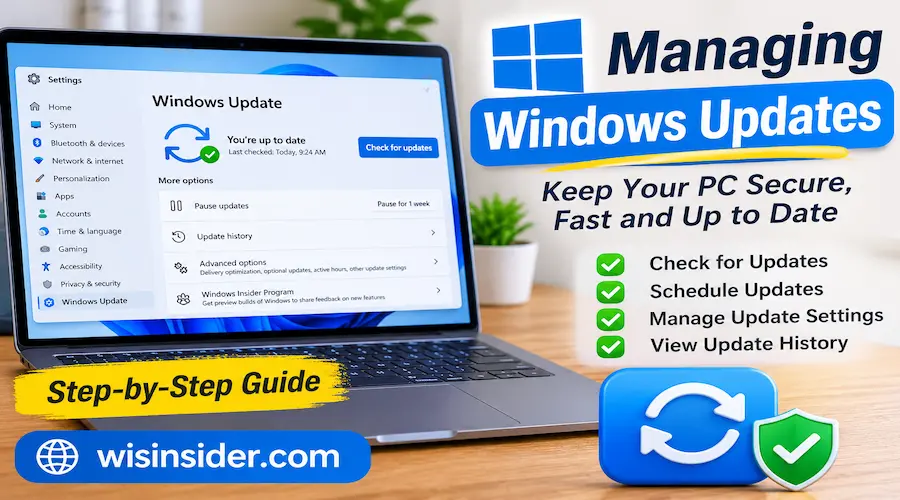
Check for Updates in Windows 11
Follow these steps:
- Open the Start menu.
- Select Settings.
- Choose Windows Update from the sidebar.
- Select Check for updates.
- Allow Windows to search for available updates.
- Review the results and follow the installation instructions.
- Restart your computer if Windows requests it, after saving your work.
Depending on your settings and the update type, Windows may download and install available updates automatically.
Check for Updates in Windows 10
On Windows 10, the process is similar:
- Open the Start menu.
- Select Settings.
- Open Update & Security.
- Choose Windows Update.
- Click Check for updates.
- Install relevant updates and restart when necessary.
Important: Windows 10’s standard support ended on October 14, 2025. Most Windows 10 users no longer receive regular security updates unless they qualify for an applicable Extended Security Updates program or another supported arrangement. If you still use Windows 10, check your device’s eligibility for Windows 11 and review Microsoft’s current support options.
How to Schedule Windows Updates Without Interrupting Your Work
Updates are easier to handle when you plan around them instead of waiting for a restart notification to appear at the worst possible time.
Set Your Active Hours
Active hours tell Windows when you usually use your computer, helping it avoid automatic restarts during those hours when possible.
To configure active hours in Windows 11:
- Open Settings.
- Select Windows Update.
- Open Advanced options.
- Find Active hours.
- Choose the available automatic or manual scheduling option.
- Set a time range that reflects your working routine.
The exact options may vary depending on your Windows version and device configuration.
Use the Pause Updates Option Carefully
Windows provides a temporary option to pause updates. This can be useful when you are traveling, working on a time-sensitive project, or troubleshooting an update-related problem.
To pause updates:
- Open Settings.
- Select Windows Update.
- Find the pause option.
- Choose an available pause period.
Pausing updates should be a temporary measure rather than a permanent security strategy. Once the reason for the pause has passed, resume updates and install the relevant security fixes.
Restart at a Convenient Time
When Windows requires a restart, save open documents and close important applications first. If a restart is necessary during a busy period, use the restart scheduling options available on your device.
Avoid repeatedly delaying security updates without a clear reason. The longer a vulnerable system remains unpatched, the longer it may be exposed to known threats.
Best Practices for Managing Windows Updates
An effective update routine should protect your system while minimizing downtime.
Install Security Updates Promptly
Security fixes should generally receive priority over optional features or cosmetic changes. If Microsoft identifies an actively exploited vulnerability, follow the relevant security guidance and install the applicable update as soon as practical.
For business computers, coordinate installation with your organization’s IT team and patch-management policy.
Back Up Important Files
Before a major feature update, create a backup of important documents, photos, project files, and other irreplaceable information.
You can use an external drive, a reputable cloud backup service, or an approved organizational backup system.
A backup is valuable because updates can occasionally fail or expose existing hardware or software problems. A reliable backup also protects against unrelated issues such as accidental deletion or drive failure.
Keep Enough Storage Available
Windows may need free storage space to download update files, unpack installation packages, and complete the installation process.
If an update fails because of insufficient space, review temporary files and storage usage through Windows Settings. Remove only files you no longer need, and verify the contents of the Recycle Bin before emptying it.
Do not delete unfamiliar system folders manually in an attempt to force an update to install.
Check Application and Hardware Compatibility
Before installing a major Windows release, check whether essential applications, printers, specialist equipment, and business tools are supported.
This is particularly important for computers used in medical environments, manufacturing, design, accounting, or other workplaces that rely on specialized software.
Review Optional Updates Before Installing
Optional updates can include drivers and other components that are not required on every device.
Read the available descriptions and install optional updates when they address a problem you are experiencing or provide a relevant improvement. If a driver is working properly, avoid changing it without a clear reason.
Keep Your Computer Connected to Power
On laptops, connect the charger before starting a lengthy update. A low battery or sudden loss of power during installation can interrupt the process and potentially cause recovery problems.
For desktop computers, avoid restarting or switching off the system while Windows is actively installing updates unless the system is unresponsive and troubleshooting guidance recommends a recovery action.
How to Troubleshoot Common Windows Update Problems
Even when your settings are correct, an update may occasionally fail to download, install, or complete a restart.
The following solutions cover common problems without requiring advanced technical knowledge.
Windows Updates Are Not Downloading
If downloads remain stuck or do not begin, try these checks:
- Confirm that your internet connection is working.
- Restart your router if other online services are also failing.
- Check whether your device has sufficient free storage.
- Restart Windows and check for updates again.
- Review Microsoft’s service status or support guidance if a widespread issue is suspected.
If your device uses a company-managed network, a VPN, or security software, network restrictions may also affect downloads. Do not disable organizational security controls without authorization.
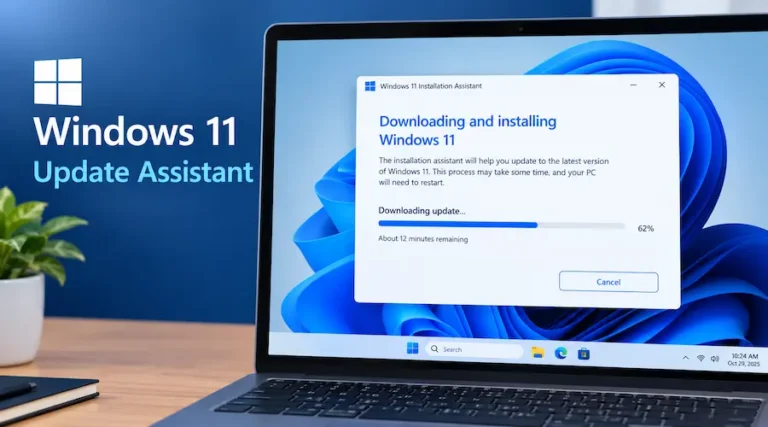
Windows Update Is Stuck at a Percentage
An update can remain at the same percentage for a while, especially when it involves a large download or a complex installation.
First, give the process time to complete. Check whether disk activity or other signs of progress are present if you can do so safely.
If the update remains stuck for an unusually long period, consult the relevant Microsoft troubleshooting instructions for your Windows version. Avoid repeatedly forcing shutdowns during active installation.
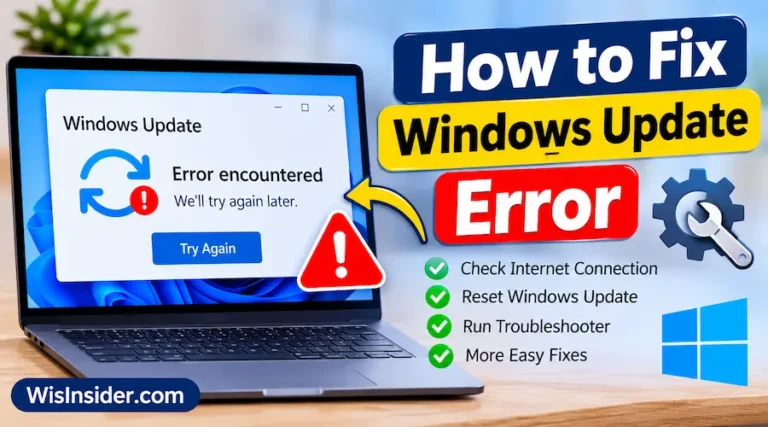
Windows Update Shows an Error Code
An error code provides useful information about what went wrong. Common causes include network interruptions, damaged update components, insufficient storage, or compatibility issues.
To investigate:
- Open Windows Update and record the error code.
- Search Microsoft’s official support documentation for that exact code.
- Follow the troubleshooting steps recommended for your Windows version.
- Restart the computer if instructed.
- Check for updates again.
Recording the code is more useful than trying random commands or deleting system files without understanding the underlying problem.
An Update Fails Repeatedly
If the same update fails several times, check whether Microsoft has documented a known issue affecting your Windows version or hardware.
You can also run the Windows Update troubleshooter if it is available on your system. On Windows 11, look under Settings, then System, then Troubleshoot, followed by Other troubleshooters. Windows 10 provides troubleshooting options under Update & Security, then Troubleshoot, although the exact interface can vary.
If these steps do not resolve the issue, use Microsoft’s official guidance before attempting more advanced repairs.
Should You Install Windows Updates Immediately?
The answer depends on the update type and the situation.
Security updates addressing serious vulnerabilities generally deserve prompt installation. For feature updates, organizations and users with specialized software may benefit from checking compatibility information before proceeding.
A balanced approach to managing Windows updates is to distinguish urgent security fixes from optional changes that can be evaluated more carefully.
Home users should generally keep automatic updates enabled and install relevant security updates promptly. Businesses may use managed deployment policies to test updates on a small group of devices before rolling them out more widely.
However, testing should not become an excuse to leave critical vulnerabilities unaddressed. The appropriate balance depends on the severity of the security issue, the availability of mitigations, and the potential impact on essential systems.
Windows Update Settings for Home Users and Businesses
Different users have different update requirements.
Home Users
For a typical home computer, a straightforward approach works well:
- Keep automatic updates enabled.
- Set active hours to match your daily routine.
- Back up important files.
- Install security updates promptly.
- Review major upgrades before installing them if compatibility is a concern.
Most home users do not need complicated update-management tools.
Small Businesses
Small businesses often need to protect several computers while minimizing disruption.
Useful practices include maintaining an inventory of devices, identifying critical applications, testing major updates on a limited number of computers, and scheduling installations outside peak working hours.
Businesses should also maintain recovery plans and confirm that important data is backed up. For organizations with managed Windows devices, Microsoft provides tools and policies for controlling deployment and compliance.
IT Administrators
IT teams may use Windows Update for Business policies, Microsoft Intune, Windows Server Update Services where appropriate, or other supported endpoint-management solutions.
These tools can help administrators control deployment timing, manage device groups, monitor compliance, and coordinate updates across larger environments.
The correct solution depends on licensing, infrastructure, device configuration, and the organization’s security requirements.
Can You Uninstall a Windows Update?
In certain situations, Windows allows users to uninstall a recently installed update. This may help if a specific update appears to have caused a serious compatibility problem.
However, uninstalling a security update can expose your computer to vulnerabilities that the update was intended to fix. Use this option only when there is a clear reason and an appropriate recovery plan.
On supported versions of Windows 11, you can generally review installed updates under Settings, Windows Update, and Update history. The available uninstall options depend on the update type and system configuration.
If Windows cannot start normally after an update, Windows Recovery Environment may provide options to uninstall recent quality or feature updates. Follow Microsoft’s recovery instructions carefully, especially on a work-managed device.
Before removing an update, consider whether a newer corrective update or a supported driver rollback would resolve the issue more safely.
FAQs
How often should I check for Windows updates?
Windows can automatically check for and install updates according to its settings and the update’s release schedule. You can also check manually whenever you suspect an update is missing or want to review available installations.
Is it safe to pause Windows updates?
Pausing updates temporarily can be useful when you need to avoid an interruption. However, extended pauses may leave your computer without important security fixes. Resume updates as soon as practical, particularly when security vulnerabilities are involved.
Why does Windows need to restart after an update?
Some updates replace files or modify system components that are in use while Windows is running. A restart allows the operating system to complete those changes safely.
Save your work before restarting and avoid interrupting an active installation.
Can Windows updates slow down my computer?
Updates can temporarily use processing power, memory, disk activity, and network bandwidth. On older computers, you may notice reduced responsiveness during installation.
Should I install optional driver updates?
Not always. Optional driver updates can resolve specific hardware problems or improve compatibility, but they are not necessary for every computer.
What should I do if a Windows update fails?
Start by recording the error code, checking your internet connection and available storage, and restarting the computer if it is safe to do so. Then use the official Microsoft troubleshooting guidance for that error and your Windows version.
Does Windows 10 still receive updates?
Standard Windows 10 support ended on October 14, 2025. Continued security coverage depends on whether the device is enrolled in an applicable Extended Security Updates program or has another supported arrangement.
Conclusion
A reliable update routine helps protect your computer, resolve known software issues, and reduce unexpected interruptions. By understanding update types, scheduling installations, maintaining backups, checking compatibility, and troubleshooting errors carefully, you can keep your system in better condition without making updates unnecessarily complicated.
Managing Windows updates effectively means finding the right balance between security, convenience, and system stability. Keep automatic updates enabled where appropriate, prioritize important security fixes, and review major changes before deploying them across essential devices.
Whether you use one personal computer or manage dozens of business systems, a consistent update strategy can make maintenance easier and help you avoid preventable problems. Start with the built-in Windows Update settings, follow official Microsoft guidance when errors occur, and keep your operating system within its supported lifecycle.